Minecraft Command Block Tutorial: Useful Commands for Builders
Command blocks are one of the most powerful tools in Minecraft for builders who want to speed up their workflow, create custom effects, or automate repetitive tasks. Whether you're decorating, testing builds, or running a creative server, these blocks let you execute commands instantly without typing them manually. I'll walk you through the commands that actually matter for building, not the esoteric admin stuff.
What Command Blocks Do
Think of a command block as a redstone-powered executor. You give it a command, power it with redstone, and it fires. That's the basic mechanic. Unlike typing commands in chat, command blocks let you trigger them repeatedly, chain them together, and integrate them with your builds in ways that feel almost magical when they work.
Are they essential? No. Can they save hours of tedious work? Absolutely.
I've used command blocks on my SMP server for everything from filling hollow structures with blocks to testing custom NPCs. The learning curve looks steeper than it actually is. Once you grasp a few core commands, most of the rest clicks into place.
Getting Your First Command Block
You'll need Creative mode or operator permissions. Get the block from the creative inventory (search "command") or type /give @s command_block. Place it down, right-click it, and you'll see a text box. This is where the magic happens.
There are actually three types: Command Blocks (unpowered, runs once per pulse), Repeating Command Blocks (runs every tick), and Chain Command Blocks (runs when powered by another command block). Most builders use the standard one. Repeating blocks drain resources fast if you're not careful, so start with the basic version.
Set it to "Always Active" if you want it to run whenever the chunk loads. Otherwise, it'll need a redstone pulse each time.
The Command Block Commands That Matter for Builders
Fill and Clone Commands
These are your workhorses. /fill replaces blocks in a rectangular area instantly. Example: /fill ~5 ~0 ~5 ~-5 ~5 ~-5 glass replace air fills a 10x10x5 area with glass, but only where there's air. This saves hours when building large structures.
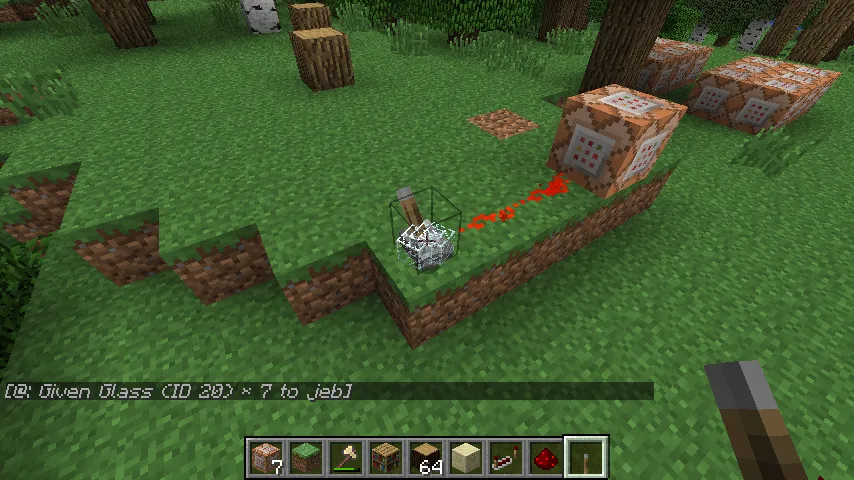
/clone is your copy-paste button. And it duplicates a structure from one location to another without needing to place each block manually. I used this to mirror an entire wing of a building on my server. One command, two seconds.
Setblock for Precision Placement
Want to place a single block at exact coordinates? /setblock ~ ~1 ~ oak_wood places an oak log directly above you. It's less dramatic than fill, but it's perfect for custom structures where you need exact positioning. You can also add rotation and other properties to blocks that support them.
Particle Effects for Atmosphere
/particle flame ~ ~2 ~ 0.5 0.5 0.5 0.1 10 creates a flame particle effect above your location. There are dozens of particle types (smoke, dust, enchant, soul_fire_flame). Builders use these to mark areas, create portals, or add visual flair to decorative structures. It's not essential, but it looks polished.
Give and Item Manipulation
Sometimes builders need to test with specific items or setup a structure for later use. /give @s diamond_pickaxe{Enchantments:[{id:"minecraft:efficiency",lvl:5}]} gives you an enchanted pickaxe instantly. This saves time when testing builds or prepping materials.
Practical Builder Workflows
Here's where command blocks actually become useful instead of just cool. Say you're building a large megastructure that requires blocks placed at regular intervals. Instead of placing thousands manually, you can use a command block with the right coordinates, trigger it a few times, and it's done.
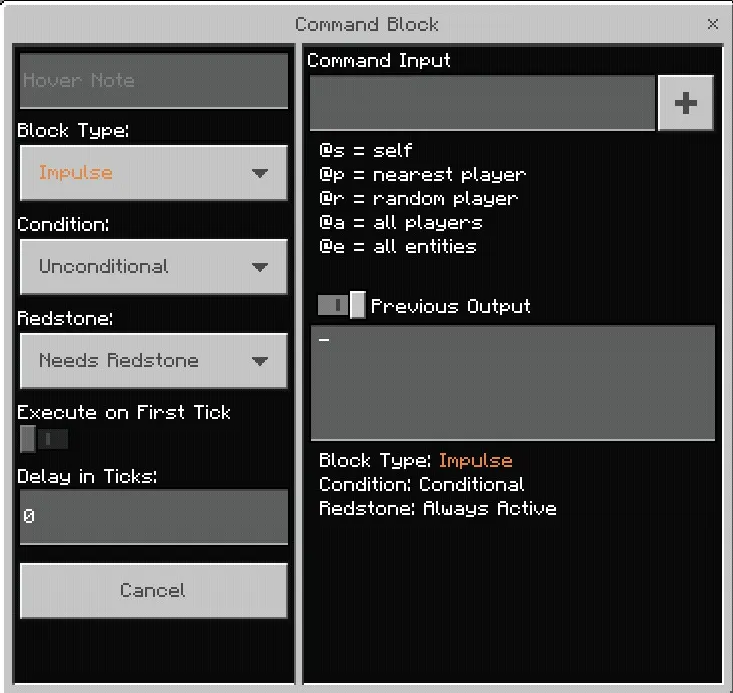
Another case: you're designing a house and want to test multiple block types quickly. Put a few setblock commands in chain command blocks and trigger them all at once. Swap materials in seconds instead of minutes.
On our server, we used fill commands to quickly create custom terrain for new player buildings. Time that would've taken an hour with manual placement took five minutes. And we could duplicate it exactly across multiple areas.
Common Mistakes Builders Make
Forgetting that coordinates are relative to the command block unless you use absolute coordinates (without the tilde).
Not testing commands in a small area first. I've seen people accidentally fill entire chunks with sand. It's fixable, but annoying (actually, that's not quite right for multiplayer servers where it'll lag like crazy).
Chaining too many command blocks together without understanding the tick delay. Here's the thing, they execute in order very fast, but there are limits. Spacing them out or adding redstone delays helps if you need precise timing.
Using outdated command syntax. Minecraft updates these regularly. If you find an old tutorial, the syntax might be wrong for version 26.2. Check the Minecraft Wiki or test in a creative world first.
Where to Find Inspiration and Tools
Building communities on Reddit and Discord constantly share command block setups. Most of the advanced tutorials are just variations of the core commands I've mentioned, applied creatively.
If you're running a server and want to set up command blocks for other players, the Server Properties Generator will help you configure permissions correctly. Check our Minecraft Server List to see how other servers handle builder tools and creative modes.
Practice is honestly the best teacher here. Start with fill, test it in a small area, then experiment with clone. Once those feel natural, the rest follows.
Is It Worth Learning?
If you build regularly, yes. If you only build occasionally, maybe not. Command blocks pay off most when you're doing repetitive work or managing a server where builders need shortcuts. Solo creative builders might never need them.
That said, there's something satisfying about executing a complex fill command and watching your structure materialize instantly. You'll probably end up using them more than you initially planned.

Lead writer at minecraft.how. Long-time Minecraft player running a small SMP server, testing every build, mod, and seed before writing about it.
Frequently Asked Questions
How do I get a command block in Minecraft?
What's the difference between regular and repeating command blocks?
How do relative coordinates work in command blocks?
Can I use command blocks to copy and paste large buildings?
What's the easiest command block command for beginners to start with?
Have a Question or Tip about this Guide?Community Q&A
Ask a question or help other players below. Join the discussion and share your Minecraft tips!
Comments
No comments yet. Be the first to share your thoughts!