Minecraft How to Change Skin on Java, Bedrock, and Console

To change your skin in Minecraft, upload a PNG skin file in the Minecraft Launcher for Java, or pick and import one from the Dressing Room in Bedrock. Console players can usually swap from the profile menu, but custom uploads depend on platform rules.
Minecraft how to change skin on Java Edition
Java is still the easy one. Mojang's own skin explainer walks through the same launcher flow players have used for a while, and that part hasn't been shaken up by newer updates.
- Open the Minecraft Launcher.
- Select Minecraft: Java Edition in the left menu.
- Open the Skins tab.
- Click New Skin.
- Name it, choose Classic or Slim, then browse to your PNG file.
- Click Save and Use.
Older guides still send people to account pages or ancient website menus. You can ignore most of that. In 2026, the launcher route is the cleanest one, and clean menu logic is rare enough in games that it deserves a little respect.
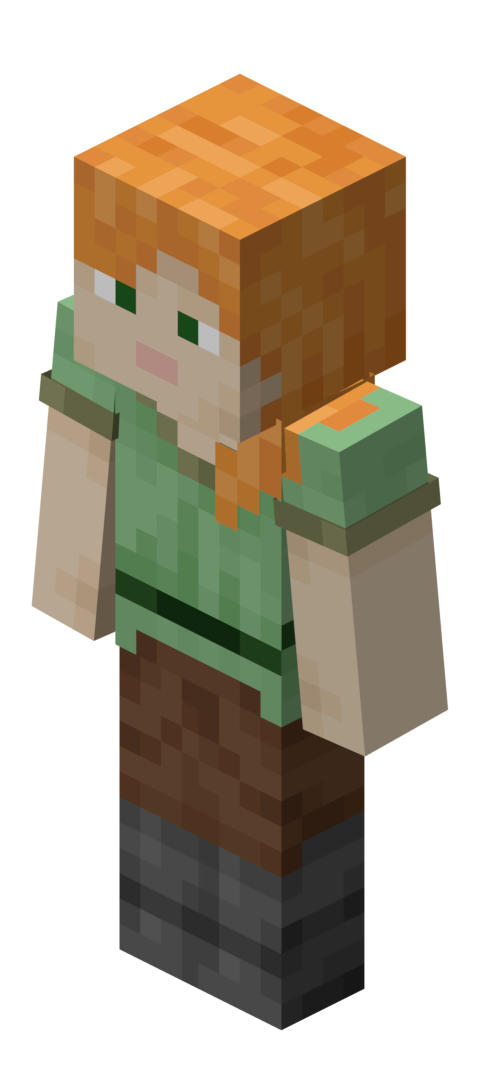
The part people get wrong is the model choice. Classic has four-pixel arms. Slim has the narrower Alex-style arms. Pick the wrong one and your hoodie sleeves look like they lost a fight with a lawnmower.
I tested this flow on a current launcher build and it still updates cleanly before you enter a world. If you're already logged into a server, leave and rejoin after changing it. Hypixel, private SMPs, random modpack servers, they all love caching your old face for a minute like it's precious archival material.
And yes, a plain PNG is still the safe bet. If the upload button refuses to cooperate, the file itself is usually the issue, not your account. Keep a backup of the working file too, because future you'll absolutely forget which version was the good one.
How to change your skin in Bedrock Edition
Bedrock is more flexible and more annoying, which is a very Bedrock sentence.
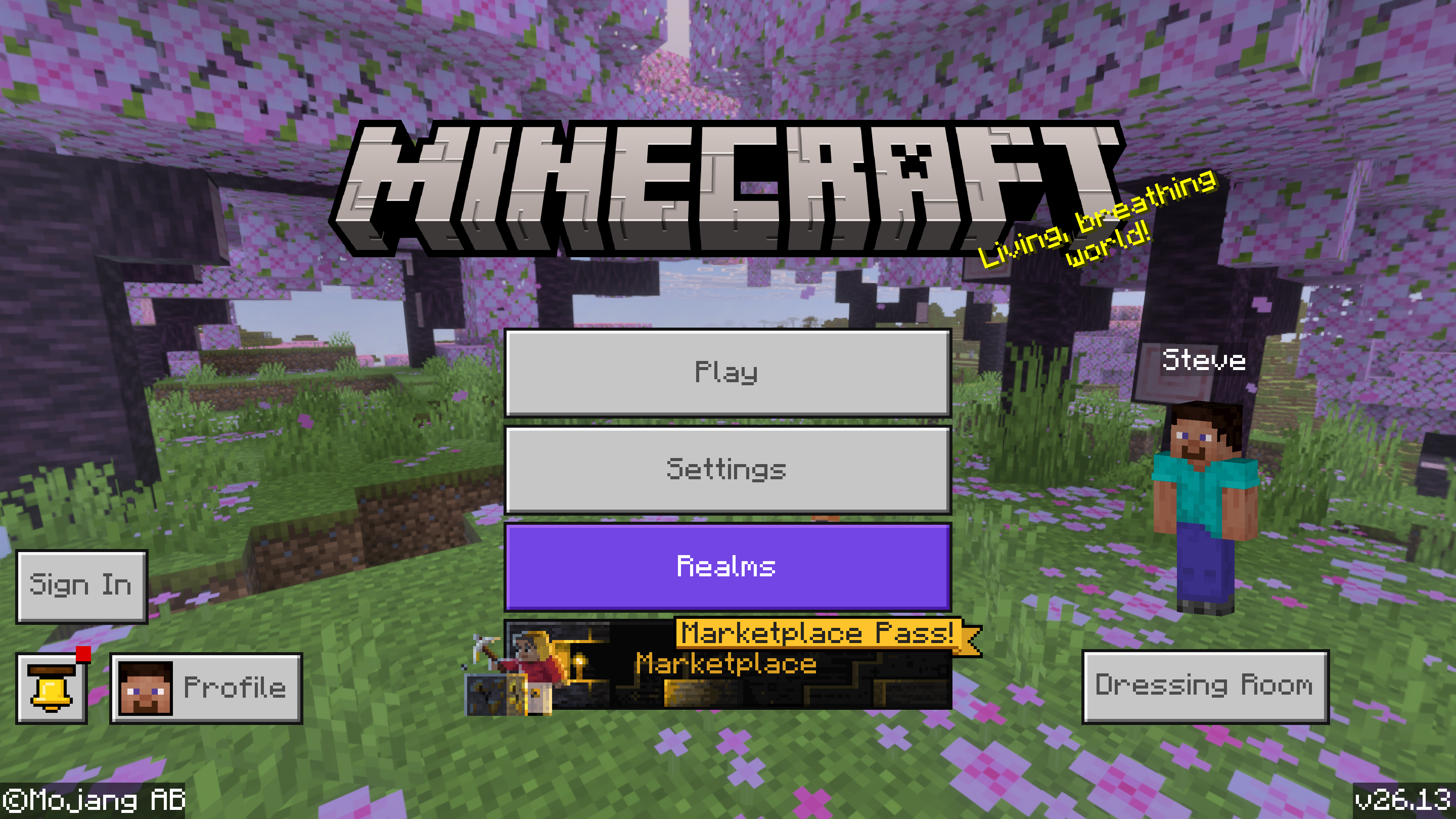
From the start screen, open Dressing Room. Then pick an existing character slot or create a new one. Minecraft's official guide splits this into two routes: Character, where you build a look piece by piece, and Classic Skin, where you use a normal skin file or an owned skin pack.
Using Character Creator
If you just want a quick change and don't care about uploading a custom file, this is the simplest route. Choose a base skin, tweak hair, eyes, clothing, accessories, and save it. Bedrock gives you five character slots, which is genuinely useful if one day you're doing serious survival and the next day you're dressed like a neon goblin on a Realm.
Marketplace skins also live here. Some are paid, some are free, and some look like they were designed by a committee that had never seen daylight. Mixed bag. But easy to swap.
If you want a very exact design, like a hoodie with custom shading or a server uniform, Classic Skin is usually the better choice. Character Creator is fun, but it can feel a little too polished when you're aiming for a specific pixel-art look.
Importing a custom skin on Bedrock
This is the bit that trips people up, because Bedrock support depends on the device. The Character Creator FAQ still says custom skin importing works on Windows and mobile, while consoles don't get the same freedom.
- Open Dressing Room.
- Go to your character and choose Classic Skin.
- Open the Owned area, then choose Import or Choose New Skin.
- Select your PNG file and confirm the model type.
- Save the character slot.
Small caveat, actually that's not quite right for all of Bedrock. Your character slots and Creator items can follow your account, but custom PNG skins generally do not sync neatly between Bedrock devices. If you use the same account on PC and phone, you may need to import the file on each device separately. Annoying, yes. New, not even slightly.
Can you change skins on PS5, Xbox, Switch, and mobile?
Short version: mobile, yes. console, sort of.
On iPhone, iPad, and Android, Bedrock lets you change skins through Dressing Room just like Windows does, including custom classic skin imports. That's the easiest portable setup right now. I still keep a test skin on my phone for quick Realm checks because it beats digging through folders on a desktop when all I want is to stop looking like Steve again.
Consoles are different. You can absolutely change your skin on PS5, PS4, Xbox, and Switch, but you're usually choosing from default skins, owned packs, or Character Creator items. As of 2026, the official FAQ still says Mojang has no plans for custom skin importing on consoles. So if you're hunting for a hidden PNG upload button on Switch, stop. That rabbit hole only leads to forum posts and disappointment.
Back in 2024, The Loadout reported on Mojang testing a native PS5 version. Helpful for performance, sure. But better console support never automatically meant open custom skin uploads. Hardware gets faster, menus get shinier, and the skin restriction stays sat there like a very stubborn cow.
And yes, you'll still find old posts claiming there are workarounds through linked devices or imported profiles. Some half-worked in older Bedrock builds, some broke, and none are reliable enough for a straight guide. If you need a custom PNG every day, console is the wrong battlefield.
PCGamesN has tracked Mojang's newer drop schedule, and that's the funny part: Minecraft can get fresh content every few months, yet the rules for who can import a skin are still old-school. Fancy update cadence, same wardrobe gatekeeper.
Why your Minecraft skin won't update
This is where most it-doesn't-work complaints live, and fair enough, because Minecraft loves hiding a simple problem behind vague menus.
- You picked the wrong model. Slim skin on Classic body, or the other way around, causes weird arms and broken-looking layers.
- Your PNG is bad. Corrupt export, odd dimensions, or a file that isn't really a skin template will fail or look scrambled.
- The game cached your old look. Leave the world, relaunch the game, or sign out and back in.
- You're on console. If the goal is importing a custom file, that isn't a bug, it's the platform limit.
- Bedrock didn't sync it. Custom classic skins often stay local to the device where you imported them.
One more thing: server-side cosmetics can interfere. Some minigame networks replace your appearance in lobbies, and a few family-friendly servers strip custom skins entirely. If everyone else sees Steve while your own screen looks fine, check the server rules before you start blaming your file.
I also still see players confuse Classic Skin with Character Creator. They're not the same system. A classic skin is your flat skin file. Character Creator is the modular wardrobe with items, colors, and accessories. You can't assume a hat or animated jacket from Creator mode will carry over to a custom PNG skin, because Bedrock really enjoys making you pick one lane.
One annoying Java-specific issue is local expectations versus multiplayer reality. Your launcher can show the new skin immediately, while a busy server still shows the old one for a bit. That's usually cache delay, not failure. Give it a minute before you start re-uploading the same file six times in a row. We've all done it. It never helps.
Offline play can be weird too. Java usually behaves once the skin is attached in the launcher, but Bedrock has a long history of being fussier with custom skins when accounts or devices aren't fully synced. Not glamorous advice, I know, yet a restart still fixes more Minecraft problems than half the internet wants to admit.
Where to get a new Minecraft skin before you switch
Half the battle isn't changing the skin. It's picking one and not regretting it five minutes later.
If you want something eerie or story-heavy, the Changeling Minecraft skin has that shapeshifter vibe that fits dark fantasy builds nicely. The AfterChange Minecraft skin leans more mysterious survivor, which works absurdly well in ruined-city maps and apocalypse roleplay.
Going brighter? The ArchAngel Minecraft skin looks great in sky builds, and the Archangelfairy Minecraft skin is softer without becoming bland, which is harder to pull off than people think. Then there's the chumpchange Minecraft skin, a name so chaotic it practically guarantees someone on your server will ask about it.
For a wider search, Browse All Minecraft Skins if you want the big catalog, or Browse Minecraft Skins if you're already in comparison mode and just need a better option than the default crowd. Try a few, keep backups, and remember that armor hides half your masterpiece anyway. Tragic, but true.
A quick practical tip: keep the downloaded file names readable. archangel-final-final-actuallyfinal.png is funny until you upload the wrong one before a group screenshot. Then it's just evidence.
My rule is simple: test a skin in daylight, in shadows, and while wearing iron armor. If it still reads clearly, keep it. If the face vanishes every time you step into a spruce forest, maybe don't build your whole identity around it.
The fastest way to change skin without overthinking it
If you're on Java, use the launcher. If you're on Bedrock mobile or Windows, use Dressing Room and import the PNG. If you're on console, use the skins and creator items the platform actually allows.
That's really it.
The messy part isn't the button clicks. It's knowing which version of Minecraft is willing to cooperate. Once you've got that straight, changing skins takes about a minute, and you can get back to more urgent problems, like explaining why your storage room somehow turned into another chest monster.