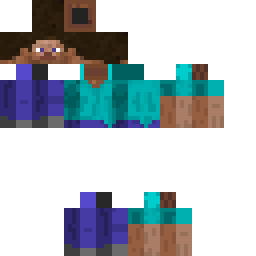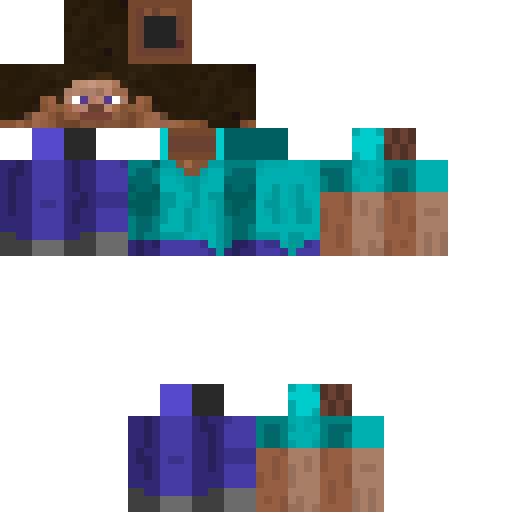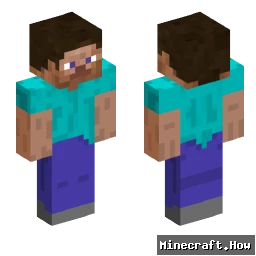
V0LTzRec0ver_ Minecraft Skin
✓ Approved
Skin for V0LTzRec0ver_
0
Downloads
41
Views
Minecraft profile
c29f6415-2f01-3b8e-a975-c51e4cc55769Model
classic
Views / 30 days
24
Observed names
Dates show when minecraft.how first observed each name.
V0LTzRec0ver_—
Skin history
History grows as minecraft.how observes profile changes.

Head command
/give @p minecraft:player_head[profile={name:"V0LTzRec0ver_"}]Users with Same Texture (51 total)
51
Total Users
415.5K
Combined Views
313
Combined Downloads
 Fox Kawe
403.1K views305 downloads
 zVitih
510 views2 downloads
 Lana dress to impress
 490 views2 downloads
 Red skin
480 views1 downloads
 Fox Kawe Skin
471 views2 downloads
 MrSonderan
447 views0 downloads
 Sonderan
444 views1 downloads
 Inshgi I in I i
375 views0 downloads
 WilburSoots4881
287 views0 downloads
 FLAMEFRAGS___123
272 views0 downloads
 Fundy3
259 views0 downloads
 Wemmbouz
252 views0 downloads
 KikusKristi
247 views0 downloads
 shivang_gamer
240 views0 downloads
 Tiger_X
231 views0 downloads
 BadBoyHaloNot
230 views0 downloads
 Proboiz95gamerr
227 views0 downloads
 suitsune
227 views0 downloads
 rezenss
225 views0 downloads
 TigerStrix
225 views0 downloads
 PSD15
PSD15225 views0 downloads
 Vingent
223 views0 downloads
 Danjijs
222 views0 downloads
 robot_2003
216 views0 downloads
 Eloki
Eloki214 views0 downloads
 VillagrBigBrain
212 views0 downloads
 ProfessorShan
212 views0 downloads
 Lilbozo
212 views0 downloads
 Angelo
211 views0 downloads
 Dvstt
Dvstt211 views0 downloads
 Lelouch
210 views0 downloads
 Futbolistale
210 views0 downloads
 Shivang_YT
210 views0 downloads
 Minsqa
208 views0 downloads
 Auralein
208 views0 downloads
 spaykou
208 views0 downloads
 lifese
207 views0 downloads
 Shady
Shady206 views0 downloads
 dvse
dvse204 views0 downloads
 ArabStallion
203 views0 downloads
 Waidelos
203 views0 downloads
 IslandBoyy
202 views0 downloads
 CountryGamingYT
201 views0 downloads
 Gardien95
198 views0 downloads
 yusuftekogluu1
198 views0 downloads
 Minecraft676
196 views0 downloads
 Asulaar
193 views0 downloads
 JosephName
191 views0 downloads
 borol
borol191 views0 downloads
 TigerNoises
188 views0 downloads
PNG · 64×64
Share this skin
Scan with your phone to share this skin
Tags
MinecraftSkinsV0LTzRec0ver_
Frequently Asked Questions
To download the V0LTzRec0ver_ Minecraft skin:
- Click the "Download" button to get this free V0LTzRec0ver_ skin
- The skin file
.pngwill be saved to your device - Works with both Java Edition and Bedrock Edition
- See below for complete installation instructions
To apply the V0LTzRec0ver_ skin:
- Log in to your Mojang or Microsoft account on the official Minecraft website.
- Navigate to the "Skins" section in your profile.
- Upload the downloaded
.pngfile. - Launch Minecraft, and your character will now use the V0LTzRec0ver_ skin.
Note: The process may vary slightly between Minecraft Java Edition and Minecraft Bedrock Edition.
Yes, the V0LTzRec0ver_ skin is compatible with both Minecraft Java Edition and Minecraft Bedrock Edition. However, the method of applying the skin may differ slightly between the two versions. Follow the instructions provided on this page for your specific edition.
Absolutely! You can edit the V0LTzRec0ver_ skin using a Minecraft skin editor. Simply open the downloaded
.png file in the editor, make your changes, and save the file. Then, upload the edited skin to your Minecraft profile.If the V0LTzRec0ver_ skin isn't working, try the following:
- Ensure you downloaded the correct file format
.png. - Make sure you're using the correct version of Minecraft Java Edition or Bedrock Edition.
- Check that the skin file is not corrupted. Re-download the skin if necessary.
- Log out and back into your Mojang or Microsoft account to refresh your profile.
Create your own skin
Draw a pixel-perfect Minecraft skin in the browser with our free 3D skin editor.
→ Skin Creator