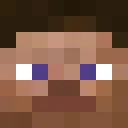
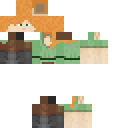
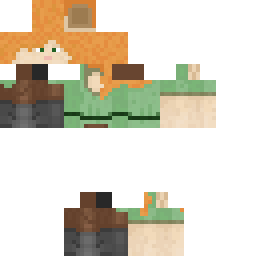
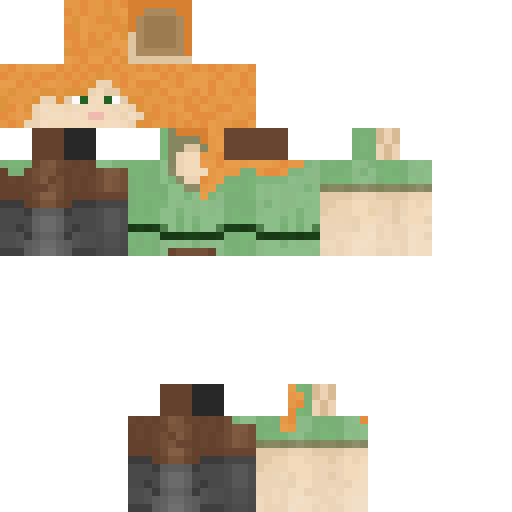
AzureAbyss Minecraft Skin
✓ Approved
Skin for AzureAbyss
0
Downloads
126
Views
0
Likes
Reactions
Log in to react.
Minecraft profile
770de33b-bb28-4581-a38a-51ee58435636Model
classic
Views / 30 days
0
Observed names
Dates show when minecraft.how first observed each name.
AzureAbyss—
Skin history
History grows as minecraft.how observes profile changes.

Head command
/give @p minecraft:player_head[profile={name:"AzureAbyss"}]Users with Same Texture (51 total)
51
Total Users
10.6K
Combined Views
0
Combined Downloads
 livicc
4.1K views0 downloads
 Timbimboom
158 views0 downloads
 myronlojm
156 views0 downloads
 Katabug66
149 views0 downloads
 MajinZer0
148 views0 downloads
 DChem
DChem147 views0 downloads
 Isul89
145 views0 downloads
 NeededArtist781
144 views0 downloads
 zyzy555
143 views0 downloads
 Dnwr1
Dnwr1143 views0 downloads
 MouGouu
141 views0 downloads
 yvonmoreau
141 views0 downloads
 HOLAPAA
140 views0 downloads
 F34rless9927
140 views0 downloads
 Sythn_Attack
135 views0 downloads
 Cameron77546
134 views0 downloads
 Pickles69420
134 views0 downloads
 _Fixi
_Fixi134 views0 downloads
 ParkTaenggul
133 views0 downloads
 SquigglyNest412
132 views0 downloads
 callumbrack06
130 views0 downloads
 Afad0557
129 views0 downloads
 KeyFeline683805
129 views0 downloads
 dynemytePro889
128 views0 downloads
 ClownishOyster
128 views0 downloads
 dish_water
126 views0 downloads
 Linus1208DK
126 views0 downloads
 redstonecold2
126 views0 downloads
 Not_Ashton
125 views0 downloads
 Mashu_74
124 views0 downloads
 PrimeKoalaa
124 views0 downloads
 scio_nihil_
123 views0 downloads
 smart__boi
122 views0 downloads
 jonny39
122 views0 downloads
 Underaider
122 views0 downloads
 AshWitch
121 views0 downloads
 xlmFamous
120 views0 downloads
 HectorRizz
119 views0 downloads
 caminion77
119 views0 downloads
 coco587
119 views0 downloads
 19dx
19dx119 views0 downloads
 jokazzl
119 views0 downloads
 DylanRocks94
118 views0 downloads
 Phasmatic7
117 views0 downloads
 panxdu
116 views0 downloads
 GhoastCat
114 views0 downloads
 edsonefanoff
114 views0 downloads
 Sheerberry
113 views0 downloads
 aquadoesthings
112 views0 downloads
 quackywill
110 views0 downloads
PNG · 64×64
Share this skin
Scan with your phone to share this skin
Tags
MinecraftSkinsAzureAbyss
Frequently Asked Questions
To download the AzureAbyss Minecraft skin:
- Click the "Download" button to get this free AzureAbyss skin
- The skin file
.pngwill be saved to your device - Works with both Java Edition and Bedrock Edition
- See below for complete installation instructions
To apply the AzureAbyss skin:
- Log in to your Mojang or Microsoft account on the official Minecraft website.
- Navigate to the "Skins" section in your profile.
- Upload the downloaded
.pngfile. - Launch Minecraft, and your character will now use the AzureAbyss skin.
Note: The process may vary slightly between Minecraft Java Edition and Minecraft Bedrock Edition.
Yes, the AzureAbyss skin is compatible with both Minecraft Java Edition and Minecraft Bedrock Edition. However, the method of applying the skin may differ slightly between the two versions. Follow the instructions provided on this page for your specific edition.
Absolutely! You can edit the AzureAbyss skin using a Minecraft skin editor. Simply open the downloaded
.png file in the editor, make your changes, and save the file. Then, upload the edited skin to your Minecraft profile.If the AzureAbyss skin isn't working, try the following:
- Ensure you downloaded the correct file format
.png. - Make sure you're using the correct version of Minecraft Java Edition or Bedrock Edition.
- Check that the skin file is not corrupted. Re-download the skin if necessary.
- Log out and back into your Mojang or Microsoft account to refresh your profile.
Create your own skin
Draw a pixel-perfect Minecraft skin in the browser with our free 3D skin editor.
→ Skin Creator