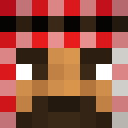
MTG__
✓ Approved
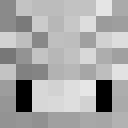
Minecraft skin for player MTG__
0
Downloads
427
Views
0
Likes
Users with Same Texture (38 total)
38
Total Users
12.6K
Combined Views
0
Combined Downloads
 neymarwouldnever
505 views0 downloads
 PekkaE342
467 views0 downloads
 peter_parker_v
458 views0 downloads
 JOHNWICK5513
444 views0 downloads
 Banana_cat777
444 views0 downloads
 sssua25
437 views0 downloads
 Colegrey
432 views0 downloads
 pkmn2021
429 views0 downloads
 BlackCatClaws
421 views0 downloads
 GeorgeNotFoundGG
412 views0 downloads
 Jujutsu_KaisenOT
409 views0 downloads
 Deutchwar
383 views0 downloads
 catblack08
382 views0 downloads
 Super_Saiyan_13
376 views0 downloads
 brunettebarbie1
362 views0 downloads
 ItzRealMe0
346 views0 downloads
 Among_us07
345 views0 downloads
 Legacyed
334 views0 downloads
 Atrotimer99
317 views0 downloads
 HitlarIncarnate
310 views0 downloads
 Koberamen8
302 views0 downloads
 Iron_Man_67
296 views0 downloads
 Hoddie28
265 views0 downloads
 cookie_monster45
262 views0 downloads
 a39211s
261 views0 downloads
 Scientist_kitcat
260 views0 downloads
 Lord_Duck_187
260 views0 downloads
 BoByx09
259 views0 downloads
 eYeSnowie
258 views0 downloads
 CameraMAN9115
257 views0 downloads
 DonaldTrump67
254 views0 downloads
 chad_norfork
242 views0 downloads
 SmurfCatChud
221 views0 downloads
 gtasa5
210 views0 downloads
 Viejas_Locas
210 views0 downloads
 castlebuilder11
202 views0 downloads
 bluecrown3786
179 views0 downloads
skins.download_format
Share this skin
Scan with your phone to share this skin
Tags
MinecraftSkinsMTG__
Frequently Asked Questions
To download the MTG__ Minecraft skin:
- Click the "Download" button to get this free MTG__ skin
- The skin file
.pngwill be saved to your device - Works with both Java Edition and Bedrock Edition
- See below for complete installation instructions
To apply the MTG__ skin:
- Log in to your Mojang or Microsoft account on the official Minecraft website.
- Navigate to the "Skins" section in your profile.
- Upload the downloaded
.pngfile. - Launch Minecraft, and your character will now use the MTG__ skin.
Note: The process may vary slightly between Minecraft Java Edition and Minecraft Bedrock Edition.
Yes, the MTG__ skin is compatible with both Minecraft Java Edition and Minecraft Bedrock Edition. However, the method of applying the skin may differ slightly between the two versions. Follow the instructions provided on this page for your specific edition.
Absolutely! You can edit the MTG__ skin using a Minecraft skin editor. Simply open the downloaded
.png file in the editor, make your changes, and save the file. Then, upload the edited skin to your Minecraft profile.If the MTG__ skin isn't working, try the following:
- Ensure you downloaded the correct file format
.png. - Make sure you're using the correct version of Minecraft Java Edition or Bedrock Edition.
- Check that the skin file is not corrupted. Re-download the skin if necessary.
- Log out and back into your Mojang or Microsoft account to refresh your profile.
Create your own skin
Draw a pixel-perfect Minecraft skin in the browser with our free 3D skin editor.
→ Skin Creator