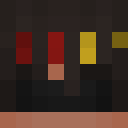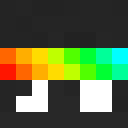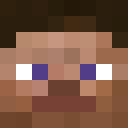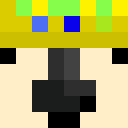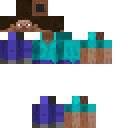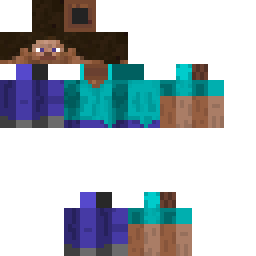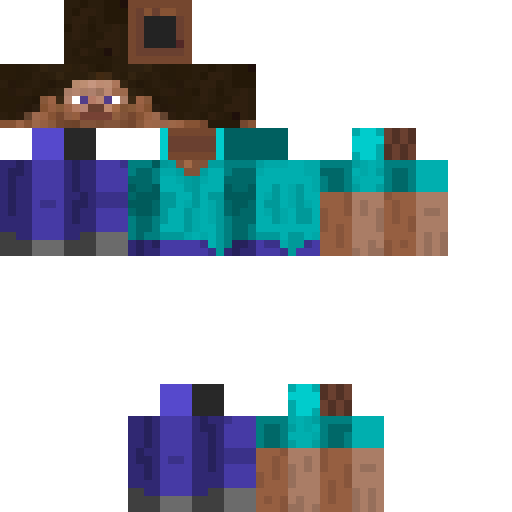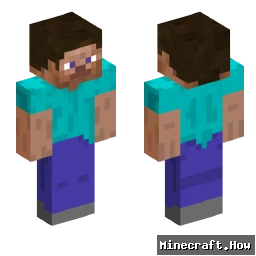
Tomstar10 Minecraft Skin
✓ Approved
Minecraft skin for player Tomstar10
0
Downloads
122
Views
Minecraft profile
7df42e4f-61e9-44a2-a6fc-592b6b7a4b41Model
classic
Views / 30 days
109
Observed names
Dates show when minecraft.how first observed each name.
Tomstar10—
Skin history
History grows as minecraft.how observes profile changes.

Head command
/give @p minecraft:player_head[profile={name:"Tomstar10"}]Users with Same Texture (26 total)
26
Total Users
14.6K
Combined Views
0
Combined Downloads
 leagueleader
11.6K views0 downloads
 white_haired
145 views0 downloads
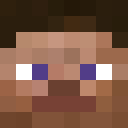 Meliodas37
145 views0 downloads
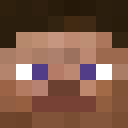 RedEyes1375
132 views0 downloads
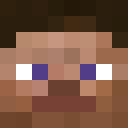 GitanoPeuvePe
129 views0 downloads
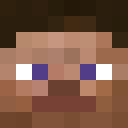 iron_man5160
127 views0 downloads
 VillagersForLife
124 views0 downloads
 bizarrealexisgay
124 views0 downloads
 hokagekakashi
122 views0 downloads
 BlazeMind
121 views0 downloads
 GTASA
GTASA121 views0 downloads
 Ice_Boy
119 views0 downloads
 akutagawaryu
119 views0 downloads
 slayer_demon64
118 views0 downloads
 LadyBug2022
118 views0 downloads
 MilosRicardo
116 views0 downloads
 chiefmaster2721
116 views0 downloads
 Hasbulla4
115 views0 downloads
 Among
Among114 views0 downloads
 AshKetchumNub
113 views0 downloads
 ItzRealMe3
113 views0 downloads
 JotaroDoForrokkk
109 views0 downloads
 poterboker
109 views0 downloads
 BlackHairyMonkey
105 views0 downloads
 Arlequing
105 views0 downloads
PNG · 64×64
Share this skin
Scan with your phone to share this skin
Tags
MinecraftSkinsTomstar10
Frequently Asked Questions
To download the Tomstar10 Minecraft skin:
- Click the "Download" button to get this free Tomstar10 skin
- The skin file
.pngwill be saved to your device - Works with both Java Edition and Bedrock Edition
- See below for complete installation instructions
To apply the Tomstar10 skin:
- Log in to your Mojang or Microsoft account on the official Minecraft website.
- Navigate to the "Skins" section in your profile.
- Upload the downloaded
.pngfile. - Launch Minecraft, and your character will now use the Tomstar10 skin.
Note: The process may vary slightly between Minecraft Java Edition and Minecraft Bedrock Edition.
Yes, the Tomstar10 skin is compatible with both Minecraft Java Edition and Minecraft Bedrock Edition. However, the method of applying the skin may differ slightly between the two versions. Follow the instructions provided on this page for your specific edition.
Absolutely! You can edit the Tomstar10 skin using a Minecraft skin editor. Simply open the downloaded
.png file in the editor, make your changes, and save the file. Then, upload the edited skin to your Minecraft profile.If the Tomstar10 skin isn't working, try the following:
- Ensure you downloaded the correct file format
.png. - Make sure you're using the correct version of Minecraft Java Edition or Bedrock Edition.
- Check that the skin file is not corrupted. Re-download the skin if necessary.
- Log out and back into your Mojang or Microsoft account to refresh your profile.
Create your own skin
Draw a pixel-perfect Minecraft skin in the browser with our free 3D skin editor.
→ Skin Creator