Aoba Client Mod: Features, Download, and Installation Guide
Aoba Client is a free, open source Minecraft client built on the Fabric mod loader. It packs a ClickGUI, dozens of modules, HUD elements, and an addon system into a single package. This guide covers everything you need to know about its features, how to install it, and how to get started.
What is Aoba Client?
Aoba Client is a custom Minecraft client that runs on the Fabric mod loader. It is designed for players who want a modular, customizable experience with features ranging from combat assistance to quality of life improvements. The client is open source and free to download.
Unlike some clients that lock features behind paywalls, Aoba is completely free. It supports a wide range of Minecraft versions, from 1.19.4 all the way up to 26.3, making it one of the most versatile clients available. Whether you are playing on a survival server, an anarchy server, or just exploring your own single player world, Aoba has features that can enhance your experience.
The client is developed by a community of contributors who maintain and update it regularly. New modules and features are added with each release, and the open source nature means anyone can contribute to its development. This collaborative approach has helped Aoba grow into one of the most feature rich Fabric clients available today.
Key Features
ClickGUI
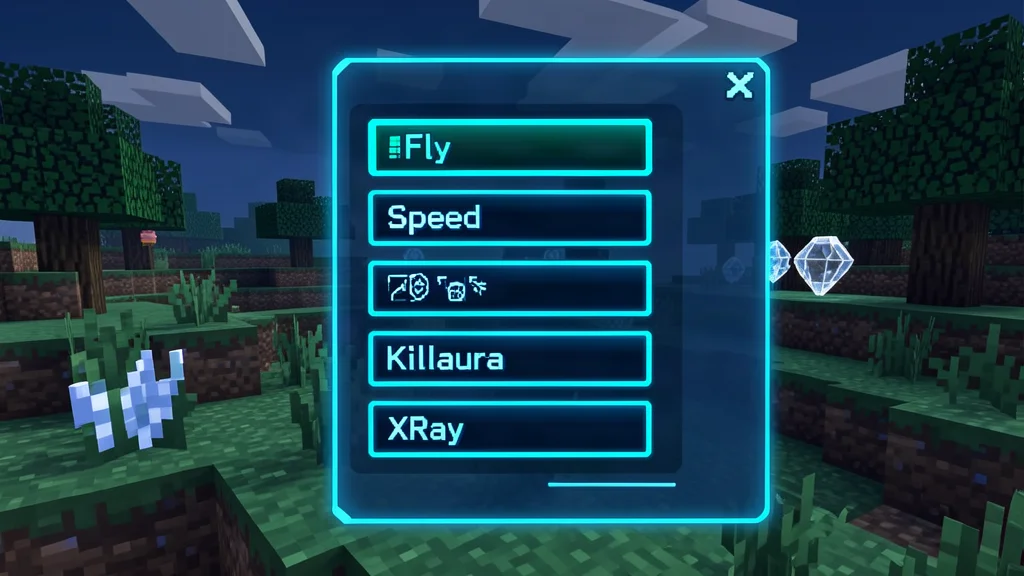
The ClickGUI is the heart of Aoba Client. It provides a clean, navigable interface for controlling every aspect of the client. The GUI is divided into three pages: Modules, Tools, and HUD.
The Modules page lets you toggle individual features on and off, and adjust their settings. Each module has its own configuration panel where you can fine tune behavior, set thresholds, and customize how the feature works. The Tools page houses utility features like the AuthCracker for offline servers. The HUD page controls on-screen elements that remain visible even when the GUI is closed.
You can open the ClickGUI by pressing RSHIFT (or TILDE on older versions). Navigation is done with the arrow keys: up and down to move the cursor, left to go back, and right to enter a module's settings. The interface is designed to be intuitive, with clear labels and a consistent layout across all pages.
One of the standout features of the ClickGUI is its customization. You can move and pin windows, adjust colors, and configure the layout to suit your preferences. This level of customization ensures that the GUI works the way you want it to, rather than forcing you to adapt to a rigid interface.
Modules
Modules are the individual features that Aoba provides. Each module can be enabled or disabled independently, and many have configurable settings. The module system is designed to be modular, meaning you can pick and choose exactly which features you want to use without being forced to enable everything.
Here are some of the most notable modules grouped by category:
Combat Modules
- Aimbot - Automatically looks toward the nearest entity and locks your crosshair onto it. Useful for KitPvP and other combat scenarios. You can configure whether it targets players, mobs, or both, and adjust the scan frequency for snappier or more performance friendly aim.
- KillAura - Automatically attacks nearby entities within a configurable range. This module can be set to target only players, only mobs, or both, and you can adjust the attack speed and range.
- TriggerBot - Automatically attacks whenever your crosshair is over a valid target. This is a more subtle alternative to KillAura that requires you to aim manually but automates the clicking.
- Criticals - Automatically performs critical hits by jumping at the right moment during combat. This maximizes your damage output without requiring precise timing.
- AntiKnockback - Prevents your player from being knocked back by attacks, including Knockback-enchanted weapons. This keeps you in place during combat and makes it harder for opponents to push you around.
- AutoTotem - Places a Totem of Undying in your hand when your health falls below a threshold or when an End Crystal is placed nearby. Assuming you have a supply of Totems, this can prevent you from dying in critical moments.
- CrystalAura - Automatically places and detonates End Crystals for maximum damage. This module is designed for crystal PvP and can be configured with specific placement and detonation settings.
- Surround - Places blocks around your feet to protect you from attacks and prevent opponents from getting close. This is a defensive module that works well in combination with other combat features.
Movement Modules
- Fly - Enables creative-style flight in survival mode. You can configure the fly speed and set whether it should work in water or lava.
- Speed - Increases your movement speed beyond vanilla limits. The speed multiplier is configurable, allowing you to fine tune how fast you move.
- Jesus - Allows you to walk on water as if it were solid ground. This is useful for crossing oceans and rivers without building bridges.
- NoFall - Prevents fall damage entirely. This module is great for exploring high places or building tall structures without worrying about dying from a fall.
- Step - Automatically steps up blocks without requiring you to jump. You can configure the step height to go up one block, two blocks, or more.
- Sprint - Automatically sprints whenever you move forward. This saves you from having to double tap the W key or press the sprint key constantly.
- Spider - Allows you to climb walls like a spider. This is useful for scaling buildings and cliffs without using ladders or scaffolding.
- Jetpack - Gives you a jetpack that lets you fly by holding a key. This is a more controlled alternative to the Fly module.
Rendering Modules
- XRay - Makes stone and other blocks transparent so you can see ores and structures underground. You can configure which blocks are visible and which are hidden.
- Fullbright - Removes darkness so you can see clearly anywhere. This eliminates the need for torches in caves and dark areas.
- PlayerESP - Draws a box around players so you can see them through walls. This is useful for tracking opponents in PvP.
- EntityESP - Draws a box around entities like mobs and animals. This helps you locate specific mobs in crowded areas.
- ChestESP - Highlights chests and other storage blocks through walls. This is great for finding loot in dungeons and structures.
- ItemESP - Highlights dropped items on the ground. This helps you find valuable items quickly without having to search manually.
- Tracer - Draws a line from your crosshair to nearby entities. This makes it easier to track moving targets.
- Trajectory - Shows the trajectory of projectiles like arrows and snowballs. This helps you aim more accurately at long range.
Utility Modules
- AutoEat - Automatically eats food when your hunger drops below a configurable threshold. You can set the exact hunger level at which it triggers.
- AutoFarm - Harvests fully grown crops and replants seeds automatically within a set radius. This saves time on large farms.
- AutoFish - Detects when a fish is hooked and automatically reels in and recasts. This is great for fishing farms and collecting treasure.
- AutoRespawn - Clicks the respawn button automatically when you die. This saves time in PvP gamemodes where respawning quickly is important.
- AutoSign - Places multiple signs with the same text. Write the text on one sign, and Aoba will repeat it for every subsequent sign you place.
- AutoSoup - Automatically switches to Mushroom Soup and eats it when your health is low. This module is designed for KitPvP where soup provides instant health.
- AutoWalk - Walks straight for you without requiring input. This is useful for long journeys or AFK activities.
- FastBreak - Increases your mining speed beyond vanilla limits. You can configure the speed multiplier.
- FastPlace - Increases your block placement speed. This is useful for building quickly or placing blocks in combat.
- Zoom - Allows you to zoom in by holding a key. You can configure the zoom level and the keybind.
These are just a selection of the many modules available. The full list includes over 40 modules covering combat, movement, rendering, and utility categories. New modules are added regularly through updates and the addon system.
HUD Elements
The HUD system lets you display information directly on your screen. You can enable, disable, and reposition HUD elements by clicking and dragging them. The HUD is fully customizable, allowing you to create a layout that shows exactly the information you need.
Common HUD elements include:
- Module status indicators that show which modules are currently active
- Coordinates and FPS display for performance monitoring
- Armor and inventory status to keep track of your gear durability
- Server information including player count and ping
- Directional indicators showing which way you are facing
- Time and date display for in game time tracking
The HUD elements can be moved anywhere on the screen by clicking and dragging them. You can also resize certain elements and adjust their opacity. This level of customization ensures that your HUD provides the information you need without cluttering your view.
Command System
Aoba includes a command system that lets you control modules and settings through in game chat. Commands are prefixed with .aoba followed by parameters. For example, .aoba fly speed 10 would set the fly speed to 10.
Almost every module has an accompanying command for adjusting variables like speed, radius, and thresholds. This means you can change settings on the fly without opening the ClickGUI, which is especially useful during combat or other fast paced situations.
There are also non-module commands like /ClickGUI to open the interface, /Spam for spamming messages, and /TP for teleporting. The command system is designed to be intuitive and consistent, with a clear syntax that is easy to learn.
Addon System
Similar to Meteor Client, Aoba supports an addon system that allows third party developers to create additional modules and features. This extensible architecture means the client can grow beyond its built in feature set. The addon API is well documented, making it easy for developers to create and share their own modules.
The addon system has led to a vibrant community of developers who create and maintain addons for Aoba. These addons can add new modules, improve existing features, or provide entirely new functionality. The open source nature of both the client and its addons ensures that the ecosystem remains healthy and innovative.
Supported Versions
Aoba Client supports a wide range of Minecraft versions. The following versions are available for download:
| Minecraft Version | Client Version | Release Date |
|---|---|---|
| 26.3 | 26.3 | Oct 8, 2026 |
| 26.2 | 26.2 | Jun 18, 2026 |
| 26.1.2, 26.1.1, 26.1 | 26.1.2 | Apr 30, 2026 |
| 1.21.11 | 1.21.11 | Apr 30, 2026 |
| 1.21.5 | 1.21.5 | Apr 30, 2026 |
| 1.21.4 | 1.21.4 | Apr 30, 2026 |
| 1.21.3, 1.21.2 | 1.21.3 | Apr 30, 2026 |
| 1.21.1, 1.21 | 1.21.1 | Apr 30, 2026 |
| 1.20.6 | 1.20.6 | Apr 30, 2026 |
| 1.20.4 | 1.20.4 | Apr 30, 2026 |
| 1.20.2 | 1.20.2 | Apr 30, 2026 |
| 1.20.1 | 1.20.1 | Apr 30, 2026 |
| 1.19.4 | 1.19.4 | Apr 30, 2026 |
This extensive version support means that no matter which Minecraft version you are playing, there is likely an Aoba Client build available for it. The development team works quickly to update the client for new Minecraft versions, often releasing updates within days of a new version launching.
Requirements
Before installing Aoba Client, make sure you have the following:
- Fabric Loader - The mod loader that Aoba runs on. Download it from the official Fabric website and run the installer for your Minecraft version.
- Fabric API - A core library required by most Fabric mods, including Aoba. Download the version that matches your Minecraft version and Fabric Loader version.
Both are free and easy to install. If you are new to Minecraft modding, check out our guide on how to install mods on your PC for a step by step walkthrough. The process takes just a few minutes and does not require any technical knowledge.
How to Install Aoba Client
Installing Aoba Client is straightforward. Follow these steps:
- Download and install Fabric Loader for your Minecraft version from the official Fabric website.
- Download Fabric API and place it in your
modsfolder. The mods folder is located in your Minecraft directory. - Download the Aoba Client JAR file for your Minecraft version from a trusted source.
- Place the Aoba Client JAR file in your
modsfolder alongside Fabric API. - Launch Minecraft using the Fabric profile in your launcher.
Once in game, press RSHIFT (or TILDE) to open the ClickGUI and start configuring your modules. The first time you open the GUI, you will see the Modules page with all available modules listed. Click on a module to expand its settings and configure it to your liking.
If you encounter any issues during installation, make sure that your Fabric Loader and Fabric API versions match your Minecraft version. Mismatched versions are the most common cause of mod loading failures.
Tips and Tricks
Pro Tip: Start with a few modules at a time to avoid overwhelming yourself. Enable features gradually and test them in a safe environment before using them on servers. This approach helps you learn what each module does and how it affects your gameplay.
Here are some additional tips for getting the most out of Aoba Client:
- Use the HUD page to arrange your on-screen elements for maximum visibility. Place important information where you can see it without moving your eyes too far from the center of the screen.
- Bind frequently used modules to keys for quick access. This lets you toggle modules on and off without opening the ClickGUI, which is especially useful during combat.
- Experiment with module settings to find the configuration that works best for your playstyle. What works well for one player might not work for another, so do not be afraid to adjust settings until you find the perfect setup.
- Keep your client updated to ensure compatibility with the latest Minecraft versions. Updates often include bug fixes, performance improvements, and new features.
- Join the Aoba community to stay up to date with the latest developments and get help from other users. The community is active and welcoming to newcomers.
Is Aoba Client Safe to Use?
Aoba Client is open source, which means its code is publicly available for review. This transparency helps ensure there are no hidden malicious components. The source code can be inspected by anyone, and the development process is open to community contributions.
However, as with any third party mod, you should only download it from trusted sources. Downloading from unverified sites can expose you to malware or modified versions of the client. Always download Aoba Client from the official source or reputable mod hosting sites.
Using Aoba Client on multiplayer servers may violate their rules. Many servers have strict policies against clients that provide unfair advantages. Always check a server's rules before using Aoba or any similar client. If you are unsure whether a client is allowed, ask a server administrator for clarification.
Comparing Aoba to Other Clients
Aoba Client is one of several popular Fabric clients available for Minecraft. Here is how it compares to some alternatives:
| Feature | Aoba Client | Meteor Client | Wurst Client |
|---|---|---|---|
| Open Source | Yes | Yes | Yes |
| Fabric Support | Yes | Yes | Yes |
| ClickGUI | Yes | Yes | Yes |
| Addon System | Yes | Yes | No |
| HUD Customization | Yes | Yes | Limited |
| Version Range | 1.19.4 to 26.3 | 1.19.4 to 26.2 | 1.19.4 to 26.3 |
Aoba distinguishes itself through its polished ClickGUI, extensive module library, and active development. While Meteor Client is also an excellent choice with a large addon ecosystem, Aoba offers a more streamlined experience for users who want a complete package out of the box.

Lead writer at minecraft.how. Long-time Minecraft player running a small SMP server, testing every build, mod, and seed before writing about it.
Frequently Asked Questions
What is Aoba Client?
Key Features
HUD Elements
Command System
Have a Question or Tip about this Guide?Community Q&A
Ask a question or help other players below. Join the discussion and share your Minecraft tips!
Comments
No comments yet. Be the first to share your thoughts!