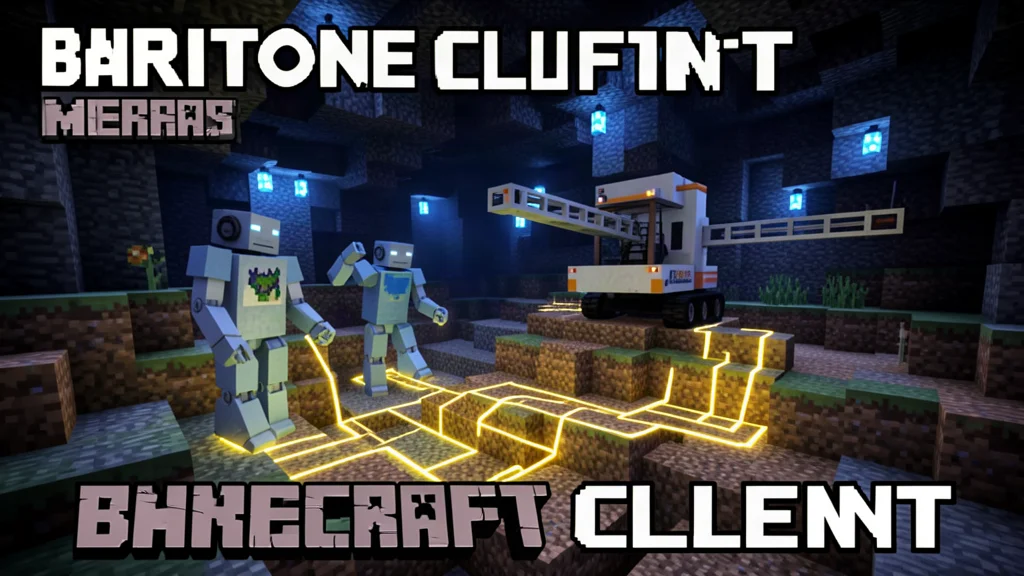

Baritone Client Mod is an open-source AI pathfinding system for Minecraft that can walk you to any coordinate, mine ores automatically, build structures from schematics, and even farm crops. It runs on Forge, Fabric, NeoForge, and Quilt across Minecraft 1.12.2 through 26.2. In this guide we will cover everything you need to install it, master its commands, and use it responsibly.
What is Baritone Client Mod?
Baritone is an automated Minecraft-playing robot. It uses an artificial pathfinding intelligence to navigate your world, break blocks, place blocks, and perform tasks while you watch or step away. Originally created by cabaletta as a pathfinding API, Baritone is now bundled into client modifications like Impact and Meteor Client, and it is also available as a standalone mod.
The system calculates routes using a modified A* algorithm that accounts for real Minecraft movement. It knows how to sprint-jump over gaps, climb ladders and vines, swim through water, sneak along ledges, and even use water buckets to survive long falls. Baritone treats block breaking and block placing as part of the path itself, so if a stone wall is in the way, it will decide whether to mine through it or go around based on the tools you have in your hotbar.
Baritone supports four major mod loaders. Forge players need Minecraft Forge installed. Fabric players need Fabric Loader plus Fabric API. NeoForge players need the NeoForge installer. Quilt players need the Quilt Loader. Each version is available as a ZIP archive containing all loader variants or as a standalone JAR for Fabric.
How to Install Baritone Client Mod
Installing Baritone depends on which mod loader you are using. The process takes about five minutes and requires no technical knowledge beyond copying a file into a folder.
For Forge Users
- Download and install Minecraft Forge for your game version from the official Forge website. Run the installer and select Install Client.
- Download the Baritone Client Mod ZIP file for your Minecraft version from a trusted mod page. The ZIP contains separate JARs for each loader.
- Extract the ZIP and locate the Forge JAR inside. The filename typically starts with Baritone-Client-Mod followed by the version number.
- Press Windows plus R, type %appdata% and press Enter. Navigate to .minecraft and then to the mods folder. If the mods folder does not exist, create it.
- Copy the Baritone JAR into the mods folder. Launch Minecraft with the Forge profile and Baritone will load automatically.
For Fabric Users
- Install Fabric Loader from the official Fabric website. Run the installer and select your Minecraft version.
- Download Fabric API from Modrinth or CurseForge. Baritone for Fabric requires Fabric API to function.
- Download the Baritone Client Mod Fabric JAR for your version. The file is usually a standalone JAR rather than a ZIP.
- Place both the Fabric API JAR and the Baritone JAR into your .minecraft/mods folder.
- Launch Minecraft with the Fabric profile. Both mods will appear in the mod list.
For NeoForge and Quilt Users
NeoForge and Quilt installations follow the same pattern. Download the appropriate loader from its official site, install it, then drop the Baritone JAR into the mods folder. NeoForge users should grab the NeoForge-specific ZIP entry. Quilt users need the Quilt Loader plus the Quilted Fabric API for full compatibility.
Baritone Commands and How to Use Them
Baritone is controlled through chat commands. The default prefix is the hash symbol. Type a command in the chat box starting with the prefix and Baritone will execute it. In Meteor Client the alternative prefix dot-b also works.
Essential Movement Commands
| Command | What It Does |
|---|---|
| #goto X Y Z | Walk to specific coordinates immediately. |
| #goal X Y Z | Set a destination without starting movement. |
| #path | Begin moving toward the current goal. |
| #cancel or #stop | Stop all Baritone activity. |
| #thisway 1000 | Walk forward in the direction you are facing. |
| #surface or #top | Path to the nearest surface or highest air space. |
| #axis | Go to an axis or diagonal axis at Y level 120. |
| #explore X Z | Explore uncharted territory from a given origin. |
| #come | Walk toward your camera position when using freecam. |
| #eta | Display estimated time to the next segment and goal. |
Mining and Building Commands
| Command | What It Does |
|---|---|
| #mine diamond_ore | Find and mine every ore of the specified type. |
| #mine 64 diamond_ore | Mine a specific quantity of the target block. |
| #build filename.schematic | Construct a schematic with origin at your feet. |
| #tunnel | Dig a one by two tunnel, deviating only to avoid lava. |
| #tunnel 3 2 100 | Clear a custom area three high, two wide, one hundred deep. |
| #farm | Harvest, replant, or bone meal crops within a range. |
| #follow player Name | Trail a specific player or any nearby entity. |
| #wp save user tag | Save a waypoint with a custom tag. |
| #wp goal tag | Path to a saved waypoint. |
| #schematica | Build the schematic currently open in Schematica mod. |
Selection and Editing Commands
Baritone can manipulate WorldEdit-style selections through its sel command family. Left-click a block to set position one, right-click to set position two, and drag to select a volume. Use #sel clear to reset the selection. These commands pair well with WorldEdit for large-scale creative projects. If you are looking for more building tools, check out our guide to best Minecraft building mods for additional automation options.
Main Features of Baritone Client Mod
Long Distance Pathfinding and Splicing
Baritone calculates paths in segments and precalculates the next segment before the current one ends. This means movement never stops, even across thousands of blocks. The system compresses loaded chunks into a compact two-bit representation (air, solid, water, avoid) stored in RAM, enabling efficient long-distance planning without constant chunk reloads.
Block Breaking and Placing
When Baritone encounters an obstacle, it evaluates whether breaking is faster than going around. It factors in your current tool set. If you hold an Efficiency V diamond pickaxe, mining through stone is often quicker than climbing over. Baritone also places blocks to bridge gaps or pillar upward, consuming cobblestone, dirt, or netherrack from your inventory by default.
Advanced Movement Techniques
Baritone handles parkour jumps over one, two, or three-block gaps. It can sprint-jump and place a landing block mid-jump for four-block gaps. The system climbs vines and ladders, descends safely using ladders mid-fall, and avoids walking through fire, magma, or lava. With a water bucket on the hotbar, it will survive falls of up to twenty-three blocks by placing water beneath itself.
Automated Mining
The mine command scans the world for specified blocks and creates a composite goal targeting every occurrence. Baritone will path to each one, break it, and collect the drops. The legitMine setting restricts mining to only visible ores, which is useful for servers that monitor for X-ray-like behavior. Without legitMine, Baritone can mine through blocks to reach hidden ores, which is faster but more detectable on servers with anti-cheat plugins.
Schematic Building
Baritone reads .schematic files and constructs them block by block. Place the schematic file in the schematics folder inside your .minecraft directory. Then use #build filename.schematic to start construction at your current position. Add coordinates like #build house.schematic ~ 69 ~-420 to set a custom origin. Baritone will gather required blocks from your inventory and place them in the correct order.
Waypoints and Exploration
Waypoints are saved locations you can return to at any time. Right-click a bed to create a home waypoint. Baritone automatically creates a death waypoint when you respawn. Save custom waypoints with #wp save user mybase and return with #wp goal mybase. The explore command sends Baritone to the closest chunk you have not yet visited, mapping out your world systematically.
Safety and Precautions
Baritone is a powerful tool, but using it responsibly keeps your account and your server experience healthy. Always respect server rules. Many multiplayer servers prohibit automation, and Baritone can trigger anti-cheat systems because it plays faster and more consistently than a human. On servers that allow it, use the legitMine setting to only mine ores you can see, avoiding behavior that looks like X-raying.
Never leave Baritone running unattended on a server without permission. The system may dig into dangerous areas, fall into lava, or break blocks that other players need. In single-player worlds, Baritone is completely safe to use freely, but always keep backups of important worlds before running large-scale build or mine operations.
When downloading Baritone, use only official sources or well-established mod repositories. The GitHub repository at cabaletta/baritone is the canonical source. Avoid third-party sites that bundle malware with mod files. The 9Minecraft page provides download links for every supported version, but always verify file integrity with antivirus software before running any downloaded JAR.
Tips and Tricks for Baritone
- Use waypoints aggressively: Save waypoints for your base, mining outposts, farms, and nether portals. The #wp command chain lets you teleport between key locations instantly.
- Set throwaway blocks: Configure acceptableThrowawayItems to include cheap blocks like cobblestone so Baritone always has material for pillaring and bridging.
- Enable backfill: Turn on backfill to have Baritone place blocks behind you as you tunnel, preventing mobs from spawning in your wake.
- Tune blockPlacementPenalty: Lower this value if Baritone avoids placing blocks too often. Raise it if it wastes resources.
- Use selection commands for WorldEdit: Baritone's selection tools work alongside WorldEdit for rapid terraforming. Combine them for large-scale creative projects.
- Monitor path calculation: Press F3 to see Baritone's debug overlay. Light blue lines show the current best path, dark blue shows the segment being calculated.
- Combine with Impact or Meteor: Baritone is built into Impact and Meteor Client. If you already use one of those clients, you have Baritone without installing anything extra. Learn more in our guide to the Meteor Client mod.
Common Settings You Should Know
| Setting | Default | Purpose |
|---|---|---|
| allowBreak | on | Lets Baritone break blocks as part of its path. |
| allowPlace | on | Lets Baritone place blocks to bridge or pillar. |
| allowParkour | off | Enables sprint jumps over gaps. |
| allowParkourPlace | off | Allows placing a block mid-jump for four-block gaps. |
| legitMine | off | Restricts mining to only visible ores. |
| blockPlacementPenalty | 1 second | Cost penalty for placing blocks to conserve resources. |
| backfill | off | Places blocks behind you while tunneling. |
| acceptableThrowawayItems | cobble, dirt, netherrack | Blocks Baritone can consume for placement. |
To change any setting, type the setting name in chat with the hash prefix. For example, #allowParkour toggles parkour mode on or off. Type #modified to see all settings changed from defaults. Type #reset to restore everything to factory values.
Frequently Asked Questions
Is Baritone free to use?
Yes. Baritone is open-source software released under the LGPL-3.0 license. It is free to download, use, and modify. The source code is available on GitHub for anyone to inspect or contribute to.
Does Baritone work on Minecraft Bedrock Edition?
No. Baritone is a Java Edition mod that relies on mod loaders like Forge and Fabric. Bedrock Edition does not support these loaders. There is no official Baritone port for Bedrock, Windows 10, or console editions.
Will Baritone get me banned on multiplayer servers?
It depends on the server. Servers with anti-cheat plugins like Grim, Vulcan, or Matrix may flag Baritone's movement as unnatural. Some servers explicitly ban all automation mods. Others allow Baritone in certain areas or with restrictions. Always check server rules before using Baritone online. If you want to play it safe, restrict Baritone to single-player worlds or servers that explicitly permit it.
Can Baritone build any schematic file?
Baritone reads standard .schematic files, the format used by WorldEdit and Schematica. It cannot read .litematica files natively. You will need to convert .litematica files to .schematic format using a tool like Litematica Schematic Converter before Baritone can build them.
Why does Baritone stop moving or say it is stuck?
Baritone may pause when it cannot find a valid path, when the goal is unreachable, or when it runs out of resources. Check that you have enough throwaway blocks in your inventory. Use #cancel to stop, then #path to resume. If the goal is inside a solid block, move it to a nearby air block. Terrain that is too complex, like dense jungle or ocean monuments, can also confuse the pathfinder.
How do I update Baritone when a new Minecraft version releases?
Download the latest Baritone JAR for your new game version and replace the old file in your mods folder. The Baritone team typically releases updates within days of new Minecraft versions. Check the GitHub repository or the 9Minecraft page for the newest compatible build. Remove the old JAR before adding the new one to avoid conflicts.
Baritone Client Mod is one of the most impressive pieces of Minecraft automation ever created. It turns tedious walking, mining, and building tasks into automated processes that run in the background while you focus on other parts of the game. Whether you need to tunnel to a faraway base, strip-mine a perimeter, or construct a massive schematic, Baritone handles it with machine-like precision. Install it responsibly, learn the commands, and let the AI pathfinder do the heavy lifting.