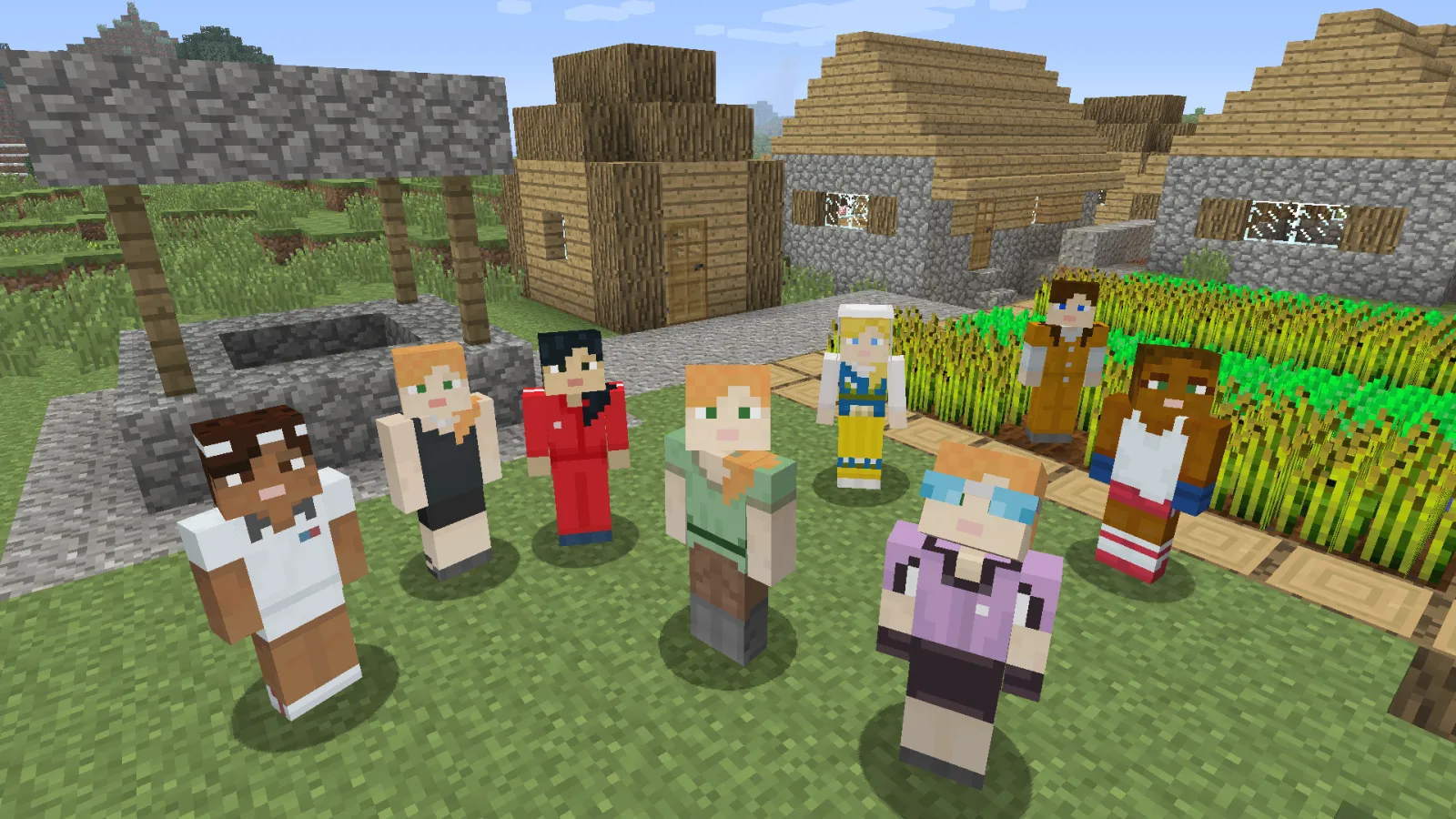
Cool Skins for Minecraft is a free Android app from TOP OF GAMES that lets you browse a large catalogue of Minecraft character skins, preview each one on a rotatable 3D model, and download it as a standard PNG with one tap. Its Google Play description lists more than 200,000 skins organised into categories, new skins added daily, offline access to cached skins, and no account requirement. You apply the downloaded file in Minecraft's own character menu, and it works for both Bedrock and Java because a Minecraft skin is just an image file.
What is the Cool Skins for Minecraft app?
It is a skin browser and downloader. You open the app, pick a category or search, spin the 3D preview to check the back and sides, and download the PNG. From there the app is done; applying the skin happens in Minecraft. According to the listing, categories include Gaming & Esports, Anime & Manga, Superheroes & Villains, Fantasy & Medieval, Horror & Scary, Animals & Creatures, and Cartoon Characters, with a popular/trending section on top.
Is it an official Minecraft app?
Is it free and safe?
Key features
- 200,000+ skins across superhero, anime, gaming, fantasy, horror, animal and cartoon themes, per the listing.
- 3D preview — rotate and zoom the model to see every side before you download.
- Category browsing and search with fast filters.
- Free unlimited downloads and one-tap download.
- New skins added daily, plus a trending/most-downloaded section.
- Offline access to skins you have already cached.
- HD quality skins and no account required.
Does it work for Bedrock and Java Edition?
Yes, because the app gives you a plain skin image and both editions accept custom skin images. Bedrock (including the Android version you would run on the same phone) imports skins in the Dressing Room. Java applies them through your Minecraft profile or launcher. The only real difference is resolution: Java uses a 64×64 layout, while Bedrock also supports HD skins on many devices. If an HD skin looks stretched in Java, use a standard-resolution version.
How to download and apply a skin
On Minecraft: Bedrock Edition (Android)
- Download the skin in the Cool Skins app with the one-tap download button. Note where the PNG is saved.
- Open Minecraft and tap the coat-hanger Dressing Room icon on the main menu, or open your profile and choose Edit Character.
- Select Skins, then Owned, then the Import button (the "+" / custom-skin tile).
- Choose the downloaded PNG from your files or gallery.
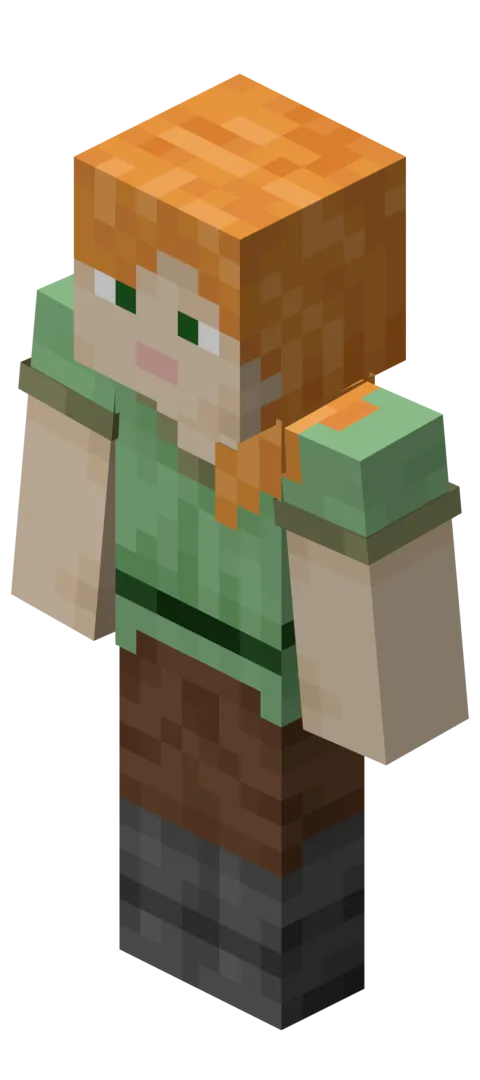
- Pick Classic (4-pixel arms, the Steve model) or Slim (3-pixel arms, the Alex model) to match the skin, then confirm.
- Tap the skin to equip it. It now shows in single-player and on most servers.
On Minecraft: Java Edition
- Move the PNG to your computer if you downloaded it on a phone.
- Sign in at minecraft.net and open your Profile → Skins page, or use the Skins tab in the official Minecraft Launcher.
- Choose Browse and select the file, then set the model to Classic or Slim.
- Save. Restart Minecraft if it is already running, and the skin appears in-game.
App versus a skins website
| Consideration | Cool Skins app | Skins website |
|---|---|---|
| Best for | Fast browsing and one-tap download on the phone you play Bedrock on | Editing, layering and large-screen browsing |
| Preview | Interactive 3D model | 3D preview on most sites; some offer live editors |
| Offline | Cached skins available without a connection | Needs a connection |
| Account | Not required | Often optional for downloading |
| Cost | Free, with ads and in-app purchases | Usually free, ad-supported |
Pros and cons
Strengths: a big, well-categorised catalogue, a genuine 3D preview so you are not guessing at the back of a skin, one-tap downloads, offline access to what you have saved, and no login. For Bedrock players on Android it is a tidy loop: browse, download, import, equip.
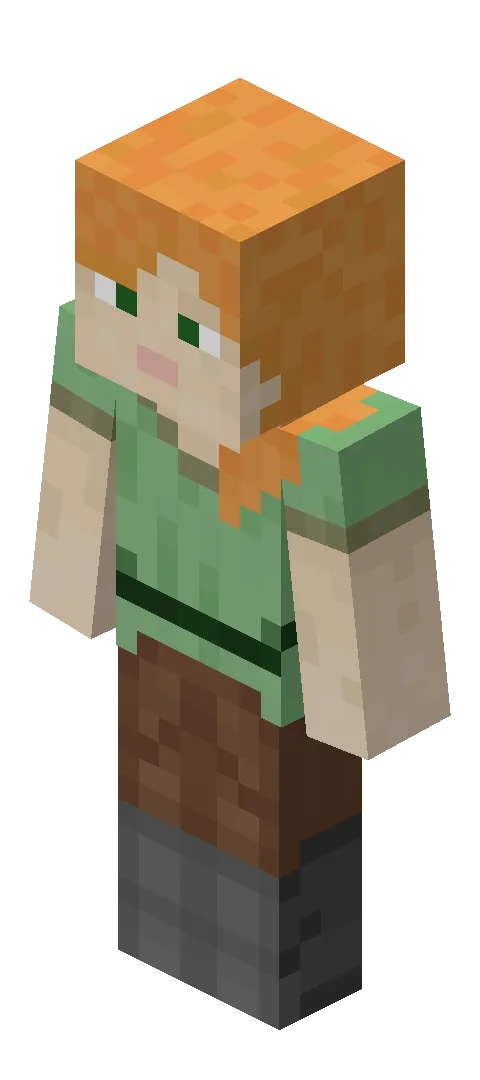
Trade-offs: ads and in-app purchases; the skins are community-style catalogue art rather than anything official; and you still do the applying yourself in Minecraft. Custom skins also will not show on every server or Realm, so test in a single-player world first.
How to change your skin back
Open the same menu you used to apply the skin. On Bedrock, choose the default Steve or Alex in the Dressing Room. On Java, open your profile or launcher Skins tab and reset to the default. Your downloaded skins stay saved, so you can switch back any time.
The verdict
Cool Skins for Minecraft is a solid pick if you want a large skin library and a quick download flow on Android, and the 3D preview is the feature that earns its place. Go in knowing it is a third-party catalogue app with ads, that skins are purely cosmetic, and that the final step always happens inside Minecraft.
See the Cool Skins for Minecraft listing on Google Play for the current version and permissions, or get it on Google Play to try it.
Disclosure: Cool Skins for Minecraft is an independent, third-party app by TOP OF GAMES. It is not an official Minecraft app and is not affiliated with Mojang or Microsoft. Skins are cosmetic only and do not change gameplay.