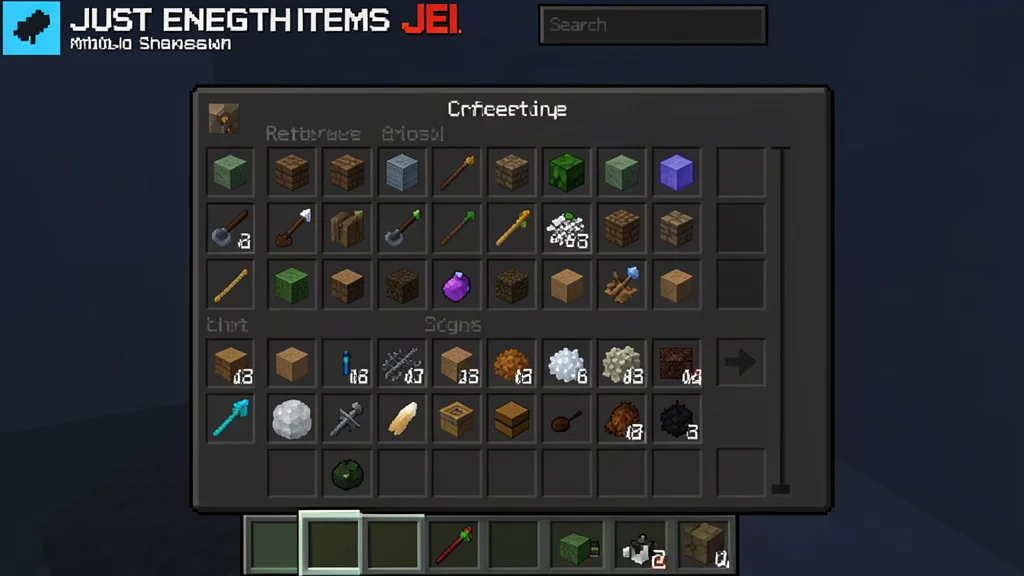

Just Enough Items, better known as JEI, is the most popular item and recipe viewing mod for Minecraft. It gives you a searchable list of every item and block in the game, shows you exactly how to craft anything, and lets you look up what an item is used for. Whether you are playing with a handful of mods or a massive modpack with thousands of items, JEI is the tool that keeps you from losing your mind trying to remember recipes.
This guide covers everything you need to know about JEI: what it does, how to install it on Forge, Fabric, and NeoForge, how to use every feature, and the best tips to get the most out of it. If you have ever found yourself staring at a crafting table wondering how to make something, this mod is about to become your best friend.
What Is JEI and Why Do You Need It
JEI stands for Just Enough Items. It is a mod that adds an item list and recipe viewer to your Minecraft game. Before mods like JEI existed, players had to keep a wiki open in a browser tab or memorize hundreds of crafting recipes. JEI brings all of that information directly into the game interface.
The mod was created by mezz and has become the standard recipe viewer for the Minecraft modding community. It is the successor to the older Not Enough Items (NEI) mod, and it was designed from the ground up to be faster, more stable, and easier to use. If you have ever used NEI, you will recognize JEI immediately. The two mods share the same basic design philosophy, but JEI is built for modern Minecraft versions and modern mod loaders.
Here is what JEI does at its core:
- Shows a searchable list of every block and item in the game, including items added by other mods
- Displays the crafting recipe for any item when you hover over it and press a key
- Shows you what an item is used for, so you can trace recipes backward
- Lets you search by item name, mod name, tooltip text, and more
- Includes a cheat mode that lets you grab items directly from the item list
JEI is not a cheat mod by default. It is a quality of life tool that saves you time and frustration. Even in pure survival mode, having instant access to recipe information makes the game more enjoyable. You can learn more about Minecraft mod launchers to understand how mods like JEI get loaded into the game.
How to Install JEI
Installing JEI is straightforward, but the exact steps depend on which mod loader you are using. JEI supports Forge, Fabric, NeoForge, and Quilt. The mod is available for a huge range of Minecraft versions, from 1.7.10 all the way up to the latest releases.
Requirements
Before you download JEI, make sure you have the right mod loader installed for your Minecraft version:
- Forge: Requires Minecraft Forge. Download it from the official Forge website and run the installer.
- Fabric: Requires Fabric Loader and Fabric API. Install Fabric Loader first, then place Fabric API in your mods folder.
- NeoForge: Requires NeoForge. Download the NeoForge installer and run it for your Minecraft version.
Installation Steps
- Install the correct mod loader for your Minecraft version (Forge, Fabric, or NeoForge).
- Download the JEI mod file that matches your Minecraft version and mod loader. The file will be a .jar file.
- Open your Minecraft directory. On Windows, press Win+R and type %appdata%\.minecraft. On Mac, open ~/Library/Application Support/minecraft. On Linux, open ~/.minecraft.
- Place the JEI .jar file into the mods folder. If the mods folder does not exist, create it.
- Launch Minecraft using the mod loader profile. JEI will load automatically.
If the JEI interface does not appear when you enter a world, press Ctrl+O to toggle the item list overlay. This is the default keybinding to show or hide the JEI interface. You can also check your controls in the Minecraft options menu to make sure the keybindings are set correctly.
For a more detailed walkthrough, check out our guide on how to create your first Minecraft mod, which covers the modding ecosystem and how mods interact with the game.
Main Features of JEI
JEI is packed with features that make navigating Minecraft's item system easy. Here are the core features that every player should know about.
Item List
The item list is the panel that appears on the right side of your screen when JEI is active. It shows every item and block in the game in a scrollable grid. You can scroll through the list with your mouse wheel, or you can use the search bar at the top to find exactly what you are looking for.
The item list is not just a static display. It is fully interactive. You can click on any item to see its recipe, right-click to see its uses, and use advanced search filters to narrow down the results. The list updates dynamically as you install or remove mods, so it always reflects the items available in your current game.
Recipe Viewing
This is the feature that made JEI famous. To see how to craft any item, hover over it in your inventory or in the JEI item list and press the R key. A recipe window will appear showing the crafting grid with all the ingredients placed in the correct pattern.
If an item has multiple recipes, JEI will show them all. You can scroll through the different recipe variations using the mouse wheel or the arrow buttons. This is especially useful for items that can be crafted in multiple ways, such as dyes, which have dozens of different crafting paths.
Uses Viewing
Pressing the U key while hovering over an item shows you what that item is used for. This is the reverse of recipe viewing. Instead of showing you how to make an item, it shows you all the recipes that use that item as an ingredient.
This feature is incredibly useful for figuring out what to do with items you have never seen before. If you pick up a strange item from a mod you just installed, press U and you will immediately see every recipe that uses it. It is like having a wiki built into the game.
Search Engine
The JEI search bar is more powerful than it looks. You can type any part of an item name to find it, but you can also use special prefixes to search by specific criteria:
- @modname searches for items from a specific mod. For example, @thermal shows all items from the Thermal series of mods.
- #tooltip searches for items that contain specific text in their tooltip description.
- $oredict searches by Ore Dictionary name, which groups similar items from different mods together.
- %creative searches by the creative tab where the item appears.
- | separates multiple search terms. For example, wrench|hammer shows all items matching either term.
You can combine these prefixes to create very specific searches. For example, typing @thermal #machine will show all items from Thermal mods that have "machine" in their tooltip.
How to Use JEI Recipes
Using JEI to look up recipes is simple, but there are some tricks that make it even more useful.
Basic Recipe Lookup
The most common way to use JEI is to look up a recipe from your inventory. Open your inventory, hover over any item, and press R. The recipe will appear in a window next to your inventory. You can also hover over an item in the JEI item list and press R to see its recipe.
To see what an item is used for, hover over it and press U. This shows all the recipes that use that item. You can chain these lookups together to trace complex crafting chains. For example, if you want to make a machine from a mod, you can look up its recipe, then look up the recipe for each ingredient, and so on until you get back to raw materials.
Moving Items to the Crafting Grid
JEI has a convenient feature that lets you move items directly from the recipe view into a crafting table. When you are viewing a recipe, you will see a + button next to the crafting grid. Click this button to move all the required ingredients from your inventory into the crafting table.
If you need to craft multiple sets of an item, hold Shift while clicking the + button. This will move enough ingredients for as many crafts as you can make with the materials in your inventory. This saves a huge amount of time when you are crafting large quantities of blocks or other materials.
Recipe Categories
When you look up a recipe, JEI organizes recipes by category. You will see tabs or labels for different types of crafting, such as crafting table recipes, furnace recipes, brewing recipes, and machine recipes from mods. Clicking on a category name shows all recipes in that category.
This is especially useful in modded Minecraft, where a single item might be craftable in multiple machines from different mods. Instead of scrolling through every recipe, you can click on the specific machine category to see only the recipes that use that machine.
Compatibility with Other Mods
One of JEI's greatest strengths is its compatibility with other mods. JEI is designed to automatically detect and display items and recipes from any mod that is installed. You do not need to install separate addons or configure anything. Just install JEI alongside your other mods, and it will show everything.
JEI supports all major mod loaders:
- Forge: The original mod loader. JEI has supported Forge since the early days and remains fully compatible.
- Fabric: The lightweight mod loader. JEI has excellent Fabric support and works with Fabric API.
- NeoForge: The community fork of Forge. JEI supports NeoForge for newer Minecraft versions.
- Quilt: A fork of Fabric. JEI works with Quilt as well.
JEI also integrates with popular modpacks. If you are playing a modpack from CurseForge, Modrinth, or the FTB launcher, JEI is almost always included by default. The modpack creators configure it to work seamlessly with all the other mods in the pack.
Some mods add their own custom recipe types, and JEI handles these gracefully. For example, if a mod adds a custom machine with its own crafting interface, JEI will display the recipes for that machine in the recipe view. You do not need to do anything special to make this work.
Tips and Tricks
Once you are comfortable with the basics of JEI, these tips will help you get even more out of the mod.
Use Cheat Mode Wisely
JEI includes a cheat mode that lets you grab items directly from the item list. Left-click an item to get a full stack, or right-click to get a single item. You can also drop an item into the item list to delete it.
Cheat mode is useful for testing and experimentation, but it can trivialize survival gameplay if you use it too much. Many modpack creators disable cheat mode in their default configuration. If you want to enable it, you can do so in the JEI config file or through the in-game config menu.
Hide Items You Do Not Need
If you are playing with a large modpack, the item list can become overwhelming. JEI lets you hide items you do not care about. Hold Control and left-click an item to hide it. Hold Control and right-click to hide an item and all its sub-items. Hold Control and Shift and left-click to hide all items from a specific mod.
This is a great way to clean up the item list and focus on the items you actually use. You can always unhide items later through the JEI config menu.
Search by Mod Name
If you know which mod adds an item but you do not know the item name, use the @ prefix to search by mod name. For example, if you are looking for items from the Create mod, type @create in the search bar. This will show all items from that mod, making it easy to browse what is available.
This is especially useful when you are exploring a new mod for the first time. Instead of searching for specific items, you can browse everything the mod adds and discover new things to craft.
Use the + Button for Bulk Crafting
When you are crafting large quantities of items, the + button in the recipe view is your best friend. It automatically moves the required ingredients from your inventory to the crafting table. Hold Shift while clicking to craft as many as possible with your current materials.
This feature works with any crafting table, including custom tables added by mods. It also works with machines that have a GUI crafting interface, as long as the machine supports the standard Minecraft crafting system.
Check Recipe Categories
If you are looking for a specific type of recipe, click on the recipe category name to see all recipes in that category. This is faster than scrolling through the full recipe list. For example, if you are looking for furnace recipes, click on the furnace category to see only smelting recipes.
Frequently Asked Questions
Is JEI a cheat mod?
No. JEI is a recipe viewer and item browser. It does not give you items or change gameplay by default. The cheat mode is an optional feature that can be enabled or disabled. Most players use JEI purely for recipe lookup and item information.
Does JEI work with modpacks?
Yes. JEI is included in most modpacks by default. It automatically detects all items and recipes from every mod in the pack. You do not need to configure anything.
Can I use JEI on servers?
Yes. JEI works on both single-player and multiplayer servers. On servers, the server does not need to have JEI installed for clients to use it. However, if the server has JEI installed, it can enforce certain settings like cheat mode availability.
Why is the JEI interface not showing?
If the JEI item list does not appear when you enter a world, press Ctrl+O to toggle it. This is the default keybinding. You can also check the Minecraft controls menu to make sure the keybinding is set. If JEI is not loading at all, make sure you downloaded the correct version for your Minecraft version and mod loader.
Is JEI available for Bedrock Edition?
No. JEI is a Java Edition mod. It is not available for Minecraft Bedrock Edition. Bedrock players can use the in-game recipe book, but it does not have the same features as JEI.
What is the difference between JEI and NEI?
NEI (Not Enough Items) was the predecessor to JEI. JEI was created as a modern replacement with better performance, cleaner code, and support for newer Minecraft versions. JEI is actively maintained, while NEI is no longer updated. If you are starting fresh, use JEI.