
What is Litematica?
\nLitematica is a modern Minecraft mod that lets you save any build as a schematic file and load it back into your world as a translucent hologram. Think of it as a blueprint system for Minecraft. Instead of guessing how a structure should look, you can see a ghostly overlay of every block before you place a single one. The mod is available for Fabric and Quilt loaders and requires MaLiLib as a dependency.
\nOriginally created as a successor to the classic Schematica mod, Litematica brings the same core concept into modern Minecraft versions with better performance, more features, and active development. Whether you are recreating a castle from a tutorial or copying your own survival base to a new world, Litematica makes the process straightforward and precise.
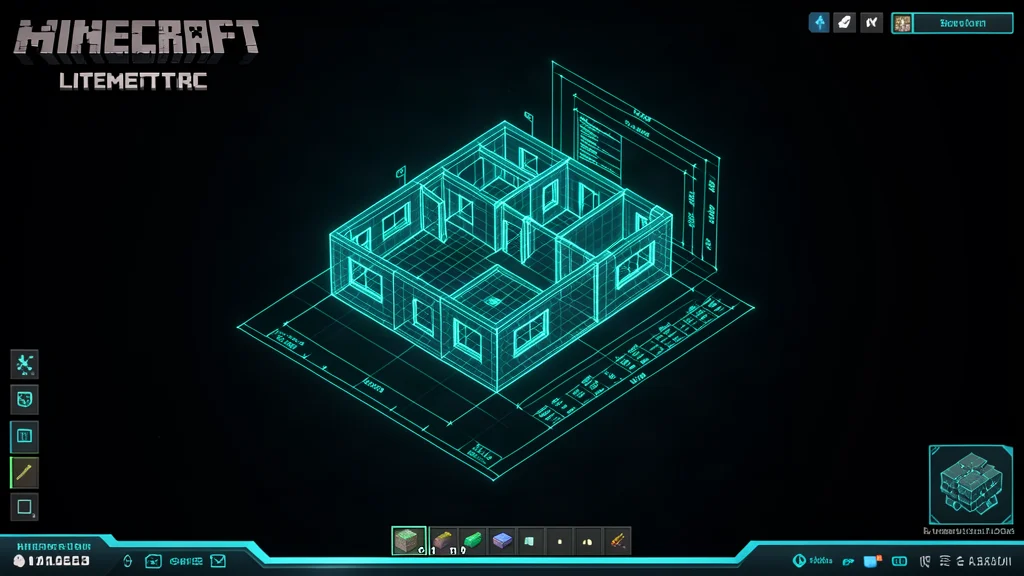
\nThe mod renders schematics as semi-transparent blocks that float in the world, showing you exactly where each block goes. You can toggle the hologram on and off, adjust its opacity, and even view it one layer at a time to build from the ground up. The hologram is rendered in real time and updates instantly if you move or rotate the schematic, so you always see an accurate preview of the final result.
\nOne of the biggest advantages of Litematica over other building tools is that it does not place blocks for you. It is purely a visual guide, which means it is allowed on most servers and does not give you an unfair advantage. You still place every block yourself, but the mod shows you exactly where each one goes and tells you what materials you need.
\n\nHow to Install Litematica
\nInstalling Litematica requires a few prerequisites. You need Minecraft Java Edition, the Fabric or Quilt mod loader, Fabric API, and MaLiLib. Here is the step by step process:
\n- \n
- Download and install the Fabric Loader for your Minecraft version from the official Fabric website. Run the installer and select your Minecraft version. \n
- Download Fabric API from CurseForge or Modrinth. Place the downloaded jar file into your
.minecraft/modsfolder. \n - Download MaLiLib, which is a required library mod that Litematica depends on. Without MaLiLib, Litematica will not load. Place it in the same mods folder. \n
- Download the Litematica mod jar file for your Minecraft version. Make sure the version matches your Minecraft version exactly. \n
- Place the Litematica jar file into your
.minecraft/modsfolder alongside Fabric API and MaLiLib. \n - Launch Minecraft using the Fabric profile. If everything is installed correctly, you will see Litematica in the mod list on the main menu. \n
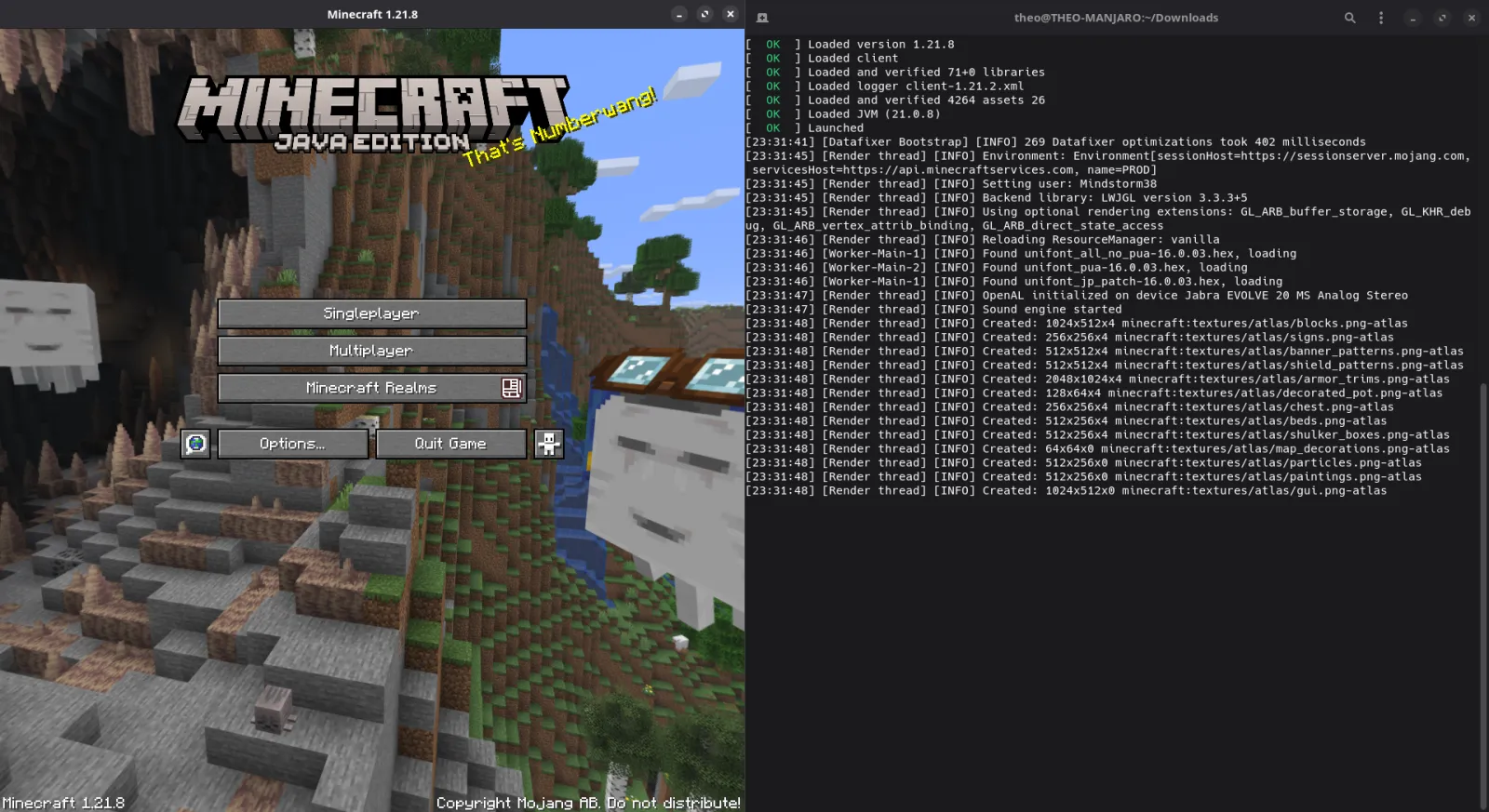
If you are new to modded Minecraft, check out our guide on how to set up mods for more detailed instructions. Once installed, you can access Litematica's main menu by pressing M in game. The first time you open the menu, you may want to explore the configuration options to customize the mod to your preferences.
\nIt is important to note that Litematica is updated frequently. When a new Minecraft version is released, you will need to wait for the mod developer to release a compatible update. Check the mod's official page on CurseForge or Modrinth for the latest version and compatibility information.
\n\nMain Features
\nLitematica packs a wide range of features that make building with schematics efficient and enjoyable. Here are the most important ones:
\n\nMaterial List
\nOne of Litematica's most useful features is the automatic material list. When you load a schematic, the mod scans every block and generates a complete list of what you need. It even calculates the total number of stacks required, so you know exactly how much of each resource to gather before you start building. The material list can be sorted by block type, making it easy to see how many stone blocks, wood planks, or glass panes you need. You can also export the list as a text file for reference while gathering resources.
\n\nLayer by Layer Viewing
\nInstead of seeing the entire hologram at once, you can view it one horizontal layer at a time. This is incredibly useful for large or complex builds because you can focus on completing one floor before moving up to the next. You can adjust the layer range in the configuration menu, setting a minimum and maximum Y level. The mod will only render blocks within that range, making it much easier to concentrate on the section you are currently building.
\n\nEasy Place Mode
\nEasy Place mode lets you place blocks directly into the schematic hologram by looking at the ghost blocks and using your hotbar. The mod automatically selects the correct block from your inventory. This speeds up the building process significantly, especially for large projects with thousands of blocks. Be aware that some multiplayer servers consider this similar to auto building and may not allow it, so always check server rules first. If you are playing on a server that prohibits Easy Place, you can still use Litematica as a visual guide and place blocks manually.
\n\nEntity Saving
\nLitematica does not just save blocks. It also saves entities like item frames, paintings, armor stands, and other entity data inside the schematic. This means your builds come back with all their decorative details intact. When you load a schematic, the mod will render ghost versions of these entities so you can see exactly where to place them. This is especially useful for adventure maps and detailed builds that rely on specific entity placements.
\n\nArea Selection Tool
\nThe mod includes a flexible area selection tool that lets you define exactly which part of a build to save. You can create multiple named areas within a single selection, making it easy to save different sections of a large project separately. The selection tool supports both cuboid and cylindrical shapes, and you can fine tune the boundaries by entering exact coordinates. Once you have defined your areas, you can save each one as a separate schematic file or combine them into a single file.
\n\nSchematic Placement and Manipulation
\nWhen you load a schematic, you have full control over where and how it appears in the world. You can move the hologram along any axis, rotate it in 90 degree increments, and flip it horizontally or vertically. The placement preview updates in real time, so you can see exactly how the build will look before you commit to a position. You can also lock the placement to prevent accidental movement while you are building.
\n\nHow to Use Schematics
\nUsing schematics in Litematica follows a simple workflow. Here is how to get started:
\n\nCreating a Schematic
\nFirst, build something you want to save, or find an existing structure. Open the Litematica menu with M, then navigate to the area selection screen. Use the selection tool to highlight the region you want to capture. You can create multiple areas if your build has distinct sections. Give each area a descriptive name and save it as a schematic file. The file is stored in your .minecraft/litematica/schematics folder and can be loaded at any time.
When creating a schematic, you have several options to choose from. You can include or exclude entities, choose whether to save block states and block entities, and decide whether to use relative or absolute coordinates. For most builds, the default settings work fine, but it is worth understanding what each option does so you can make informed decisions.
\n\nLoading a Schematic
\nTo load a schematic, open the Litematica menu and go to the schematic manager. You will see a list of all schematic files in your schematics folder. Select your chosen file and choose where to place it in the world. You can move the hologram around, rotate it, and flip it until it is positioned correctly. Once you are happy with the placement, the hologram stays visible as your building guide. You can toggle the hologram on and off at any time using the menu.
\n\nBuilding from the Hologram
\nWith the hologram in place, you can start building. The translucent blocks show you exactly where each real block should go. Use the material list to gather your resources, then place blocks one by one. The layer by layer view helps you work systematically from the bottom up. As you place real blocks, you can see them fill in the hologram, giving you a clear sense of progress. If you make a mistake, the hologram will show you where the discrepancy is so you can fix it.
\n\nDownloading Schematics
\nYou do not have to create every schematic yourself. Many players share their builds as schematic files on community sites, forums, and Discord servers. Download the .litematic file and place it in your schematics folder, then load it in game just like one you created yourself. This is a great way to find inspiration, learn new building techniques, or recreate famous structures from movies, games, and real life.
When downloading schematics from the internet, make sure they are compatible with your Minecraft version. Schematics created in older versions may not load correctly in newer versions, especially if they contain blocks that have been removed or renamed. Always check the schematic description for version compatibility before downloading.
\n\nTips and Tricks
\nHere are some tips to get the most out of Litematica:
\n- \n
- Use the configuration menu with M + C to customize rendering distance, opacity, and other visual settings to suit your needs. A lower rendering distance can improve performance on slower computers. \n
- Hold the tool item and use Ctrl + Mouse Wheel to quickly cycle between different placement modes without opening menus. This saves time when switching between building and verification. \n
- Disable OptiFine features if you see rendering glitches. Turn off Render Regions, Fast Render, and Shaders in your OptiFine settings for the best compatibility with Litematica. \n
- Disable VBOs in Minecraft's video settings if the hologram still does not render correctly. VBOs can sometimes conflict with the mod's rendering engine. \n
- Organize your schematics into folders by project type so you can find them quickly when you need them. A well organized schematics folder saves time and reduces frustration. \n
- Use multiple area selections to save different parts of a large build separately, then load them all at once for the complete structure. This approach makes it easier to manage complex projects. \n
- Take screenshots of your hologram from different angles to use as reference while building. This is especially helpful for builds with intricate details that are hard to see in the hologram. \n
- Use the verification tool to check your progress. The mod can highlight blocks that are missing or incorrect, making it easy to spot mistakes before they become a bigger problem. \n
For more building inspiration, check out our article on Minecraft building techniques to improve your skills. You can also browse our best Minecraft mods list to find other useful tools that complement Litematica.
\n\nFrequently Asked Questions
\n\nIs Litematica safe to use on servers?
\nLitematica itself is a client side mod and is generally allowed on most servers. However, the Easy Place mode can be considered a form of automation by some server administrators. Always check the rules of the server you are playing on before using any mod features. If you are unsure, ask a server moderator or administrator for clarification.
\n\nDoes Litematica work with Forge?
\nNo, Litematica is built for Fabric and Quilt loaders. It does not support Minecraft Forge. If you need a Forge alternative, look for other schematic mods that are specifically designed for that loader. Some popular alternatives include Schematica for older Forge versions and various other building tools available on CurseForge.
\n\nCan I edit a schematic after loading it?
\nYes, Litematica includes a schematic editing tool that lets you modify loaded schematics. You can add or remove blocks, replace block types, and make other adjustments directly in the world before saving the changes. This is useful for customizing downloaded schematics to fit your specific needs or for making quick adjustments to your own builds.
\n\nWhy is my hologram not showing up?
\nThe most common cause is a conflict with OptiFine or shader packs. Disable Render Regions, Fast Render, and Shaders in OptiFine settings. If the problem persists, try disabling VBOs in Minecraft's video settings. Also make sure you are using the correct version of Litematica for your Minecraft version. If you are using a modpack, check for conflicts with other rendering mods.
\n\nCan I share my schematics with friends?
\nYes, schematic files are just regular files that you can share with anyone. Send the .litematic file to your friend and they can load it in their own Litematica mod. This is a great way to collaborate on builds or share your creations with the community. You can also upload your schematics to community sites so other players can download and enjoy them.
What is the difference between Litematica and Schematica?
\nLitematica is the modern successor to Schematica. While both mods serve the same basic purpose, Litematica offers better performance, more features, and support for newer Minecraft versions. Litematica also has a more active development team and receives regular updates. If you are using a modern Minecraft version, Litematica is the recommended choice.
\n\nCan I use Litematica in multiplayer?
\nYes, Litematica works in multiplayer. You can load schematics and build with them on any server that allows client side mods. However, be mindful of server rules regarding automation features like Easy Place. Some servers may have plugins that detect and prevent certain mod behaviors, so always respect the server's rules.
\n\n