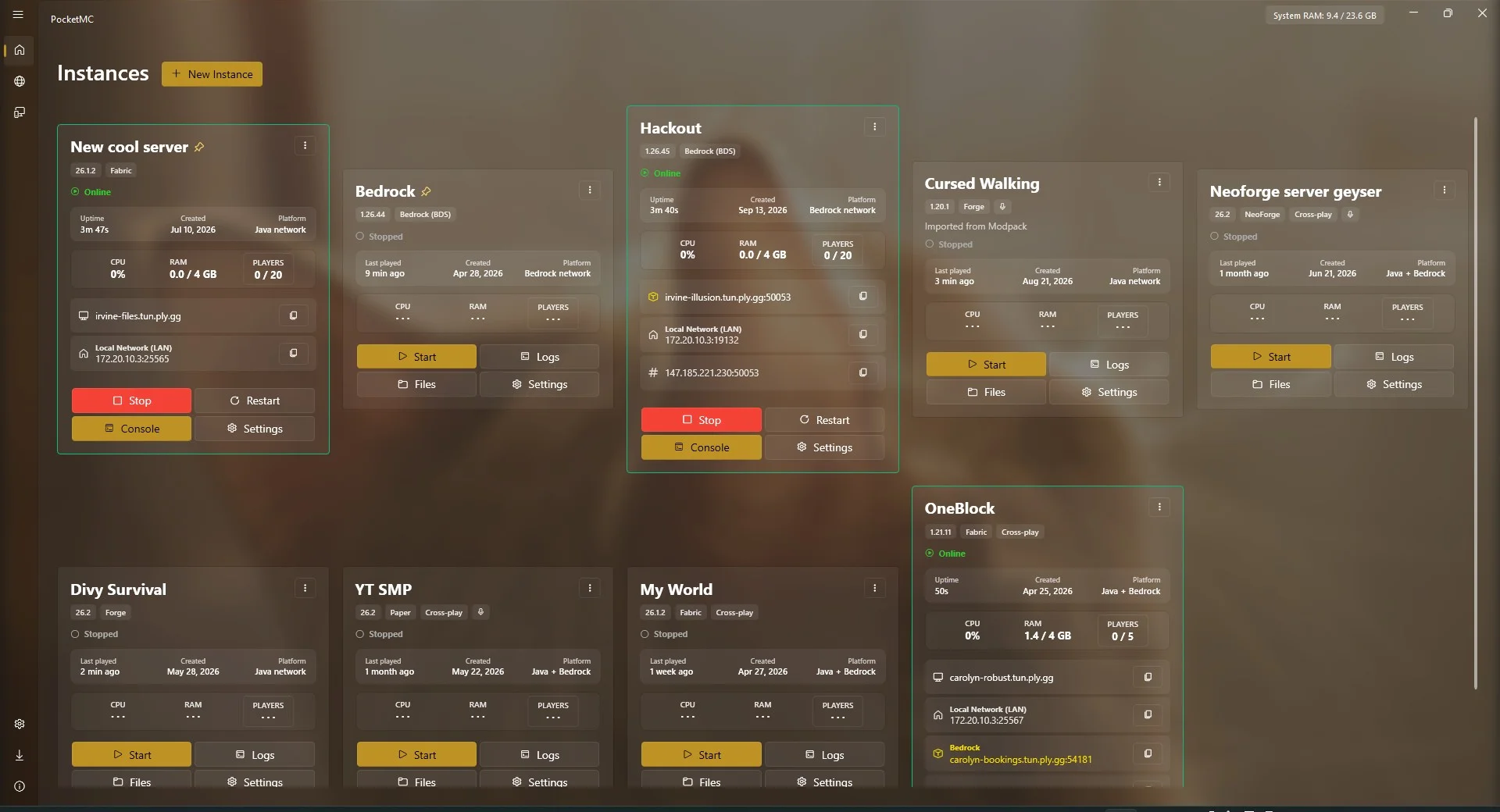

Running a Minecraft server for a few friends does not have to begin with a complicated command line. The important part is to choose software that matches your group, configure a safe first session, and understand how players will connect. PocketMC is one option for Windows users: it is a free, open-source desktop application that helps create and manage a Minecraft server on your own computer. It is not a cloud hosting provider, so the server and its world remain on your machine.
1. Decide what kind of server your group needs
Before installing anything, ask what your friends play and what they want to do. Minecraft Java Edition and Bedrock Edition have different server software and connection requirements. Also agree on the Minecraft version: players generally need a compatible client version to join. If your group wants a mostly vanilla survival world, the official Vanilla server may be enough. Paper is a common choice for servers that want plugin support and performance-oriented configuration. Fabric, Forge and NeoForge are options for particular modded setups. Bedrock Dedicated Server and PocketMine-MP serve different Bedrock use cases.
Choose one supported server type and a version deliberately rather than installing several types at once. Mods, plugins and add-ons are not interchangeable: check which server software and game version each item supports before installing it.
2. Create the server and a test world
PocketMC provides a Windows interface for creating and managing server instances. Its project documentation lists support for Vanilla Java, Paper, Fabric, Forge, NeoForge, Bedrock Dedicated Server and PocketMine-MP. The creation wizard can configure details such as version, world type, seed, game mode, difficulty and player limit. You can review the options in the PocketMC project repository before downloading it.
For your first run, use a new test world and a small player limit. Read the application prompts and the selected server software's terms. Start the server, wait for its startup process to finish, then connect from the same computer or local network if your setup permits it. Confirm that the world loads and that you can stop the server cleanly before inviting everyone.
3. Make the first visit friendly
A server can be technically online but still confusing for a new player. Decide whether the world is survival, creative, cooperative building or something else, then put the basic rules somewhere players can find them. Explain whether griefing, PvP, stealing, farms or large builds are allowed. If you use a whitelist or allowlist, add each player's correct account identifier and test the list before opening the server to the group.
Give operator privileges only to people who need them. Operators can run powerful commands, so being a friend is not by itself a reason to grant full permissions. Keep a short note of important commands and the person responsible for routine maintenance. If you install plugins or mods, add them gradually and test after each change so problems are easier to diagnose.
4. Help everyone connect
Players need the correct server address, port where applicable, and compatible game edition and version. A local address usually works only for devices on the same home network; friends connecting from elsewhere need a suitable public connection method. Router port forwarding is one possibility, but it requires careful network configuration and is not always available. PocketMC documents an integrated Playit.gg tunnel workflow that can help expose a locally hosted server without manually configuring router port forwarding. Read the current instructions for that service and review its terms before using it.
Java–Bedrock cross-play is not automatic for every server. PocketMC's documentation describes Geyser and Floodgate setup for supported Java server types, but compatibility depends on the selected server version and configuration. Test with one Java player and one Bedrock player before promising the whole group that cross-play will work. Never publish a home IP address or remote-control link in a public post without considering the privacy and security implications.
5. Check performance and keep the world safe
Start with a modest view distance and player limit, then increase settings only if the computer can handle the load. A locally hosted server shares CPU, memory, disk and network capacity with other applications on the same PC. Close unnecessary heavy tasks, watch for repeated warnings or crashes, and avoid assuming that adding more memory alone will solve every lag problem. Mods, plugins, world size, entity counts and network quality can all affect performance.
Back up the world before major updates or installing unfamiliar add-ons. PocketMC documents manual and scheduled backups, retention controls, integrity checks and optional cloud backup integrations. Whichever tool you use, verify that a backup exists and periodically test restoring it to a separate location. A backup that has never been checked is not a reliable recovery plan. Shut the server down gracefully before copying world files unless your backup method explicitly supports a live-server save.
6. Keep updates manageable
Do not update the game server, loader, mods and plugins all at once when a stable world matters. Read release notes, make a backup, update one layer, then test the server and a copy of the world. Keep a note of the working version so you can identify what changed if a problem appears. Experimental snapshots and pre-release builds are best kept separate from a long-running friends' world.
Is PocketMC the right choice?
PocketMC is worth considering if you use Windows and want a graphical tool for creating and maintaining a server on your own PC. The repository describes managed Java and PHP runtimes, server controls, logs and metrics, backups, add-on browsing, and options for making a local server reachable remotely. Those features can reduce routine setup work, but they do not remove the need to choose compatible software, manage access, keep backups and understand that the computer must remain available for a locally hosted world.
If you want a server that stays online independently of your home computer, compare a dedicated server or hosting service instead. For a small group that is happy to run the world from a Windows PC, start small, test the connection with one friend, and only then invite the rest of the group.