Minecraft Command Blocks: Essential Commands for Builders
What Are Command Blocks and Why Builders Need Them
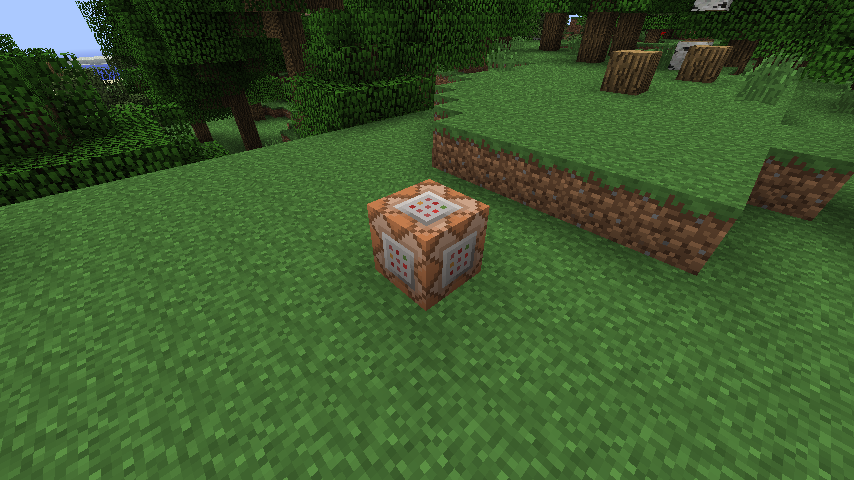
Command blocks are arguably one of the most powerful tools in Minecraft for anyone serious about building. They let you execute commands instantly without typing anything into chat, which means you can automate doors, create teleporters, trigger effects, and build entire systems that respond to player actions.
Here's the thing: mastering command blocks separates builders who rely on redstone logic from those who can create complex, responsive builds in minutes.
You can find command blocks in the creative inventory, or grab them with /give @s command_block in survival mode if cheats are enabled. Once placed, right-click to open the interface and start typing.
Essential Command Block Commands Every Builder Should Know
Teleportation Commands
The most practical command block setup is teleportation. Building a custom doorway? Use this:
/tp @a[x=100,y=64,z=100,distance=0..2] 200 64 200
This teleports anyone within 2 blocks of coordinates (100, 64, 100) to position (200, 64, 200). Need precision? The coordinates filter makes it dead simple. Just adjust the distance value to expand or shrink the trigger zone. You can also use /tp @s to teleport only the player who activated the command block, or /tp @a to move everyone.
By the way, if you're building complex portal networks, you might want to check out our Nether Portal Calculator for coordinating overworld and nether positions.
Give and Clear Inventory Commands
Equip players automatically with gear the moment they step into your custom arena or race course.
/give @a[distance=0..5] diamond_sword{Enchantments:[{id:sharpness,lvl:5}]} 1
Before handing out items, clear their inventory first:
/clear @a
Or target specific items: /clear @a diamond_sword removes only diamond swords. The bracket syntax lets you add enchantments directly, so every sword comes pre-enchanted. That's something you'd normally need to craft and enchant manually.
Chat Messages and Action Bar Text
Make your build feel alive by sending messages to players.
/title @a actionbar {"text":"Welcome to the Arena!"}
/say You've entered restricted territory
The /title command is cleaner than chat spam because it shows in the action bar (that space above the hotbar). Use /title @a title for large messages, /title @a subtitle for secondary text, or /title @a times 10 70 20 to control how long it displays. The three numbers mean fade-in, stay, fade-out (all in ticks).
Building Automated Systems with Command Blocks
Door Automation
Custom doors are a classic. Place a pressure plate (or tripwire hook for invisibility), set it to output a redstone signal into a command block, then add:
/execute as @a[distance=0..3] run setblock 50 64 50 air
This destroys a stone block at (50, 64, 50) when someone nearby activates it. Replace air with another block type to place blocks instead. For fancier setups, use /fill to affect multiple blocks at once:
/fill 50 64 50 52 66 50 air replace stone
That clears a 3x3x1 area of stone blocks.
Lighting and Particle Effects
Make builders actually excited to enter your space.
/particle firework 50 65 50 1 1 1 2
This spawns fireworks particles at coordinates (50, 65, 50) with random spread (1 1 1) and speed (2). Other fun ones: end_rod, glow, witch, totem_pop. Chain multiple command blocks together if you want layered effects.
Light something up permanently? Try:
/setblock 50 65 50 light[level=15]
In Java 26.1.2, the light block is invisible and emits full brightness. Perfect for hidden lighting rigs.
Sound Effects
Sound makes everything better.
/playsound entity.player.levelup master @a 50 65 50 2 1
The format is: /playsound [sound] [category] [player] [x] [y] [z] [volume] [pitch]. Categories include master, music, record, weather, block, hostile, neutral, player, ambient, voice. Pitch values below 1.0 lower the sound, above 1.0 raise it. Some builders pump pitch to 2.0 for comedic effect.
Advanced Tricks for Complex Builds
Conditional Command Blocks
Here's where things get really interesting. Right-click a command block and toggle "Conditional." Now it only executes if the previous command block succeeded.
Set up a chain:
- First block:
/testfor @a[score_kills_min=10](check if anyone has 10+ kills) - Second block (conditional):
/give @a[score_kills_min=10] diamond_block(reward them) - Third block (conditional):
/say Victory!(announce it)
The second and third blocks only run if the first one succeeds.
Scoreboard Integration
Track player progress with scoreboards. Create one:
/scoreboard objectives add kills playerKillCount
Then display it:
/scoreboard objectives setdisplay sidebar kills
Now every player's kill count shows on the sidebar. From there, command blocks can react to score changes, making your builds genuinely interactive. Race tracks can track lap times. PvP arenas can award points. Farms can count items harvested.
Repeating vs. Chain vs. Impulse Blocks
You'll notice command blocks have different types in the right-click menu.
- Impulse: Runs once when powered by redstone (the default).
- Repeating: Runs every tick (20 times per second) while powered. Use sparingly or your server will lag.
- Chain: Runs when the previous block succeeds, no redstone power needed. Perfect for sequences.
If you want repeating behavior, actually use a repeating block. If you want something to run once per click, use impulse.
Common Mistakes to Avoid
Not setting the correct target selector. @a means all players, @s means the executor, @p means the nearest player. Using @a when you meant @s will affect every single person on the server.
Forgetting to enable cheats. You can't place command blocks in survival without /op status or cheats enabled.
Using repeating blocks for chat spam. If you wire a repeating command block to output /say hi and leave it powered, your chat fills up instantly. Never a good idea.
Overlooking syntax. A single bracket, quote, or comma out of place breaks the whole command. The game will tell you "Incorrect syntax" but not where. Copy-paste carefully.
Setting Up Command Blocks on Your Server
If you're running a multiplayer server and want to give builders access to command blocks without full admin status, that's trickier.
You can use permission plugins (if you're on a modded server) or selectively op specific builders for testing. Make sure anyone with builder privileges understands that command blocks let them affect all players, so trust matters.
If you're managing a whitelist-only server, our Minecraft Whitelist Creator can help you maintain consistent player lists while you tinker with builds.
Going Deeper: Resources and Next Steps
Once you're comfortable with the basics, experiment with:
- Data tags and custom model data for custom items
- NBT (Named Binary Tag) for advanced entity manipulation
- Functions (command blocks executed from.mcfunction files) for organized systems
- Armor stands positioned precisely for decorative builds
The Minecraft Wiki has exhaustive documentation. Reddit's r/Minecraft and r/MinecraftCommands communities are helpful. Watch builders like Mumbo Jumbo or Gnembon demonstrate command block tricks in action.
Start simple. Build a teleporter. Then add a door. Then chain them together.
That's honestly how everyone learns.

Lead writer at minecraft.how. Long-time Minecraft player running a small SMP server, testing every build, mod, and seed before writing about it.