Minecraft Pixel Art: Tips and Templates for Building
Pixel art in Minecraft doesn't require fancy mods or extensive experience. With the right templates and a few core techniques, anyone can build impressive 2D pixel art structures. This guide covers everything from choosing blocks to scaling your designs properly.
What's the Deal With Pixel Art Anyway
It's basically art on a grid. Pixel art takes advantage of Minecraft's blocky nature. You're not fighting the square-by-square limitation; you're embracing it. Every block is a "pixel," and stacking them creates images and shapes. It's honestly one of the most satisfying things to build because the constraints force clarity.
The appeal is obvious: you can turn your favorite video game characters, pop culture references, or original designs into tangible structures on your server or survival world. Unlike pixel art on paper (which stays flat), you can make Minecraft pixel art three-dimensional. Walk around it. Your friends can appreciate the detail from different angles.
And here's the thing nobody mentions: it's meditative.
Sure, building a massive pixel art portrait takes hours, but the repetitive block-placing is somehow calming. There's something satisfying about the rhythm of place, place, place. You stop thinking about mistakes and just focus on filling in the grid.
Choosing the Right Blocks (The Palette Question)
Start with two questions: what's the subject, and what colors do you need?
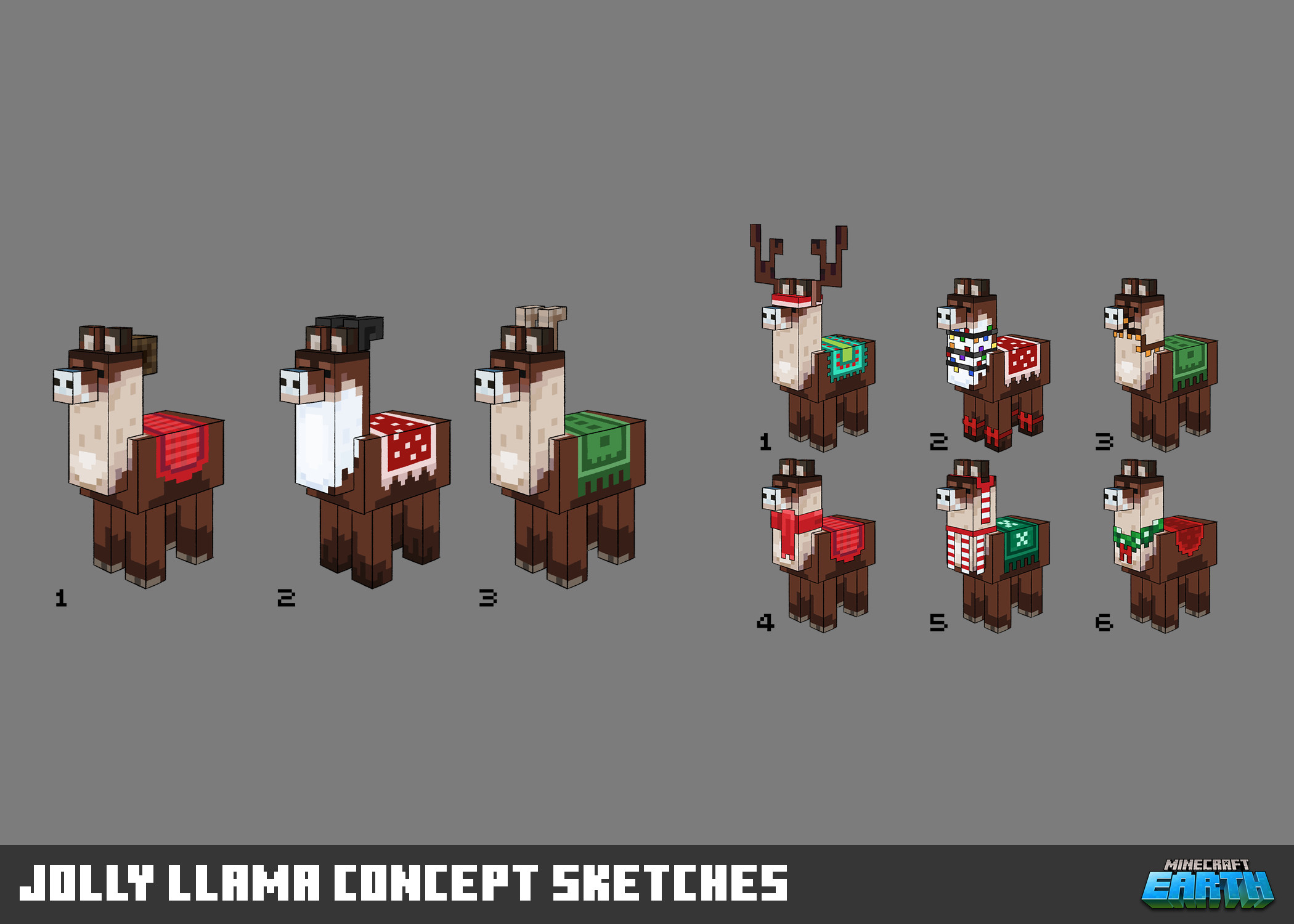
Block selection makes or breaks pixel art. If you're building a Creeper face, you've got green and black covered easily. But if you're attempting a detailed portrait of a Minecraft character? That's where it gets tricky. You need to think about shading, contrast, and how light interacts with different textures.
- Solid-colored blocks (wool, concrete, terracotta) are your foundation. They're predictable and clean.
- Blocks with detail (wood, stone variants, bricks) add texture but can muddy fine details if overused.
- Dark blocks (obsidian, dark oak wood, blackstone) work for shadows and outlines.
- Translucent blocks (glass, ice) are risky in pixel art but create interesting effects if you know what you're doing.
My advice? Limit your palette to 4-6 colors maximum for your first projects. Too many options and you'll spend more time choosing blocks than placing them. Actually, that's not quite right for very large pieces. A massive 64x64 design might need 8-10 colors to show proper depth. But start small with fewer colors.
Test your colors in-game before committing everything. Wool looks different than concrete, and lighting affects everything. What looks right at noon might look washed out at night. Build a small color test wall and view it in different conditions before you invest hours into the full piece.
Scaling and Grid Setup
Size matters, but not always in the way you'd think.
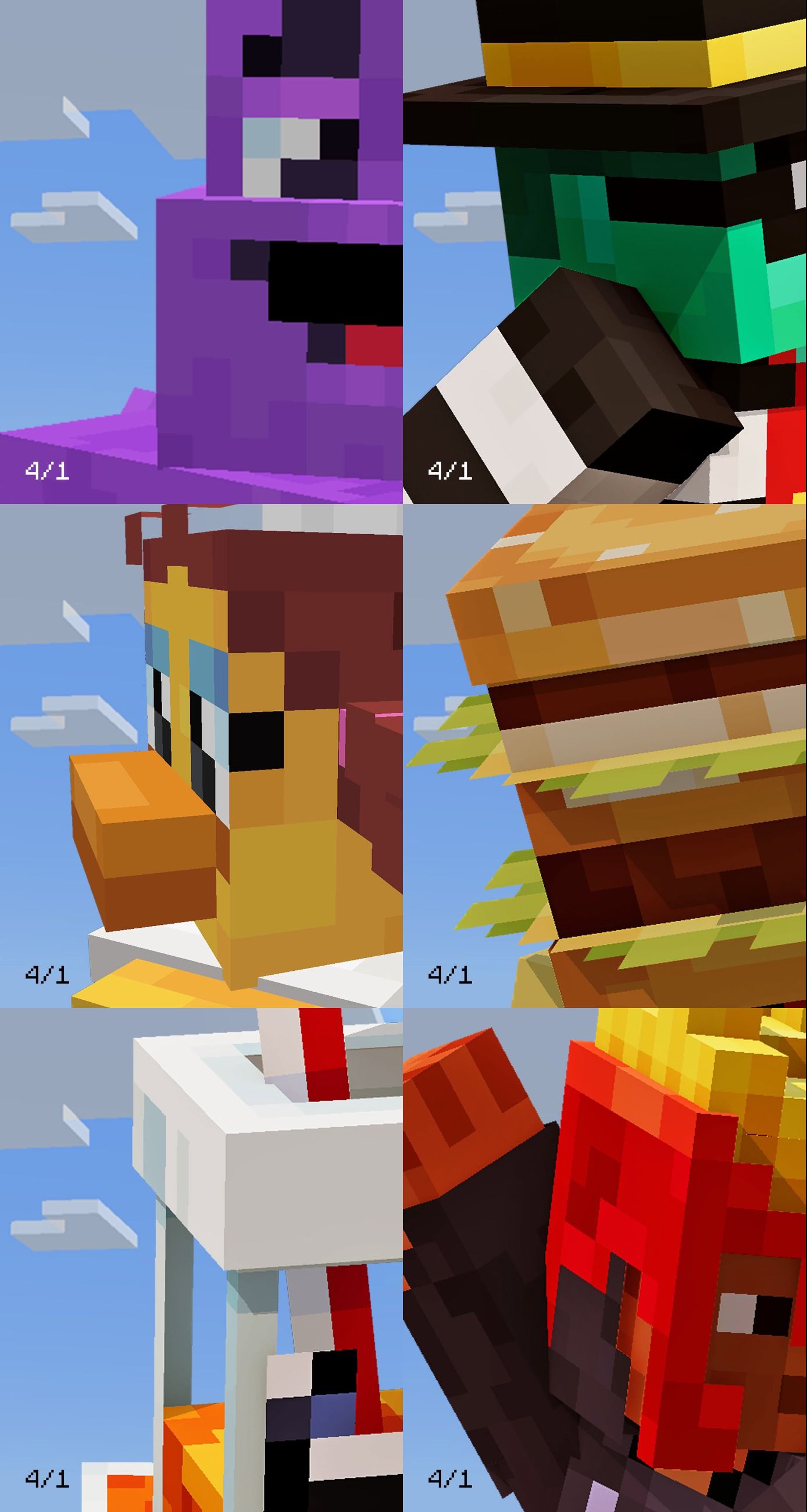
A pixel art template is usually drawn on graph paper or in a pixel editor. To translate that into Minecraft, you need to scale it appropriately. Most simple templates use a 1:1 scale (one block equals one pixel), but you can scale up (2x2 blocks per pixel) for larger, more detailed builds. A 16x16 template becomes a 16x16 block structure at 1:1, or 32x32 at 2:1 scaling.
Here's a practical approach: grab your template and count the dimensions. If your server or world is small, a 32x32 template might not fit. If you've got space, scaling up to 2:1 or 3:1 adds detail you'd lose at 1:1 scale. The more you scale up, the more impressive the final result, but the longer you'll be placing blocks.
One quick trick: use scaffolding or temporary blocks to create a grid before you start.
This keeps you aligned and prevents the "oh no, I'm three blocks off" moment at the halfway point. Honestly, this saves more time than it wastes. Mark out every fifth line with a different color temporarily so you can count sections quickly without miscounting.
Common Mistakes That Ruin Good Ideas
Forgetting about depth. Flat pixel art looks completely flat from the side. Some creators solve this by adding a border or outline using a darker block color. Others build on a slight angle or add a 3D frame around the edges. Experiment with what works for your design.
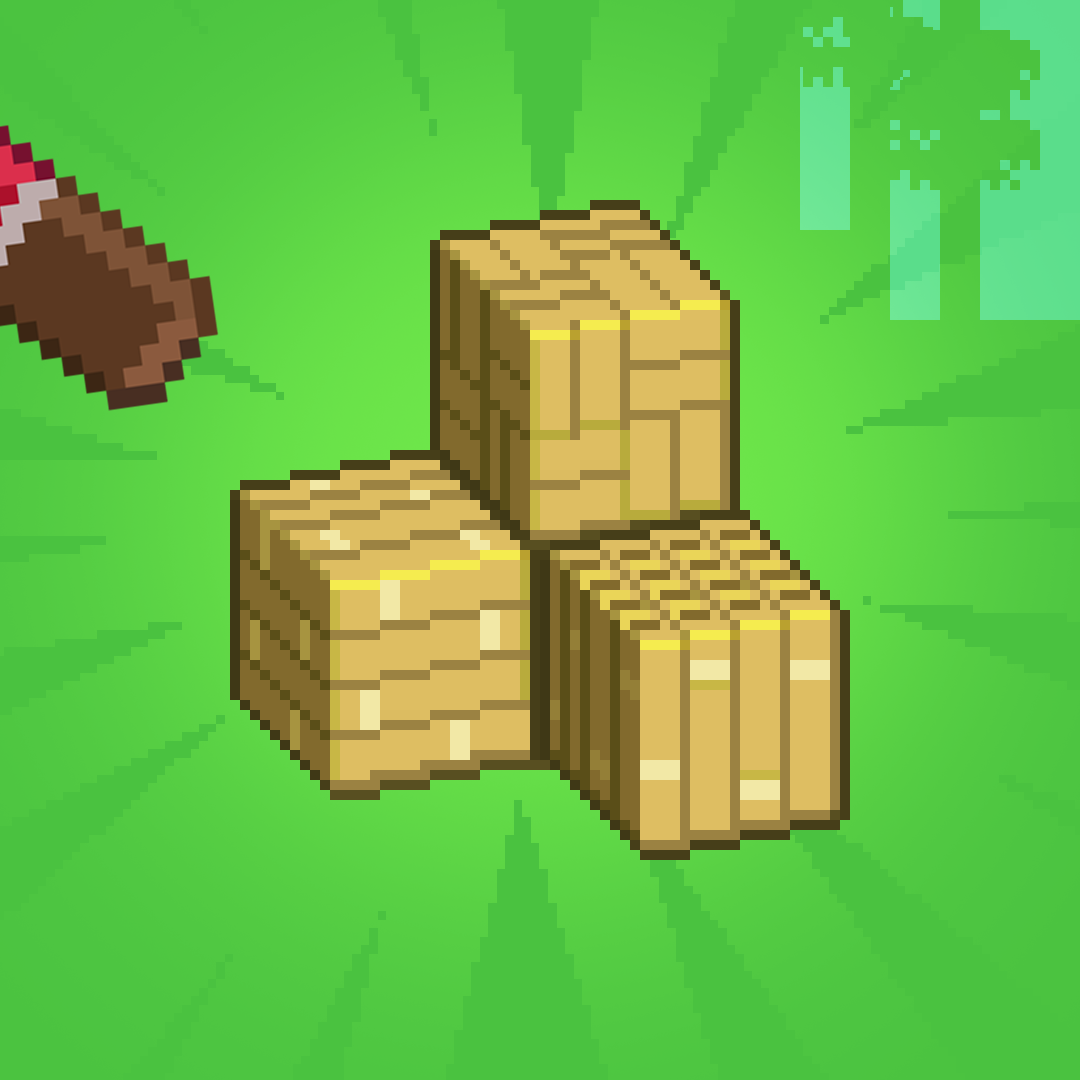
Not accounting for viewing distance. If your pixel art is meant to be viewed from far away, smaller details completely vanish. The farther away your audience stands, the simpler your design needs to be. A detailed portrait loses all personality from fifty blocks away.
Overcomplicating color gradients. With a limited block palette, you can't replicate smooth gradients like a photograph. Accept this limitation and use block transitions to suggest shading instead of trying to fake it.
Using the wrong block types.
A detailed portrait in wool looks muddy compared to one in concrete or terracotta. Wool has softer edges while concrete is crisp. Test different materials, not just different colors.
Templates and Tools Worth Checking Out
If you're starting from scratch, pixel art editors like Aseprite or even MS Paint can get you going. But honestly? The Minecraft Wiki has galleries of community-created templates. Reddit's r/Minecraft regularly posts pixel art designs with exact block lists and color breakdowns.
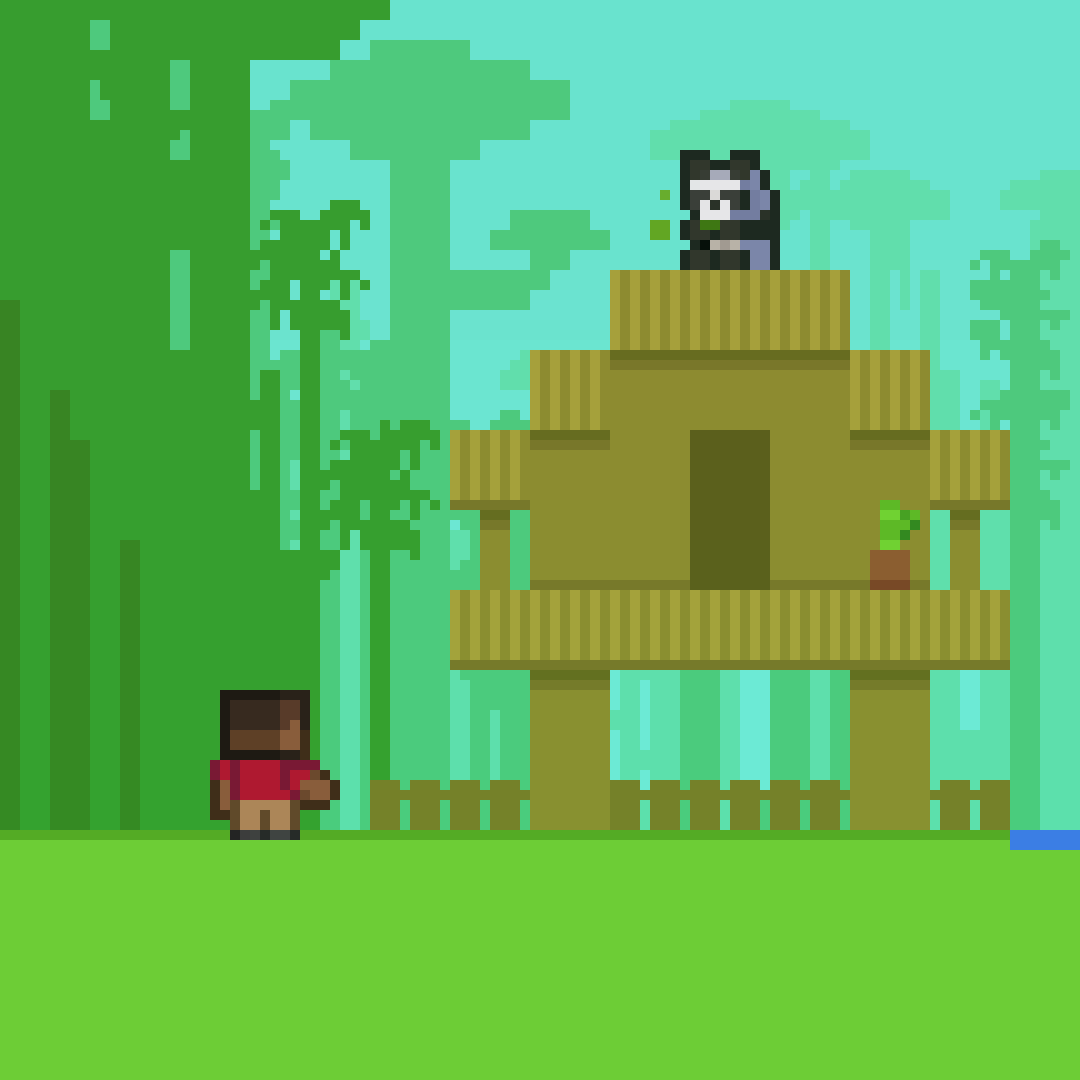
One useful approach: convert existing sprites from retro games into Minecraft designs. A 16x16 sprite from an NES game translates directly into a 16x16 block structure. Tons of sprite databases exist online with clean, simple designs perfect for pixel art translation.
If you're planning a complex build on a community server, you might want to test your server's voting system before celebrating your finished pixel art with the community. Nothing worse than completing an amazing build and not being able to share it properly with other players.
For scaling references and understanding proportions, the Nether Portal Calculator can help you think about dimensional relationships if you're building larger structures and want to understand scale conversions. It's useful for calculating how your design will look at different sizes before you start building.
From Template to Reality
Actually building your design is where patience becomes your best asset. Gather all your blocks beforehand. Count them if you can (most templates list exact quantities). Nothing breaks momentum like running out of a color block halfway through, forcing you to find more or substitute blocks that don't match.
Work methodically.
Some creators start from the top-left and move right and down (like reading). Others work from the center outward. A few build the outline first then fill the interior. Find what keeps you sane and preserves your accuracy.
Save frequently if you're in survival mode. I learned this the hard way after losing four hours to a creeper explosion. Make backup copies of your world files before attempting anything ambitious. Also, consider building in creative mode first to test your design, then recreate it in survival if that's your goal.
Don't judge your work until it's done. Pixel art looks messy in-progress, scattered and random. Stepping back for perspective helps, but only after you've completed major sections. The final result always looks better than the halfway point.

Lead writer at minecraft.how. Long-time Minecraft player running a small SMP server, testing every build, mod, and seed before writing about it.