Minecraft Vsync On or Off: What You Actually Need to Know

Short answer: vsync should usually be on for casual play, off for competitive. But there's a catch - your hardware, monitor, and what you're doing in Minecraft all matter way more than you'd think.
What Is Vsync and Why Does It Exist?
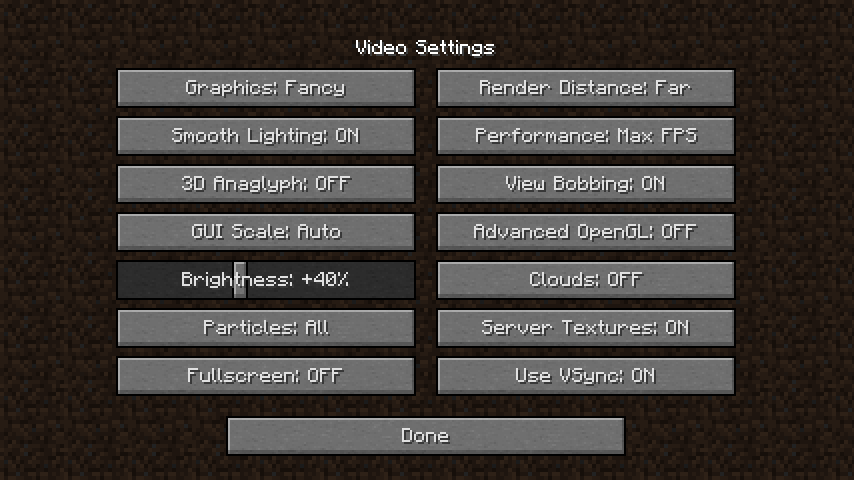
Vsync (vertical sync) forces your graphics card to match your monitor's refresh rate. So if you've got a 60Hz monitor, vsync locks your frame rate to 60fps. 144Hz monitor? You'll get 144fps max. The point is preventing screen tearing, which is that weird visual glitch where your screen shows frames from different parts of your game at the same time - looks like your character got sliced horizontally.
Without vsync, your GPU just pumps out frames as fast as it can. Sometimes that's faster than your monitor can display them. Without a sync mechanism, you get tearing. It's not a huge deal in most games, but it's annoying enough that Nvidia and AMD spent years building vsync tech.
Vsync On: Why It Helps
Turning vsync on eliminates screen tearing completely. If you're the type who notices visual inconsistencies (and honestly, once you see tearing, you can't unsee it), this alone is worth it.
It also helps with frame pacing. Your game runs smoother when frames come at consistent intervals. You're not jumping from 200fps to 85fps to 160fps - you're locked and steady. On lower-end hardware, this can actually make gameplay feel less stuttery even if you're running fewer total frames.
One more thing: turning vsync on reduces GPU heat and power draw. Your graphics card isn't working overtime trying to render 1000fps that you'll never see anyway. And that matters on laptops especially.
The Real Problem With Vsync: Input Lag
This is where vsync gets annoying. When you click your mouse or press a key, there's a delay before you see that action on screen. That's input lag, and vsync adds it.
Here's why: vsync waits for the next monitor refresh to display your frame. If you press jump and your GPU finishes the new frame at 16.5ms (halfway through a frame cycle), it has to wait another 16.5ms before your monitor actually shows the jump. That's roughly 33ms of added latency (assuming a 60Hz monitor). At 144Hz, it's less - around 7ms.
For building or exploring? Doesn't matter. For PvP? It matters. A lot. Competitive Minecraft players disable vsync immediately. If you're battling other players on a server with a skin like Officer, input lag means you'll land hits slower than your opponent.
The CPU/GPU Cost (and It's Real)
Vsync has another hidden cost: your CPU has to wait for the GPU. Without vsync, your CPU can keep queuing up work. With it, the CPU gets blocked waiting for the monitor's sync signal. This is weird because it sounds like it should improve performance, but sometimes it actually makes frame times inconsistent.
On mid-range hardware, you might see better frame times. On high-end hardware with a fast CPU and GPU, you sometimes see worse performance.
So When Do You Enable It?
Casual survival mode? Turn it on. The screen tearing you prevent is worth the microseconds of input lag when you're placing blocks.
Creative building with friends? On. You want smooth visuals while you work on your structure.
Hypixel or other multiplayer servers where PvP happens? Off. Every millisecond counts. Customize skins like oproffesional or _NoNameOfficial to look sharp in combat, but turn off vsync so your reflexes aren't fighting the game's timing.
Speedrunning? Off, always off.
The Hardware-Specific Reality
Your frame rate ceiling matters enormously. If you're getting 40fps steady, your monitor refresh rate doesn't matter - you're CPU-limited. Vsync won't help or hurt much.
If you can push 200+ fps on your hardware but your monitor is 60Hz? Vsync actually helps a ton. You're dropping half your performance anyway.
Actually, that's not quite right for high refresh monitors. If you've a 240Hz monitor and your hardware can do 200fps, you're between sync intervals. Your monitor shows most frames at 200fps but occasionally has to duplicate a frame. It's not ideal but it's not bad either.
- High-end hardware (200+ fps potential): Vsync on if you have a 144Hz+ monitor. Off if you want maximum responsiveness despite the tearing.
- Mid-range (80-150 fps): Match vsync to your monitor. 144Hz monitor? Keep vsync on. 60Hz? Your choice - tearing or lag.
- Lower-end (60fps or less): Vsync on, always. You're already maxed out and you get the tearing prevention for free.
Fancy Alternatives Worth Knowing About
Modern monitors have adaptive sync: G-Sync (Nvidia) or FreeSync (AMD). These technologies eliminate tearing AND the input lag from vsync by having the monitor adapt to your GPU's output instead of the other way around. If your monitor and GPU support it, use this instead of regular vsync. Best of both worlds.
Some games offer "fast sync" or "triple buffering" which reduce the input lag from vsync. Minecraft's default launcher doesn't have these options, but some people swear by specific GPU driver settings.
The Real Talk
If you're playing casually with your friends on a server with fun skins like Sparrowofficial or SmallsCoffeeNot, turn vsync on and forget about this article. You'll be happy.
If you're competitive, if you care about frame pacing, if you're streaming - test both settings. Literally toggle it, play for five minutes, toggle it back. See which feels right.
The annoying truth is that vsync is a tradeoff, not a magic setting. You're always choosing between visual quality (no tearing) and responsiveness (low input lag). Your preference depends on what you're doing and how sensitive you're to that lag. Most people don't notice 16ms of added delay. Some do. You might be surprised which camp you're in until you actually try it.