Exposure для Minecraft: Полное Руководство по Кинематографии
"Камерный мод для Minecraft, фокусирующийся на процессе и эстетике."
mortuusars/Exposure, github.com
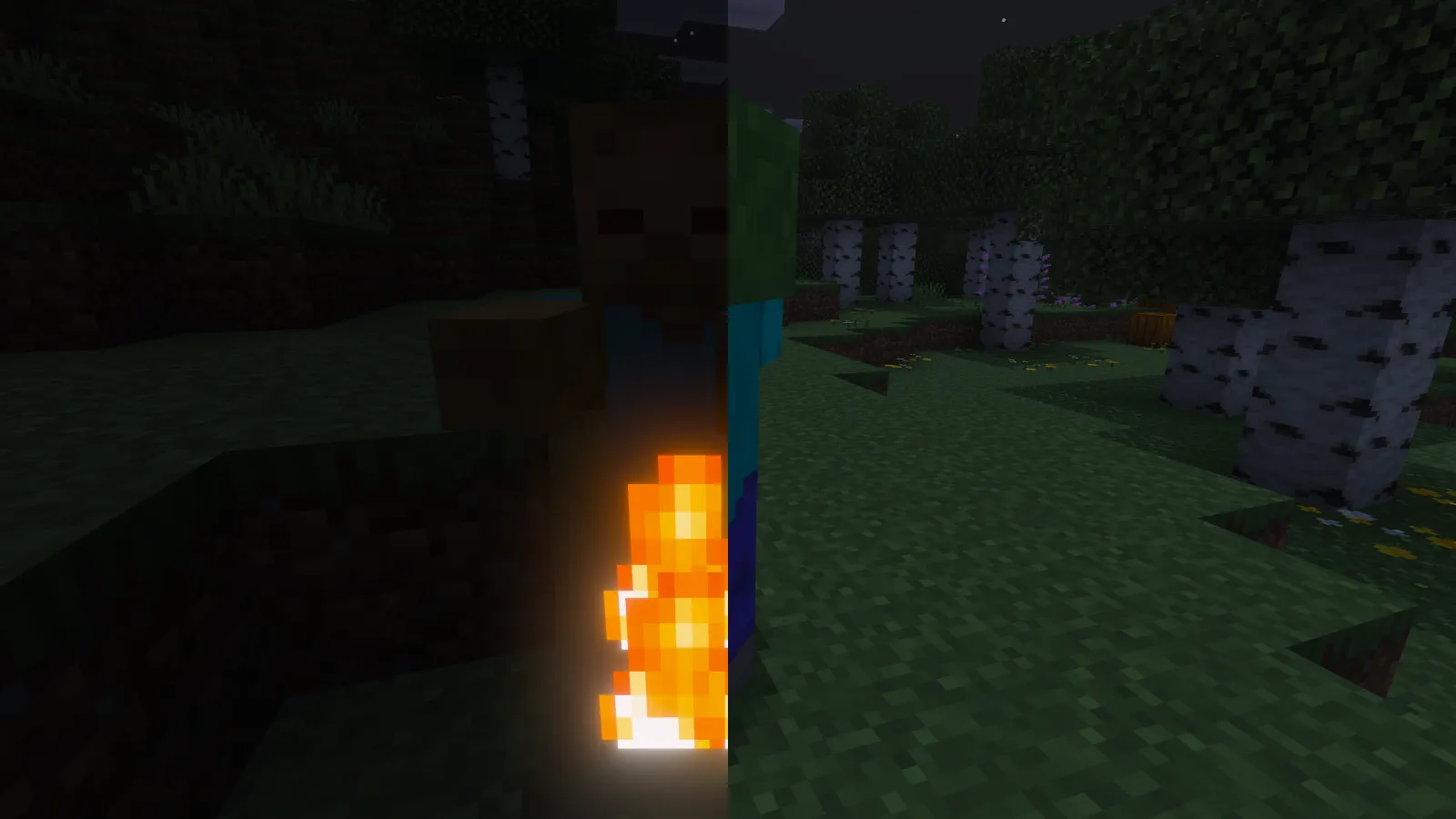
Если вы когда-либо строили в Minecraft что-то, достойное лучшей документации, чем размытый скриншот с телефона, Exposure - это то, чего вы ждали. Это бесплатный камерный мод, превращающий ваши творения в нечто действительно осмысленное, с плавными кинематографическими контролями вместо стандартного первого плана Minecraft. Без изменений в игровом процессе. Без приёмов. Просто инструмент камеры, уважающий вашу творческую видение.
Что такое Exposure
Exposure - это мод на Java, предоставляющий профессиональный уровень движения камеры и опций кадрирования внутри Minecraft. Представьте, что вы заменяете свой телефон на настоящую камеру. Мод удаляет жёсткие стандартные контролы и заменяет их на плавные панорамы, настраиваемые фокусные расстояния и возможность размещения камеры в любом месте вашего мира, чтобы захватить желаемый угол.
Доступно на всех主要ых мод-лодах: Fabric, Forge, NeoForge и Quilt. Поддерживаются версии 1.19.2 через 1.21.1, что покрывает практически любые недавние миры. Также мод имеет лицензию MIT и открыт на GitHub с 127 звёздами.
Основное привлечение - простота.
Вам не нужно путаться в сложных привязках клавиш или копаться в файлах конфигурации, чтобы всё работало. Загрузите мод, и функции камеры сразу же доступны. Мод не добавляет новых блоков, предметов или механик. Он просто помогает вашему существующему миру выглядеть лучше при захвате.
Почему Это Нужно Билдерам и Создателям Кинематографии
Будем честны: выживание в построенных мирах требует усилий. Месяцы сбора материалов, планирования макетов, попыток сделать так, чтобы особенность рельефа работала с вашим дизайном базы. Затем вы нажимаете F2, чтобы сделать скриншот, и получаете вид, который делает всё плоским и неловким, потому что вы ограничены первым планом и ограниченным контролем камеры.
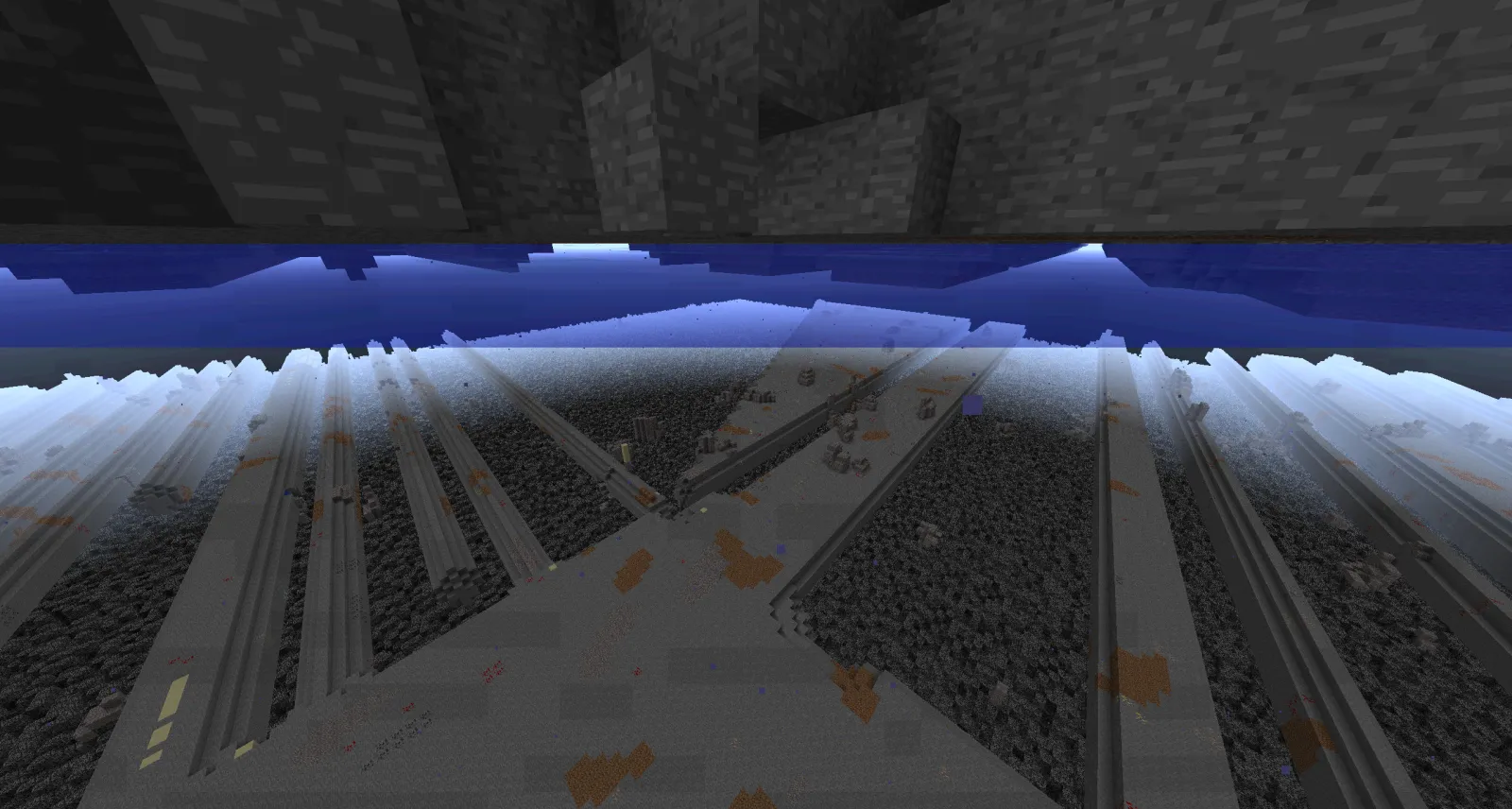
Exposure решает эту проблему, позволяя размещать камеру в любом месте, правильно кадрировать сцену и двигаться плавно, а не дрожать. Хотите показать величественный вход в ваш подземный базис? Вы можете поставить камеру на уровне земли, отойти назад плавно и захватить всё пространство. Хотите задокументировать проект сервера для вашей сообщества? Вы можете панорамировать от постройки к постройке без застрекотки игрока.
Это особенно полезно, если вы управляете публичным сервером и хотите выставить на показ, что построили игроки. Если ваша настройка сервера, вероятно, использует что-то вроде Генератора Свойств Сервера для конфигурации, наличие хороших визуальных записей завершённых проектов важно для набора и вовлечения сообщества.
Также это действительно полезно для технического планирования. Иногда вам нужно увидеть вашу красное камень конструкцию сверху на разных расстояниях, чтобы заметить неэффективность. Камерные моды дают вам эту перспективу без необходимости строить леса повсюду.
Установка Exposure
Процесс установки варьируется slightly в зависимости от лодера, но ядро процесса практически идентично для Fabric, Forge и NeoForge.
Для Fabric
Сначала установите Fabric Loader. Затем загрузите Exposure с Modrinth, положите файл .jar в папку mods и перезапустите игру. Всё.
~/minecraft/mods$ wget https://cdn.modrinth.com/data/hB899VmG/versions/[latest-version].jar
# Поместите в папку mods, затем запустите Minecraft
Для Forge и NeoForge
Используйте установщик Forge для настройки окружения, добавьте файл мода в папку mods, и готово. CurseForge имеет версии Forge, если вы предпочитаете загружать через их лаунчер вместо командной строки.
Если вы не знаете, использовать Fabric или Forge, Fabric обычно быстрее и менее нагружает время загрузки. Forge более стабилен для крупных мод-паков. Для одного камерного мода? Любой вариант подходит.
Общие Проблемы при Установке
Убедитесь, что ваша версия Java совпадает с тем, что ожидает Minecraft и мод. Java 21 - стандарт для недавних версий. Если игра крашится при загрузке с ошибкой несоответствия версий, это ваша ошибка, фактически, это самая частая ошибка, которую я встречаю.
Также: если вы используете менеджер модов, например, MultiMC или Prism Launcher, просто положите мод в папку mods внутри вашего инстанса. Никаких специальных шагов не требуется.
Важные Функции
Exposure не перегружен кнопками и слайдерами. Он фокусируется на нескольких ключевых функциях, делающих вашу кинематографию действительно работающей.
Плавное Движение Камеры
Стандартная камера Minecraft движется в дискретных шагах, связанных с чувствительностью мыши. Exposure гладит это, так что панорамы и вращения чувствуются естественно, а не механически. Разместите камеру, определите путь, и она скользит вместо дрожания.
Свободное Размещение Камеры
Вы можете отключить камеру от персонажа игрока и разместить её в любом месте. Смотрите на ваш базис с птичьего полёта? Готово. Хотите захватить ландшафт с плавающей точки обзора? Готово. Это та функция, которая действительно оправдывает использование камерного мода вместо простых скриншотов.
Настройка Фокусного Расстояния
Фотографические энтузиасты называют это «зумом», но это более нюансированно. Различные фокусные расстояния сжимают или расширяют пространство визуально. Сужающее фокусное расстояние делает небольшую область выглядеть обширной. Широкий угол делает большую область компактной. Exposure даёт вам реальный контроль здесь вместо всё-или-ничего зума стандартного Minecraft.
Глубина Острого Фокуса (Опционально)
Если ваша настройка поддерживает это, вы можете размыть фон, сохраняя предмет в остром фокусе. Это привлекает взгляд к тому, что важно, и отделяет вашу постройку от окружающего рельефа.
Что Может Запутать
Плавное движение камеры кажется простым, пока вы не попробуете захватить конкретный кадр, тогда появляется кривая обучения.
Сначала: привязки клавиш не очевидны сразу. Проверьте вики Exposure (ссылка на странице GitHub), чтобы увидеть, какие клавиши привязаны к чему. Привязка их к мышечной памяти занимает около двадцати минут экспериментов. На самом деле, стоит прямо сказать: потратьте 20 минут просто на игру с камерой в тестовом мире, прежде чем пытаться документировать что-то реальное. Ваши первые сцены будут неловкими, потому что вы всё ещё учитесь инструменту.
Второе: частота кадров важнее, чем вы думаете. Если игра дрожит, движение камеры будет выглядеть дрожащим даже со сглаживанием. Запуск настроек камеры в вашем основном мире выживания может сильно снизить производительность, если ваш базис требовательный. Решение: тестируйте на творческом мире сначала, или уменьшите расстояние рендеринга во время съемки.
Третье: сетевая задержка, если вы на мультиплеерном сервере. Камера работает на стороне клиента, поэтому движение других игроков не повлияет на неё, но ваша собственная связь - да. Если вы документируете серверную постройку (которого ровно для чего и нужен этот мод), делайте запись в время низкой нагрузки или берите свежий бэкап для локальной работы.
Ещё Один Практический Пример Использования
Если вы управляете сервером Minecraft и документируете постройки для показа сообществу, или если вы опубликовали детали вашего сервера где-то, например, в настройке серверного браузера (используйте бесплатные инструменты, такие как Бесплатный Minecraft DNS для инфраструктуры), хорошая визуальная документация завершённых структур фактически увеличивает вовлечённость. Новые игроки, присоединяющиеся, хотят видеть, что возможно. Exposure делает это тривиально простым для производства.
И если вы занимаетесь стримингом, это ваш инструмент для интро-сцен и обзоров построек. Плавное движение камеры читается лучше на стриме, чем дрожащая навигация первого плана.
Стоит Ли Тратить Время?
Exposure - лёгкий, бесплатный мод, решающий реальную проблему, если вы когда-либо хотели, чтобы ваша документация построек выглядела лучше. Если вы играете строго в ванилла выживание и никогда не делаете скриншотов, пропустите его. Но если вы когда-либо желали, чтобы ваша творческая работа была документирована лучше, или управляете сервером, где контент демонстрации важен, оно стоит пяти минут установки.
Мод активно поддерживается и совместим с текущими версиями Minecraft. Он не баговат и не заброшен. И поскольку это просто инструмент камеры без влияния на игровой процесс, установка его в существующий мир не ломает ничего.
mortuusars/Exposure - MIT, ★127
Lead writer at minecraft.how. Long-time Minecraft player running a small SMP server, testing every build, mod, and seed before writing about it.
Have a Question or Tip about this Guide?Community Q&A
Ask a question or help other players below. Join the discussion and share your Minecraft tips!
Комментарии
Пока нет комментариев. Станьте первым, кто поделится своим мнением!