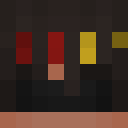
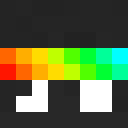
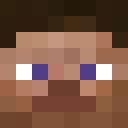
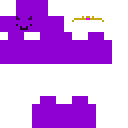
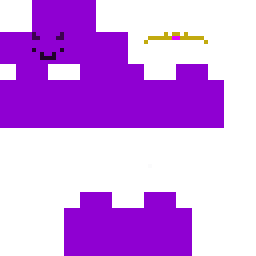
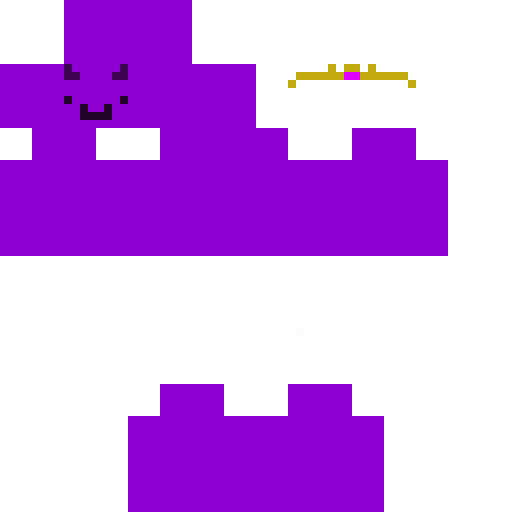
W3mmbu____ Minecraft Skin
✓ Approved
Skin for W3mmbu____
0
Downloads
80
Views
Minecraft profile
d321060a-33cb-4917-9e5a-b932cb5a9bbbModel
classic
Views / 30 days
47
Observed names
Dates show when minecraft.how first observed each name.
W3mmbu____—
Skin history
History grows as minecraft.how observes profile changes.

Head command
/give @p minecraft:player_head[profile={name:"W3mmbu____"}]Users with Same Texture (25 total)
25
Total Users
39.9K
Combined Views
0
Combined Downloads
 GroxMCC
37.7K views0 downloads
 wemmbustan
187 views0 downloads
 Wemmbu_FlameFrag
156 views0 downloads
 fishlegstaco
134 views0 downloads
 Wembuuu
117 views0 downloads
 Pentar_ismy_king
116 views0 downloads
 sakuax1234
103 views0 downloads
 W3mmbu_
102 views0 downloads
 okarun4
97 views0 downloads
 WemmbooYT
94 views0 downloads
 bluored
91 views0 downloads
 ITSREALMEN
88 views0 downloads
 WemmboX2
86 views0 downloads
 haroun_gt
83 views0 downloads
 Diddy_oiler
81 views0 downloads
 wemboo1
80 views0 downloads
 wemmbuu
75 views0 downloads
 WemmboYT
75 views0 downloads
 wemboo____
63 views0 downloads
 Ultrakling
63 views0 downloads
 flamfragmenten
54 views0 downloads
 wemboo___
52 views0 downloads
 wemdih
48 views0 downloads
 flamfrags22547
43 views0 downloads
PNG · 64×64
Share this skin
Scan with your phone to share this skin
Tags
MinecraftSkinsW3mmbu____
Frequently Asked Questions
To download the W3mmbu____ Minecraft skin:
- Click the "Download" button to get this free W3mmbu____ skin
- The skin file
.pngwill be saved to your device - Works with both Java Edition and Bedrock Edition
- See below for complete installation instructions
To apply the W3mmbu____ skin:
- Log in to your Mojang or Microsoft account on the official Minecraft website.
- Navigate to the "Skins" section in your profile.
- Upload the downloaded
.pngfile. - Launch Minecraft, and your character will now use the W3mmbu____ skin.
Note: The process may vary slightly between Minecraft Java Edition and Minecraft Bedrock Edition.
Yes, the W3mmbu____ skin is compatible with both Minecraft Java Edition and Minecraft Bedrock Edition. However, the method of applying the skin may differ slightly between the two versions. Follow the instructions provided on this page for your specific edition.
Absolutely! You can edit the W3mmbu____ skin using a Minecraft skin editor. Simply open the downloaded
.png file in the editor, make your changes, and save the file. Then, upload the edited skin to your Minecraft profile.If the W3mmbu____ skin isn't working, try the following:
- Ensure you downloaded the correct file format
.png. - Make sure you're using the correct version of Minecraft Java Edition or Bedrock Edition.
- Check that the skin file is not corrupted. Re-download the skin if necessary.
- Log out and back into your Mojang or Microsoft account to refresh your profile.
Create your own skin
Draw a pixel-perfect Minecraft skin in the browser with our free 3D skin editor.
→ Skin Creator