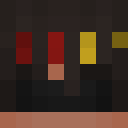
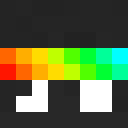
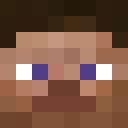
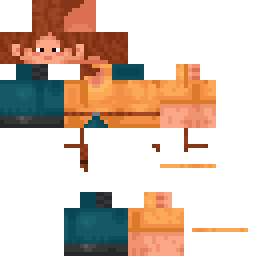
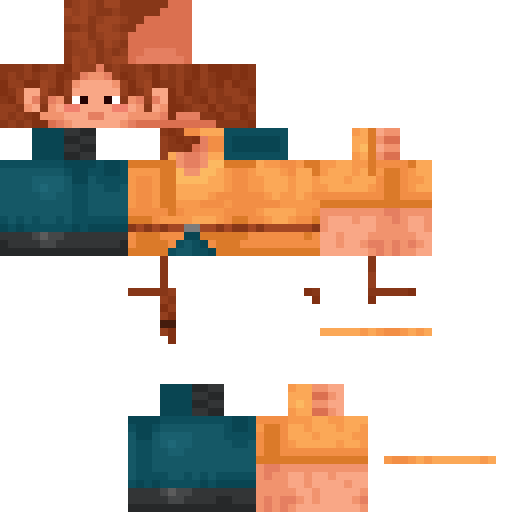
sapindealvin Minecraft Skin
✓ Approved
This skin is a straightforward choice if you want a look that's easy to spot in-game. No flashy details, just a solid design that won't distract from your play. It fits well on any Minecraft avatar, from default Steve to slim models. Grab it and give your profile a fresh appearance.
0
Downloads
74
Views
Minecraft profile
030eb1d7-3c5d-4ea3-bc53-1d7df8f6773cModel
classic
Views / 30 days
64
Observed names
Dates show when minecraft.how first observed each name.
sapindealvin—
Skin history
History grows as minecraft.how observes profile changes.

Head command
/give @p minecraft:player_head[profile={name:"sapindealvin"}]Users with Same Texture (46 total)
46
Total Users
64.9K
Combined Views
0
Combined Downloads
 Durbin
60.8K views0 downloads
 prosong
198 views0 downloads
 uzui
uzui175 views0 downloads
 Neto22
165 views0 downloads
 grox_mc
158 views0 downloads
 Vishnu
144 views0 downloads
 sligoman
141 views0 downloads
 PhilzaOwns
137 views0 downloads
 VillageScout62
133 views0 downloads
 Marimonda
109 views0 downloads
 Jaditobeeto
106 views0 downloads
 foltyn13
106 views0 downloads
 marbar
103 views0 downloads
 osimhennnn
103 views0 downloads
 Legais
98 views0 downloads
 Evilsteve654
97 views0 downloads
 Isarins
97 views0 downloads
 qaterr_
97 views0 downloads
 MetalSonic
95 views0 downloads
 fnafnightmare
94 views0 downloads
 Mileska21
92 views0 downloads
 676767676767
91 views0 downloads
 Bonnich777
85 views0 downloads
 DearChip5839814
83 views0 downloads
 ReddishInk28250
82 views0 downloads
 Defne
Defne82 views0 downloads
 VillageSmith0
79 views0 downloads
 Lily52
76 views0 downloads
 Polenta
73 views0 downloads
 albidogamer
69 views0 downloads
 RulasAAA
68 views0 downloads
 12345567
67 views0 downloads
 GirlFriend2004
66 views0 downloads
 yarj
yarj66 views0 downloads
 Menina
64 views0 downloads
 BoobiesZLover
63 views0 downloads
 Polesie
62 views0 downloads
 AlsoShurikennen
62 views0 downloads
 guasonxyt
61 views0 downloads
 titson
59 views0 downloads
 erispoperis
57 views0 downloads
 Maisloedie
54 views0 downloads
 Trajesty
53 views0 downloads
 FlameFreak519
52 views0 downloads
 pdiddy
48 views0 downloads
PNG · 64×64
Share this skin
Scan with your phone to share this skin
Tags
MinecraftSkinssapindealvin
Frequently Asked Questions
To download the sapindealvin Minecraft skin:
- Click the "Download" button to get this free sapindealvin skin
- The skin file
.pngwill be saved to your device - Works with both Java Edition and Bedrock Edition
- See below for complete installation instructions
To apply the sapindealvin skin:
- Log in to your Mojang or Microsoft account on the official Minecraft website.
- Navigate to the "Skins" section in your profile.
- Upload the downloaded
.pngfile. - Launch Minecraft, and your character will now use the sapindealvin skin.
Note: The process may vary slightly between Minecraft Java Edition and Minecraft Bedrock Edition.
Yes, the sapindealvin skin is compatible with both Minecraft Java Edition and Minecraft Bedrock Edition. However, the method of applying the skin may differ slightly between the two versions. Follow the instructions provided on this page for your specific edition.
Absolutely! You can edit the sapindealvin skin using a Minecraft skin editor. Simply open the downloaded
.png file in the editor, make your changes, and save the file. Then, upload the edited skin to your Minecraft profile.If the sapindealvin skin isn't working, try the following:
- Ensure you downloaded the correct file format
.png. - Make sure you're using the correct version of Minecraft Java Edition or Bedrock Edition.
- Check that the skin file is not corrupted. Re-download the skin if necessary.
- Log out and back into your Mojang or Microsoft account to refresh your profile.
Create your own skin
Draw a pixel-perfect Minecraft skin in the browser with our free 3D skin editor.
→ Skin Creator