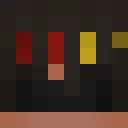
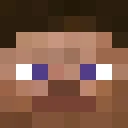
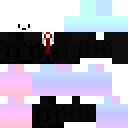
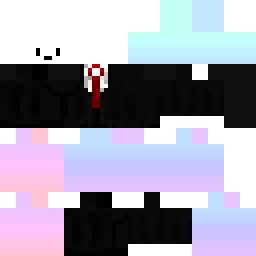
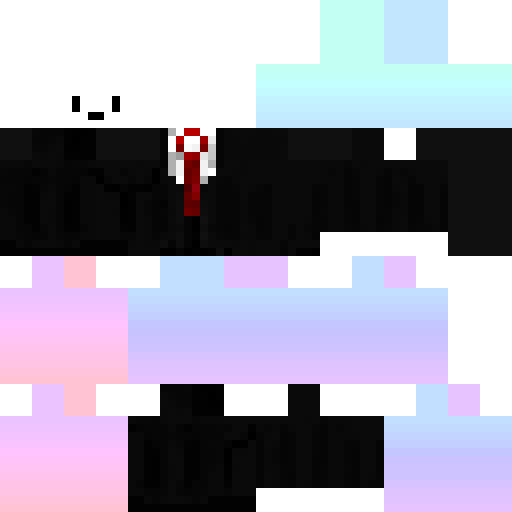
M4strgamer Minecraft Skin
✓ Approved
Skin for M4strgamer
1
Downloads
151
Views
0
Likes
Reactions
Log in to react.
Minecraft profile
173c2fda-c085-4312-9931-b54217c1383eModel
classic
Views / 30 days
32
Observed names
Dates show when minecraft.how first observed each name.
M4strgamer—
Skin history
History grows as minecraft.how observes profile changes.

Head command
/give @p minecraft:player_head[profile={name:"M4strgamer"}]Users with Same Texture (30 total)
30
Total Users
5.1K
Combined Views
30
Combined Downloads
 thimaas
344 views1 downloads
 SagoTech
190 views1 downloads
 Reeking4567
187 views1 downloads
 Fling56
186 views1 downloads
 Kokos_13
186 views1 downloads
 JS14
183 views1 downloads
 Akuma1942
179 views1 downloads
 Razeloss
178 views1 downloads
 Noodlesarechewy
178 views1 downloads
 krulmo12345
174 views1 downloads
 ilya202
173 views1 downloads
 Dreamhunterme
171 views1 downloads
 emmmanue
169 views1 downloads
 Nolhix
168 views1 downloads
 monsdoom
166 views1 downloads
 DepressedDay
165 views1 downloads
 Viprax12
164 views1 downloads
 WindSadow
162 views1 downloads
 Zolyas
161 views1 downloads
 Mason_ww
160 views1 downloads
 lcCLOUDdl
158 views1 downloads
 theminifringe
157 views1 downloads
 lubodragon200
155 views1 downloads
 dbobobob__
154 views1 downloads
 DismalFire
152 views1 downloads
 DarkUrizen
151 views1 downloads
 Lillyfee_Killer
150 views1 downloads
 AR0ACE
140 views1 downloads
 Invigoration797
128 views1 downloads
PNG · 64×64
Share this skin
Scan with your phone to share this skin
Tags
MinecraftSkinsM4strgamer
Frequently Asked Questions
To download the M4strgamer Minecraft skin:
- Click the "Download" button to get this free M4strgamer skin
- The skin file
.pngwill be saved to your device - Works with both Java Edition and Bedrock Edition
- See below for complete installation instructions
To apply the M4strgamer skin:
- Log in to your Mojang or Microsoft account on the official Minecraft website.
- Navigate to the "Skins" section in your profile.
- Upload the downloaded
.pngfile. - Launch Minecraft, and your character will now use the M4strgamer skin.
Note: The process may vary slightly between Minecraft Java Edition and Minecraft Bedrock Edition.
Yes, the M4strgamer skin is compatible with both Minecraft Java Edition and Minecraft Bedrock Edition. However, the method of applying the skin may differ slightly between the two versions. Follow the instructions provided on this page for your specific edition.
Absolutely! You can edit the M4strgamer skin using a Minecraft skin editor. Simply open the downloaded
.png file in the editor, make your changes, and save the file. Then, upload the edited skin to your Minecraft profile.If the M4strgamer skin isn't working, try the following:
- Ensure you downloaded the correct file format
.png. - Make sure you're using the correct version of Minecraft Java Edition or Bedrock Edition.
- Check that the skin file is not corrupted. Re-download the skin if necessary.
- Log out and back into your Mojang or Microsoft account to refresh your profile.
Create your own skin
Draw a pixel-perfect Minecraft skin in the browser with our free 3D skin editor.
→ Skin Creator