Minecraft Unblocked: Play in Your Browser, No Download
If your school or work network blocks Minecraft, you have three working options right now: a browser port like Eaglercraft, a local offline jar for older versions, or a WebSocket proxy client like prismarine-web-client. For most players, the fastest and safest route is a browser-first option. Minecraft is the vetted starting point — no download, no account required.
Your fastest options right now:
- Open a hosted browser client (Eaglercraft or Minecraft.How’s browser RPG) directly in Chrome or Firefox
- Download a legacy offline jar (versions 1.8 or 1.12 run without a Mojang account on most machines)
- Run a WebSocket proxy client to tunnel into a normal Java server through web traffic
Trade-offs matter here. Browser ports are instant but cap out at older feature sets and can lag on slow connections. Offline jars give you full singleplayer but no multiplayer without extra setup. WebSocket proxies unlock real server access but depend on proxy uptime. Community discussions on Reddit confirm that players searching for “Eaglercraft unblocked” are almost always trying to get past school Wi-Fi blocks — so speed and simplicity matter most.
Key Takeaways
Browser ports are the fastest and safest route to playing Minecraft unblocked, with a vetted, no-download option backed by thousands of active servers and a very large free skins library. free skins.
| Point | Details |
|---|---|
| Browser ports work first | Open Eaglercraft or Minecraft.How’s browser client in Chrome — no download or account needed. |
| Offline jars as backup | Versions 1.8 and 1.12 run in singleplayer offline mode without a Microsoft account. |
| Proxy stability matters | Use community-maintained WebSocket proxies from active GitHub repos to reduce downtime. |
| Safety non-negotiables | Never enter Microsoft credentials in third-party clients; verify checksums on any downloaded file. |
| Minecraft.How is the vetted option | Over 5,793 active servers, 200,000+ skins, and a browser client — all in one place, no install. |
Table of Contents
- How does Minecraft unblocked work in a browser?
- What are the practical methods to play when your network blocks Minecraft?
- Is it safe and legal to play Minecraft unblocked at school?
- How to play unblocked through Minecraft.How
- Fixing common issues on Chromebook, mobile, and slow connections
- Why browser-first options are worth trusting
- Minecraft.How: your browser-first starting point
- Sources
How does Minecraft unblocked work in a browser?
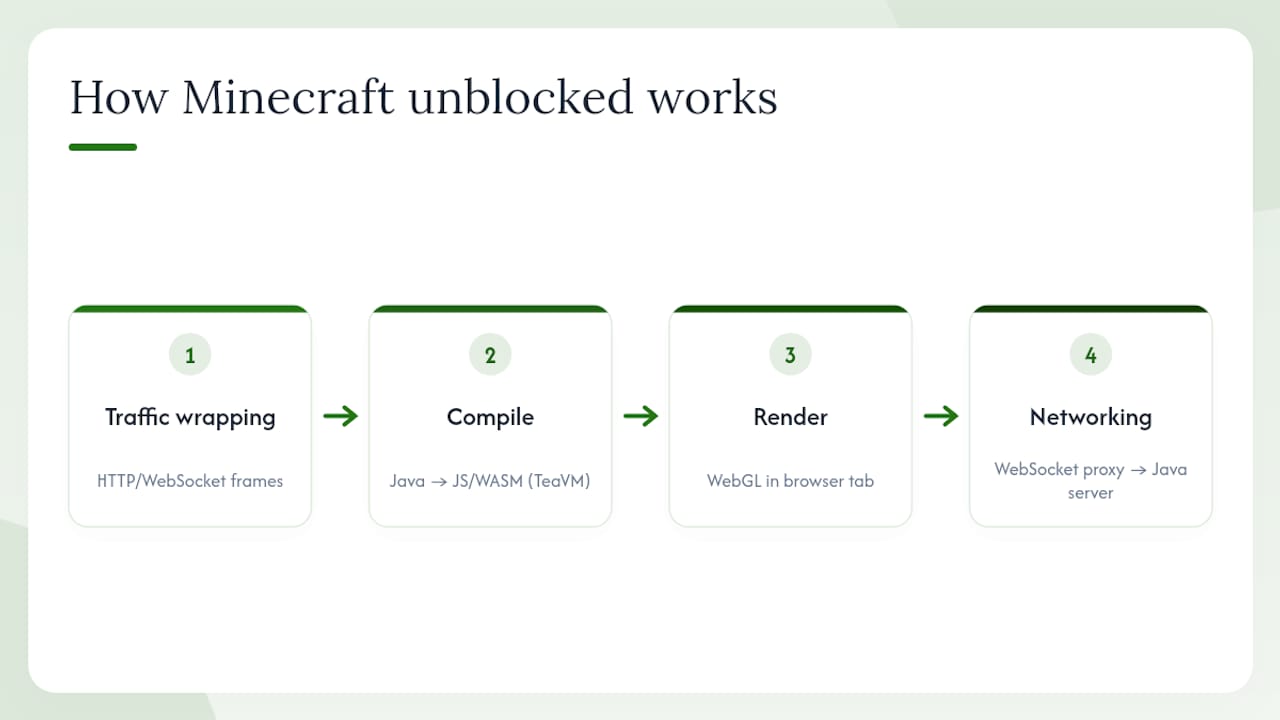
Most school and workplace firewalls block native TCP game ports. A browser port sidesteps this by wrapping game traffic in standard HTTP or WebSocket frames, which look like ordinary web traffic to most filters.
The architecture behind tools like Eaglercraft works like this: Java bytecode gets compiled to JavaScript or WebAssembly via TeaVM, the game renders through WebGL in the browser tab, and multiplayer traffic routes through a WebSocket-to-TCP proxy that bridges the browser to a real Java server. Eaglercraft uses exactly this stack, running a classic Java-style Minecraft client entirely in the browser with no account needed.
Prismarine-web-client takes a slightly different approach. It runs mineflayer and prismarine-viewer inside the page and connects to normal Minecraft servers through a WebSocket proxy. You can test it immediately at the live demo — movement, block rendering, and basic place/break interactions all work without installing anything.
Modern browser clients use WebGL and WebSocket proxies to replicate core Minecraft gameplay in a tab. The result isn’t a Flash game — it’s a real client running compiled Java logic in your browser.
Before Flash-based browser games disappeared, tools like Ruffle kept legacy titles alive through emulation. Today’s WASM and WebGL approaches are far more capable and don’t depend on deprecated plugin support.
Pro Tip: On Chromebook, Chrome is your best browser for these clients. Avoid Samsung Internet or older WebView-based browsers — WebGL support is inconsistent and you’ll hit rendering errors before the world even loads.
What are the practical methods to play when your network blocks Minecraft?
Method 1: Browser ports
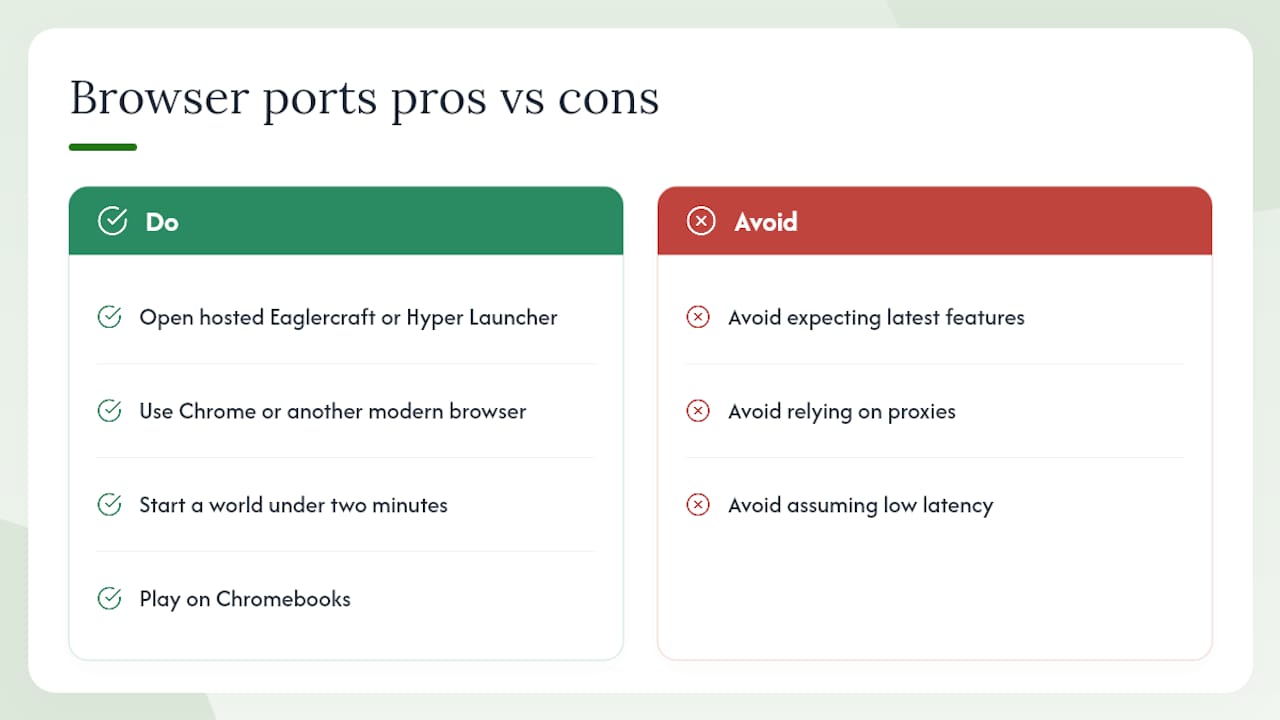
Open a hosted browser client URL in any modern browser. No download, no account. Eaglercraft and Hyper Launcher both offer stable, tested builds maintained by their hosts. Multiplayer works through WebSocket proxies, though you’re limited to servers that support the client’s version.
Quick steps: Search for a hosted Eaglercraft link or visit Hyper Launcher, open it in Chrome, and start a world. Done in under two minutes.
Pros: instant, no install, works on Chromebooks. Cons: older feature set, proxy-dependent multiplayer, occasional lag.
Method 2: Offline legacy jars
Minecraft versions 1.8 and 1.12 can run in offline mode without a Microsoft account. Download the version jar from a trusted source, launch it with a local Java install, and play singleplayer immediately.
Quick steps: Download the jar, install Java if needed, run the launcher, select offline mode.
Pros: full singleplayer experience, no network dependency. Cons: no multiplayer without extra setup, requires a local Java install.
Method 3: WebSocket proxy clients
Tools like zardoy/minecraft-web-client tunnel game traffic through WebSocket connections that pass most network filters. You connect to a proxy endpoint, which bridges your browser session to a real Java server.
Quick steps: Open the client URL, enter a proxy server address and target server IP, connect.
Pros: access to real Java servers, browser-based. Cons: proxy uptime varies, advanced filters can still detect and block traffic.
Method 4: VPNs and traditional proxies
A VPN routes all your traffic through an encrypted tunnel, bypassing most network-level blocks. Services like ProtonVPN or Mullvad work reliably for this. The risk: many school and work networks actively detect VPN traffic and flag or block it.
Pros: works for any game client, not just Minecraft. Cons: detectable, against most school acceptable-use policies, and some networks block VPN protocols outright.
Is it safe and legal to play Minecraft unblocked at school?
The short answer: browser ports using well-known, open-source clients are generally safe. Downloading random “cracked” clients from unknown sites is not.
Playing through a browser port doesn’t require sharing your Minecraft credentials. Never enter your Microsoft or Mojang account details into a third-party browser client — there’s no reason to, and doing so is the fastest way to lose account access.
Safety checklist:
- Use browser clients with public GitHub repos and active community maintenance
- Verify HTTPS on any site you use for browser play
- Check file checksums before running any downloaded jar
- Never enter your Microsoft account credentials into an unofficial client
- Use a sandboxed browser profile or guest mode if you’re on a shared machine
On the legal side: browser ports like Eaglercraft are modified, unofficial clients. They don’t require you to own Minecraft, which puts them in a gray area under Mojang’s Terms of Service. Minecraft Realms is the official paid option for cross-device multiplayer with a Microsoft account — the legitimate route if you want persistent worlds and full feature support.
School network policies are a separate issue. Using a VPN or proxy on a school network typically violates acceptable-use policies, even if the activity itself isn’t illegal. Browser ports that don’t require a VPN carry lower policy risk, but check your school’s rules before assuming it’s fine.
Pro Tip: Before downloading any jar or client file, run it through VirusTotal and verify the SHA-256 checksum against the repo’s published hash. Takes 30 seconds and eliminates the most common malware vector.
How to play unblocked through Minecraft.How
To get started:
- Click the browser play option to launch the in-browser RPG client
- Browse the server directory by game mode (PvP, survival, RPG, dungeons)
- Pick a skin from the library or use the skin creator before you join
The site’s automated bot keeps server listings current, so you’re not browsing a stale directory. That matters when you’re trying to connect quickly and don’t want to waste time on dead servers.
Fixing common issues on Chromebook, mobile, and slow connections
Chromebook: Chrome is the only browser you should use for WebGL-based clients on ChromeOS. If a client fails to load, check that hardware acceleration is enabled in Chrome settings (chrome://settings/system). Storage limits on managed Chromebooks can block local file saves — use the browser client’s built-in world storage instead.
On iOS, Safari’s WebGL implementation handles most browser clients, but touch controls are limited. Expect a stripped-down experience compared to desktop — basic movement works, but inventory management is awkward without a keyboard.
Android Chrome handles WebGL better than iOS Safari for most clients. If you’re hitting frame drops, lower the render distance to 4 chunks inside the client settings. That alone cuts GPU load significantly on mid-range devices.
Multiplayer lag: If a WebSocket proxy feels slow, switch to a different proxy endpoint. Community-maintained proxies documented in repos like zardoy/minecraft-web-client tend to be more stable than random public ones. Also check the server status tool — sometimes the server itself is the bottleneck, not your connection.
When to switch methods: If a browser port keeps crashing or a proxy stays down, move to an offline jar for singleplayer. It’s more reliable than chasing a working proxy endpoint.
Why browser-first options are worth trusting
The browser-first approach to Minecraft unblocked isn’t a workaround — it’s a well-maintained ecosystem with real community oversight. Open-source repos, active Discord communities, and public changelogs mean you can actually verify what you’re running, which is more than most “free game” sites offer.
Minecraft.How sits at the center of that ecosystem as a curated layer: it filters out dead servers, keeps listings updated through automated tooling, and gives players a single place to find browser play, servers, and skins without hunting through sketchy links. The community moderation behind it is what separates it from a random Eaglercraft mirror.
Minecraft.How: your browser-first starting point
Minecraft.How gives you the fastest path to playing Minecraft unblocked — a browser client that loads in seconds, a live directory of thousands of active servers sorted by game mode, and a free skins library with a very large number of options. No download, no Microsoft account, no setup friction.
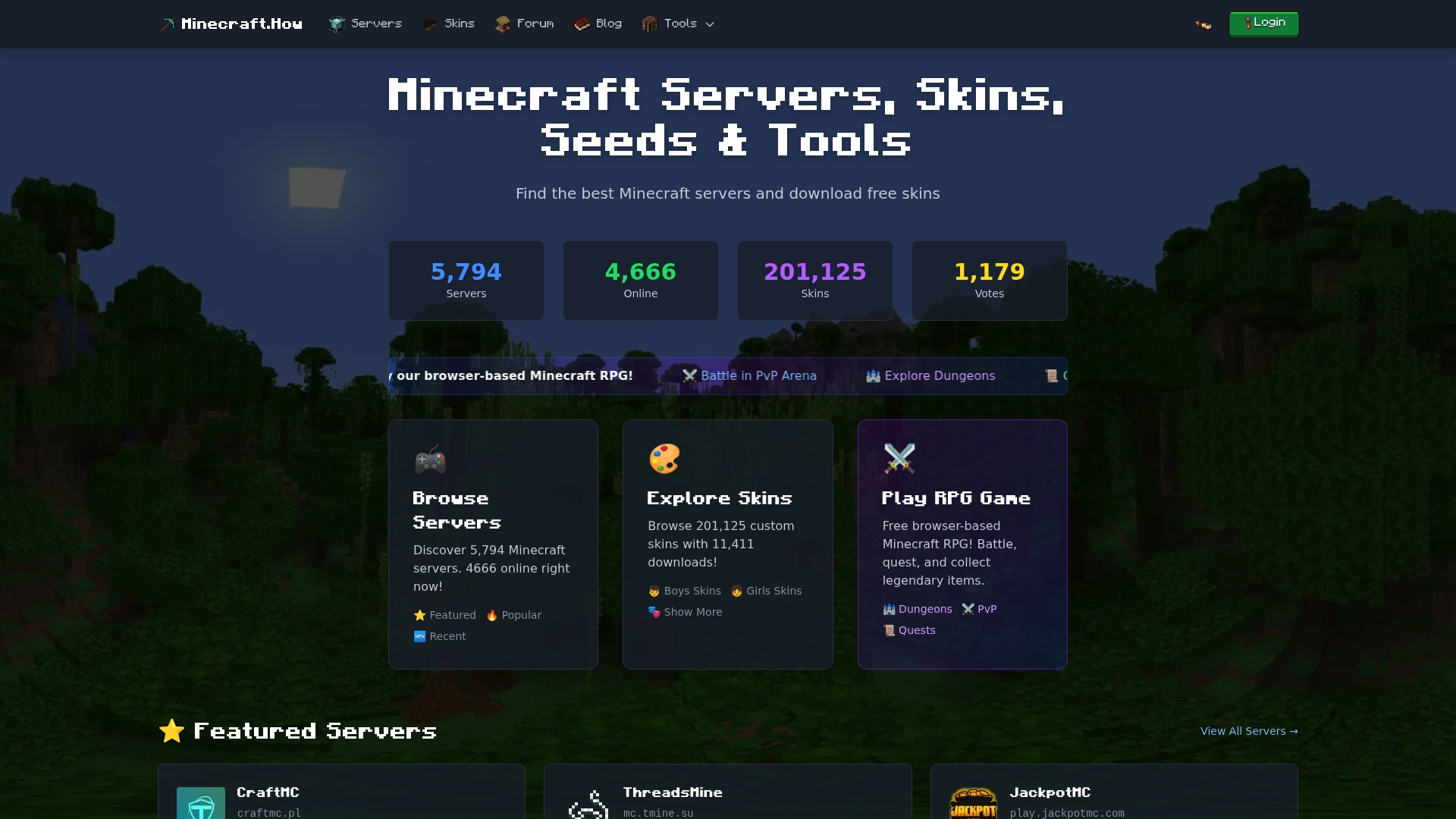
Players coming from restricted networks get something most browser ports don’t offer: a curated, actively maintained server list so you’re not connecting to dead endpoints. The server directory lets you filter by PvP, survival, RPG, and more. The server status checker confirms a server is live before you waste time connecting. Start at Minecraft and you’re in a world within two minutes.
Sources
Lead writer at minecraft.how. Long-time Minecraft player running a small SMP server, testing every build, mod, and seed before writing about it.
Have a Question or Tip about this Guide?Community Q&A
Ask a question or help other players below. Join the discussion and share your Minecraft tips!