Como Jogar Console Minecraft com LegacyLauncher
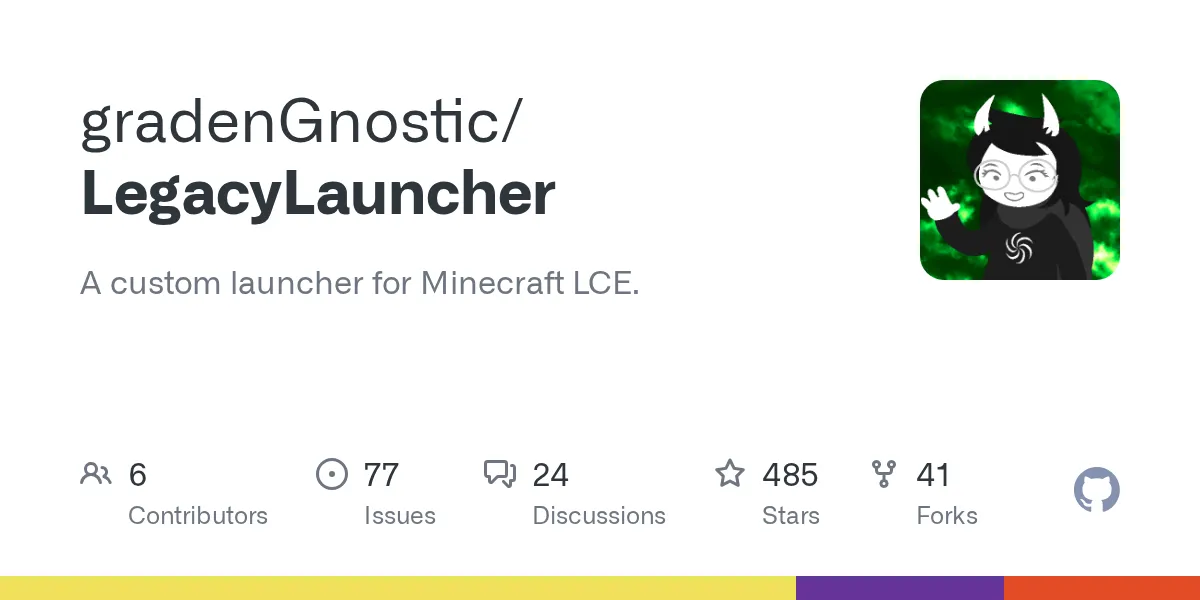
LegacyLauncher (gradenGnostic/LegacyLauncher)
Um lançador customizado para Minecraft LCE.
Lembra quando o Minecraft em console era como seu próprio jogo? Progressão diferente, recursos exclusivos, aquele jeito estranho de tela dividida. Se você sentiu saudade das antigas edições console e achou que tinham apenas... desaparecido, o LegacyLauncher está aqui para mudar isso. É um lançador de desktop que torna incrivelmente fácil executar e gerenciar as versões console antigas do Minecraft no Windows e Linux, completo com atualizações automáticas, gerenciamento de perfil e personalização suficiente para manter as coisas interessantes.
Por Que as Edições Console Legacy Importam
O histórico de console do Minecraft é estranhamente fragmentado. As Edições Console Legacy (lançadas originalmente para PlayStation, Xbox e plataformas Nintendo) eram separadas do Java e Bedrock, com seus próprios sistemas de progressão, limitações de mapa e conteúdo exclusivo. Pareciam sua própria coisa. Mas os fabricantes de console seguiram em frente, as edições foram removidas das lojas, e de repente se você quisesse revisitá-las, batia em uma parede.
Aqui está a coisa: alguns jogadores preferem a experiência mais antiga de console. Talvez a progressão parecesse mais firme, talvez você preferisse a tela dividida sem o caos do multijogador aberto, ou talvez você apenas tivesse boas memórias ligadas a essa versão. Qualquer que seja a razão, o LegacyLauncher preenche essa lacuna. Não é sobre pirataria ou evitar algo obscuro. É sobre preservar o acesso às versões que já não são oficialmente distribuídas.
Colocando LegacyLauncher para Funcionar
A instalação é direta o suficiente para que você não precise de um tutorial. Se você está no Windows, pegue o instalador na página oficial de lançamentos do GitHub, execute-o e pronto. No Linux, você vai querer a versão AppImage, que você pode baixar e tornar executável com um comando.
A partir do código-fonte, leva quase nenhum esforço:
git clone https://github.com/gradenGnostic/LegacyLauncher.git
cd LegacyLauncher
npm install
npm start
A janela do lançador abre imediatamente com aquela estética nostálgica do Minecraft. Você reconhecerá a fonte blocuda e o estilo pixel art imediatamente. No primeiro lançamento, você configurará qual repositório GitHub contém seus arquivos de jogo. Por padrão, aponta para `smartcmd/MinecraftConsoles`, mas o lançador permite que você troque isso no menu Opções se souber o que está fazendo.
Configurar um perfil é onde as coisas ficam pessoais. Nomeie seu personagem e o lançador rastreará seu tempo de jogo automaticamente. Detalhe pequeno, mas importa quando você está tentando recriar essa experiência de console.
Os Recursos que se Destacaram
A atualização principal mais recente (v3.5.0) trouxe algumas adições genuinamente pensadas. Deixe-me percorrer as que realmente mudam como você as usa.
Capturas de Tela e Galeria. Pressione F2 enquanto joga e o lançador captura seu momento. Um novo modal de galeria permite que você navegue por capturas de tela em resolução completa ou delete as que não precisa. É simples, mas funciona naquele mesmo sentimento de capturar momentos que tornou o Minecraft de console divertido. Você obtém o recurso sem precisar procurar em pastas de arquivos brutos.
O suporte Steam Deck e controle é onde você vê que o mantenedor realmente entendeu o público. Isso não é apenas "funciona com controle". Inclui um modo de interface dedicado ao Steam Deck com texto maior e layouts otimizados, além de prompts de botão intercambiáveis (estilo Xbox vs estilo Nintendo). Falando sério, jogue em uma tela grande com um controle se parecer certo. O lançador até removeu o controle deslizante de volume genérico por uma barra no estilo Minecraft com exibição de percentual, e os cliques de botão agora acionam o efeito sonoro clássico do Minecraft. Minúcia, impacto enorme.
Opções de Lançamento Personalizadas. Este é o recurso de ajuste fino. Você pode definir seu nome de usuário no jogo, configurar IP e porta para servidores, escolher sua camada de compatibilidade no Linux (Wine, Proton, ou execução direta se existirem compilações nativas), e até lançar em modo servidor para jogo sem interface. Não cobrirá todos os casos extremos, mas trata o material comum com elegância.
As atualizações automáticas extraem os lançamentos mais recentes do repositório GitHub configurado sem interromper sua sessão. Dispare o lançador, ele verifica atualizações, baixa o que é novo e você está pronto para ir. Melhor do que procurar manualmente por novas versões.
Linux, Windows e Camadas de Compatibilidade
Usuários do Windows têm tudo fácil. Compatibilidade de executáveis não é um quebra-cabeça no Windows.
Linux é mais interessante porque as edições de console eram originalmente executáveis do Windows. O lançador lida com isso permitindo que você escolha sua abordagem de compatibilidade: Wine (a forma tradicional), Proton (camada de compatibilidade aprimorada do Steam), ou executáveis Linux nativos se estiverem disponíveis. Você precisará ter o Wine ou Proton instalado separadamente, mas uma vez configurado, o lançador abstrai a maior parte da configuração.
Se você está no Linux e o Wine ainda não está instalado, a maioria dos gerenciadores de pacotes o tem:
sudo apt install wine # Ubuntu/DebianProton requer uma instalação do Steam mas não precisa de um processo Steam em execução. O lançador o encontra e usa. Um porém: permissões de AppImage. Quando você baixa o AppImage do Linux, torne-o executável:
chmod +x LegacyLauncher-*.AppImagePule isso e fica parado. Faça isso e está tudo bem.
Conversa Real: Limitações e Pegadinhas
Isso não é Java Edition, e não vai parecer Minecraft moderno. Você está executando executáveis que foram construídos para sistemas antigos, às vezes através de camadas de compatibilidade. O desempenho varia muito dependendo do seu hardware e de qual edição de console você está executando. Não espere 4K 60fps. Espere jogável, frequentemente sólido, às vezes entrecortado.
A configuração do repositório pode confundir as pessoas. O lançador aponta para um repositório GitHub para lançamentos, mas está procurando nomes de executáveis específicos. Se o proprietário do repositório renomear arquivos ou reestruturar como são organizados, o lançador não os encontrará. O menu Opções permite que você verifique o nome do executável, e verificar o repositório de origem primeiro antes de iniciar economiza frustração.
A integração do Discord Rich Presence soa legal e funciona principalmente, mas é um desses recursos que quebra silenciosamente se o Discord não estiver em execução. Sem erro, apenas não mostra. Não é um problema, apenas algo a saber.
No Linux, Wine e Proton adicionam uma camada de abstração que às vezes significa comportamento estranho em torno do dimensionamento de tela, latência de entrada ou áudio. Esses não são bugs no próprio LegacyLauncher, são artefatos de executar código do Windows no Linux. Paciência e uma disposição de ajustar as configurações ajuda.
Quando LegacyLauncher Faz Sentido
Você é um jogador nostálgico que se lembra do Minecraft de console de forma diferente do Java ou Bedrock. Você quer uma forma limpa de iniciar essa versão sem procurar executáveis em pastas aleatórias. A maioria dos jogadores gosta da ideia de tempo de jogo rastreado e perfis. Qualquer um pode até ter um Steam Deck e querer jogar do sofá com um controle. Nesses casos, este lançador genuinamente melhora a experiência.
Você não está procurando por uma plataforma de modding ou um substituto para a flexibilidade da Java Edition. LegacyLauncher não é isso. É uma ferramenta focada que faz uma coisa: iniciar versões console antigas com elegância e mantê-las atualizadas.
Construir um servidor que funciona sem interface é possível com a opção de lançamento do servidor, embora você precise fazer o trabalho de configuração de rede você mesmo. O lançador trata da execução, não de encaminhamento de porta ou regras de firewall. Falando em servidores, se você está executando um servidor da comunidade e precisa de uma lista de permissões, o Criador de Lista Branca Minecraft pode ajudá-lo a gerenciar o acesso rapidamente. E se você quiser monitorar se seu servidor está ativo e responsivo, o Verificador de Status do Servidor Minecraft oferece visibilidade em tempo real.
O Quadro Geral
LegacyLauncher é código aberto (licença MIT) com 485 estrelas no GitHub e manutenção ativa. É construído no Electron. Isso significa que é um projeto JavaScript no coração, compilado em um aplicativo de desktop. O código é legível, o rastreador de problemas é responsivo e os pull requests acontecem. Isso não é abandonware. Está vivo.
O mantenedor claramente joga Minecraft e entende o que os jogadores realmente querem de um lançador. Este suporte ao Steam Deck, o recurso de capturas de tela, a interface no estilo Minecraft, os efeitos sonoros. Estes não são requisitos. Eles são polimento que apenas importa se você se importa com a experiência.
É perfeito? Não. Mas é o lançador para usar se você quiser reproduzir edições console antigas sem atrito. E se você é alguém que se lembra do Minecraft de console com carinho, isso é suficiente.
gradenGnostic/LegacyLauncher - MIT, ★485
Lead writer at minecraft.how. Long-time Minecraft player running a small SMP server, testing every build, mod, and seed before writing about it.
Perguntas Frequentes
Qual o propósito do LegacyLauncher para o Minecraft?
Como funciona a instalação do LegacyLauncher no Linux?
O que é novo na versão 3.5.0 do LegacyLauncher?
Posso personalizar o meu perfil no LegacyLauncher?
O desempenho do LegacyLauncher varia?
Have a Question or Tip about this Guide?Community Q&A
Ask a question or help other players below. Join the discussion and share your Minecraft tips!
Comentários
Nenhum comentário ainda. Seja o primeiro a compartilhar sua opinião!