Changing Your Minecraft Skin: The Full 2026 Guide

Changing your Minecraft skin depends on which edition you're playing. Java Edition requires uploading a custom skin file to minecraft.net, while Bedrock Edition offers in-game customization tools and pre-made options. Both methods take just a few minutes, though the specific steps differ enough to trip people up if you're switching between editions.
How to Change Your Skin in Java Edition
Java Edition is where the real customization happens. If you're playing on PC, you've got full control over your appearance, and the process has been pretty consistent for years now.
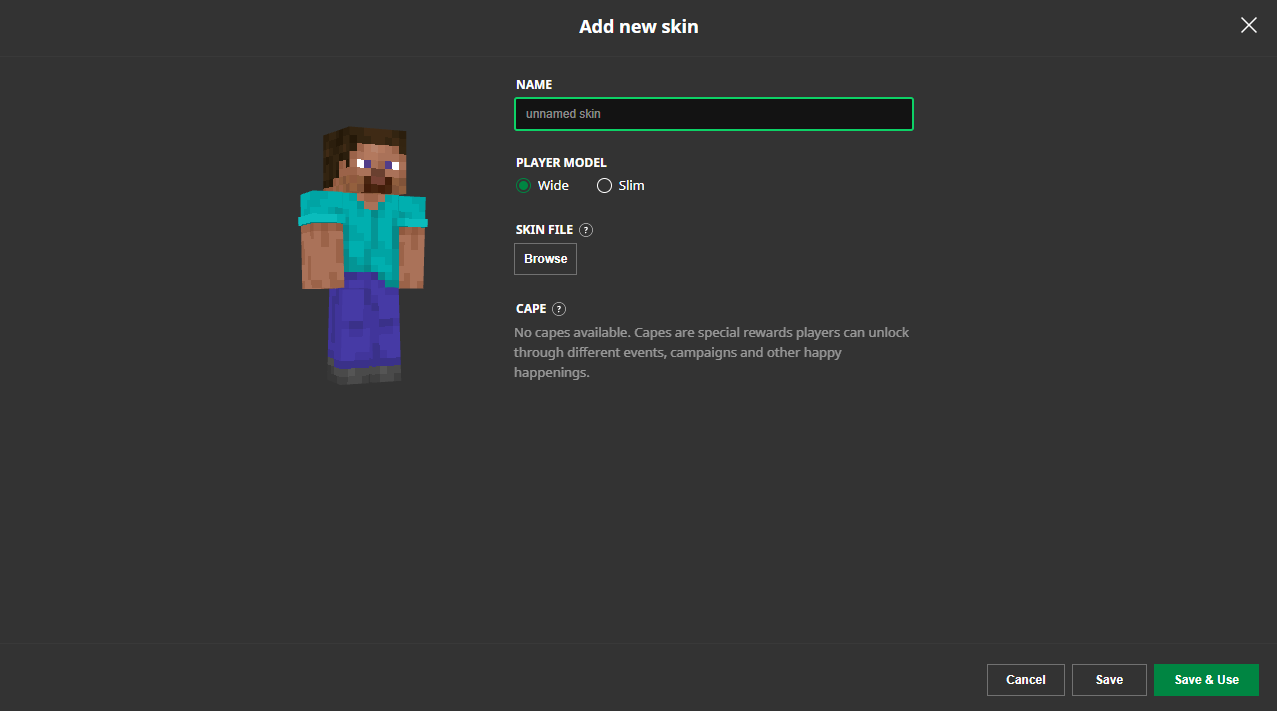
Head to minecraft.net and log in with your account. Once you're logged in, find the Skins section in your profile. Click the Browse button to upload a new skin file. You need a PNG image in the classic 64x32 or newer 64x64 format. Upload it, hit save, and you're done. Your new skin will show up the next time you launch the game.
One thing that trips people up: the skin preview on the website doesn't always match how it looks in-game. The lighting's different, the angle's different. Don't panic. It usually looks better once you're actually playing.
If you're on a server with mods or a custom launcher, the process might be slightly different. Some private servers have their own skin management systems. Always check the server's documentation if it seems off from the standard process.
Changing Your Skin in Bedrock Edition
Bedrock takes a different approach. You're not uploading a PNG file here. Instead, you're selecting from pre-made skins, or you're building something custom using the in-game editor.
For pre-made skins, it's simple. Launch the game, go to Profile, then Skins. You'll see a bunch of default options. Pick one and apply it. Done.
Want something personalized? The in-game editor is actually solid. Go to Profile > Skins > Create New Skin. You'll get a character model to work with, and you can change colors, patterns, and add details. It's not as flexible as building a skin from scratch in Photoshop, but it's good enough if you want something quick.
Bedrock's skin tools have improved significantly. With Mojang's recent focus on cosmetics and customization, the features keep getting better. You can mix components, adjust colors, layer patterns. Create it once on Bedrock and it syncs everywhere: Xbox, Windows, mobile, console. That's not a small convenience if you hop between devices.
Finding Skins That Look Good
Here's the truth: most free skins look terrible. Not all of them, but most.
If you want something with actual quality, start by browsing all Minecraft skins on Minecraft.How. Community creators submit work there, so you get genuine variety instead of the same generic options copied across random databases.
Looking for something specific? Search for your favorite character or reference. Chances are someone's already built a skin of it. But check the creator's portfolio. Quality varies wildly.
Wondernat_'s designs have that polished feel if you want something refined. blendernerd007 does detailed work that shows real effort. For something with more edge, ThunderNotFound's skins lean into drama and style. Endernewt and EnderNinja both put modern twists on classic aesthetics.
What makes a good skin? First, recognizability. If someone has to squint to figure out who or what your skin is, it needs work. Second, balance. A skin crammed with detail just becomes visual noise at normal play distance. Third, coherence. Colors and design elements should work together, not fight each other. Fourth, contrast. Your character needs to read clearly against different backgrounds.
Don't just pick something popular. Pick something you actually like looking at from behind and the sides, since that's what you'll see most while playing.
Creating Your Own Custom Skin
Building your own skin isn't complicated if you follow a few basic steps.
Start with a template. Download the 64x64 PNG template from minecraft.net or grab a blank one from Novaskin. This gives you a properly laid-out grid matching how Minecraft maps textures onto your character model. Don't skip this step. Free-handing a skin without a template is asking for a warped mess.
Pick your tool. Photoshop works but it's expensive overkill. Gimp is free and powerful. For something built specifically for Minecraft skins, Novaskin lets you see your design on a 3D model as you edit it. That visual feedback saves you from wasting time on designs that look good in 2D but terrible on your character.
Design process is up to you. Realistic portrait. Abstract geometry. Character reference. The only rule is that Minecraft's aesthetic respects simplicity and clarity. Color choice matters more than you'd think. Bright, contrasting colors read better in-game. Pastels and washed-out tones disappear. Test your design at different distances and lighting if possible.
Once it's done, import it into a test world before uploading officially. Actually wear it for ten minutes. Make sure you're not sick of looking at it.
Skin Trends and Standing Out in 2026
The cosmetics scene has shifted significantly. Mojang's recent updates focused hard on customization options, and the community kept pace with energy. You're seeing vintage retro designs, minimalist black-and-white aesthetics, hyper-detailed faces, complex patterns. Everything works if you commit to it.
What doesn't work: being invisible. Make sure there's visual separation between your character and the environment. Muddy colors that blend in defeat the purpose.
Your skin communicates something in multiplayer, even if it's subtle. Pick something you actually like, not just what's trending. You're stuck with it from behind, so don't get sick of it after two weeks.
When Things Go Wrong
Skin not showing up after upload? Wait five to ten minutes. Sometimes there's lag in the system. Still not showing? Log out completely and log back in. That forces a refresh on your end.
Skin looks broken or distorted in-game? Check your file format. Is it actually PNG? Is it the right resolution (64x32 or 64x64)? Corrupt files won't work. Re-download your template and rebuild it if needed.
Java skin won't upload at all? Make sure the file size isn't massive. Keep it under 100KB if possible. Also verify you're logged into the right account. Sounds obvious, but it happens.
Bedrock skin stuck loading? Restart the game. If that doesn't work, try creating a new skin and see if the editor responds. Sometimes the client just needs a hard reset.