Primeros pasos con ATLauncher: Instala Modpacks bien
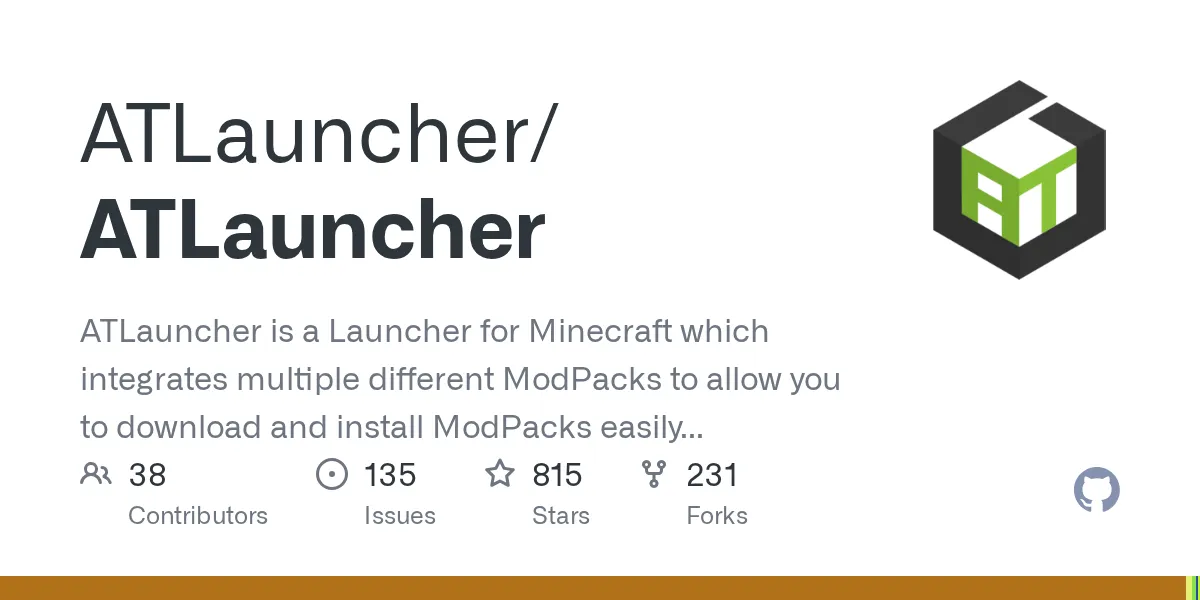
ATLauncher (ATLauncher/ATLauncher)
ATLauncher es un lanzador para Minecraft que integra múltiples modpacks diferentes para permitirte descargar e instalar modpacks fácil y rápidamente.
Gestionar modpacks de Minecraft no debería significar descargar archivos de sitios dudosos o luchar con la compatibilidad de mods. ATLauncher se encarga de ese trabajo por ti - es un lanzador gratuito que te permite explorar, descargar e instalar colecciones de modpacks completas en minutos, sin complicaciones.
Qué hace este proyecto
ATLauncher es un lanzador de Minecraft basado en Java (815 estrellas en GitHub, si te importa ese tipo de cosas) que obtiene modpacks de varias fuentes y te proporciona una interfaz limpia para instalarlos. Piénsalo como el Steam de la modificación de Minecraft - selecciona un pack, presiona instalar, y en unos minutos estás listo para jugar.
La idea central es simple pero sorprendentemente importante: los modpacks suelen incluir docenas o incluso cientos de mods. ¿Lograr que todos funcionen bien juntos? Ahí es donde las cosas se complican.
Gestionar manualmente versiones, dependencias y archivos de configuración lleva a bloqueos, mods faltantes, y el tipo de frustración que te hace querer volver a vanilla. ATLauncher automatiza todo ese proceso.
Es código abierto y está licenciado bajo GPL-3.0. Eso significa que el código fuente es público y cualquiera puede contribuir mejoras o hacer un fork si lo desea. Esa transparencia importa cuando estás confiando software para gestionar tu configuración de juego.
Por qué lo usarías
Los modpacks van desde ajustes cosméticos hasta revisiones de jugabilidad totales. Algunos añaden nuevas dimensiones, objetos y criaturas. Otros se enfocan en sistemas de misiones, mods mágicos o progresión tecnológica. Si alguna vez encontraste un modpack que querías probar pero te perdiste en las instrucciones de instalación, ATLauncher es exactamente para eso.
La gestión de versiones es otro asunto importante.
Un modpack individual podría estar probado en Minecraft 1.19, pero nuevas versiones de Minecraft (el lanzamiento actual de Java es 26.1.2) salen regularmente. ATLauncher maneja la compatibilidad, asegurándose de que estés ejecutando la versión correcta de Minecraft para cada pack sin tener que buscar manualmente números de versión.
Los servidores colaborativos también se benefician aquí. Si tu grupo de amigos quiere ejecutar un servidor de modpack personalizado, ATLauncher permite que todos descarguen exactamente los mismos archivos con un clic en lugar de tres personas enviándose archivos zip por correo electrónico.
Cómo instalar
La instalación depende de tu sistema operativo. La última versión viene en tres formatos: ejecutable de Windows, JAR o ZIP.
Para Windows, descarga y ejecuta el instalador .exe:
# Solo descarga ATLauncher-3.4.40.4.exe de la página de lanzamientos y ejecútalo
Usuarios de Linux o personas que prefieren JAR:
# Descarga el JAR y ejecútalo directamente
java -jar ATLauncher-3.4.40.4.jar
La primera vez que lo inicies, te pedirá tu cuenta de Minecraft. Honestamente, te autenticarás a través de tu cuenta Microsoft/Mojang (la forma estándar en que Minecraft maneja el inicio de sesión ahora), y luego estarás en la interfaz del lanzador.
De allí, navegar por modpacks es directo. La mayoría de los packs principales aparecen en el lanzador integrado, que se puede buscar por nombre o categoría.
Características principales y cómo funcionan
La biblioteca de modpacks es el atractivo principal. Busca cualquier cosa - packs FTB (Feed The Beast), colecciones de CurseForge, incluso paquetes más pequeños creados por la comunidad. Cada pack muestra información de compatibilidad, recuento de jugadores e instrucciones de instalación si es necesario (aunque honestamente, ATLauncher generalmente lo maneja sin necesidad de leer nada).
La gestión de versiones ocurre de forma invisible. Selecciona un pack, y si es compatible con múltiples versiones de Minecraft, verás opciones. Instálalo, y ATLauncher automáticamente obtiene la versión correcta del lanzador de Minecraft y todas las dependencias. Ahorra tiempo y evita la confusión de "espera, ¿qué versión de Forge va con esto?"
También puedes crear instancias personalizadas.
¿Ya tienes una colección de mods que amas? Construye tu propio "modpack" dentro de ATLauncher y gestiona como cualquier pack oficial.
La gestión de instancias también es sólida. El lanzador mantiene carpetas separadas para cada modpack instalado, para que puedas pasar entre un pack de skyblock enfocado en tecnología y un pack pesado de magia sin conflictos. Configuraciones, packs de recursos y configuraciones se mantienen por instancia.
Consejos, trampas y qué confunde a los usuarios nuevos
No todos los modpacks en todos los sitios aparecen automáticamente en ATLauncher. Los packs de CurseForge generalmente lo hacen, pero algunas colecciones más antiguas o de nicho podrían solo estar disponibles como descargas - necesitarás importarlos manualmente.
La asignación de RAM a menudo surge. Algunos modpacks más pesados (los con más de 200 mods) genuinamente necesitan más que la asignación de memoria predeterminada. Si el juego tartamudea o se bloquea al iniciarse, abre la configuración y aumenta los argumentos de JVM. La mayoría de guías sugieren 4-8GB para packs pesados, aunque honestamente, tu configuración específica determina el mínimo.
También vale la pena saber: los modpacks no siempre se mantienen actualizados cuando cambian las versiones de Minecraft.
Un pack etiquetado como "1.19" podría no haber recibido actualizaciones en meses. Si quieres los últimos packs en el último lanzamiento de Minecraft, espera menos opciones comparado con versiones más antiguas.
Alternativas que vale la pena conocer
CurseForge tiene su propio lanzador si quieres más control directo sobre descargas de mods individuales. Modrinth ofrece una interfaz más simple pero menos packs en general. MultiMC es otra opción comunitaria para usuarios avanzados que les gusta ajustar cada detalle.
ATLauncher se sitúa en el medio - más automatizado que MultiMC, más simple de navegar que el lanzador de CurseForge, y confiable para la mayoría de jugadores.
Una última cosa
Si estás construyendo tu propio modpack o probando mods, no pases por alto la característica de creación de instancias del lanzador. También puedes crear skins rápidas para tu personaje. Hablando de eso, si necesitas una skin completamente personalizada en lugar de usar las herramientas predeterminadas, el creador de skins de minecraft.how puede ayudarte a diseñar algo único que coincida con tu personalidad de modpack.
Y si estás ejecutando un servidor con ese modpack y necesitas gestionar el acceso de los jugadores, el creador de lista blanca en minecraft.how es perfecto para configurar rápidamente tu lista blanca en lugar de escribir comandos uno a uno.
ATLauncher ha existido durante años y se mantiene activamente. La comunidad es sólida, el código es abierto, y honestamente, si estás jugando Minecraft modificado en Java, no hay una buena razón para no usarlo.

Lead writer at minecraft.how. Long-time Minecraft player running a small SMP server, testing every build, mod, and seed before writing about it.
Have a Question or Tip about this Guide?Community Q&A
Ask a question or help other players below. Join the discussion and share your Minecraft tips!
Comentarios
Aún no hay comentarios. ¡Sé el primero en compartir tu opinión!