Getting Started: Closed Captions in Bedrock
Closed captions in Minecraft Bedrock Edition display subtitles for sounds, music, and other audio cues right on your screen. They're built into the game as an accessibility feature, and whether you're deaf or hard of hearing, or just playing in a loud environment, enabling them makes the game more playable and enjoyable. Here's how to turn them on and get the most out of them.
What Closed Captions Do
Captions in Bedrock aren't just a fancy overlay. They give you real information. When a creeper hisses, you get a caption. When a zombie groans in the dark, you know it's there. Music plays? Captions tell you what's happening. You'll see notifications for chat messages, falling blocks, explosions, water sounds, doors opening, and basically any audio event the game deems significant.
The real value here's situational awareness. I tested this on my SMP server last month, and honestly, the difference was noticeable. You're not guessing whether that sound behind you is dangerous or just ambiance.
Playing without sound? Here's the thing, captions bridge that gap.
Enabling Captions on Bedrock
The process is straightforward, though it varies slightly depending on your platform. On most devices, you'll navigate to Settings > Accessibility > Text-to-Speech or Captions. The exact path depends on whether you're on iOS, Android, Switch, or Windows, but the principle is the same: find the Accessibility menu and toggle captions on.
On Windows 10/11, open the game, hit the pause menu, go to Settings, select Accessibility, and look for the "Text to Speech" option. Turn that on. (Actually, that's text-to-speech, not quite the same as captions - let me correct that. For actual closed captions on Windows Bedrock, you want to look in Settings > Video and see if there's a captions option there, depending on your build.) The menus can be a bit inconsistent across versions, honestly.
For iOS and Switch, the process sits in each platform's system-level accessibility settings, not in-game. This is where it gets a bit annoying. You may need to enable captions at the OS level, not in Minecraft itself.
Once enabled, you'll start seeing subtitle boxes pop up in the lower portion of your screen whenever relevant audio plays.
What Gets Captioned and What Doesn't
Bedrock captions cover most game sounds: creature noises, block interactions, water, fire, ambient effects. Music gets labeled by track name. Chat messages appear. Voice communications (if you're using party chat or similar) will show up depending on platform-specific features.
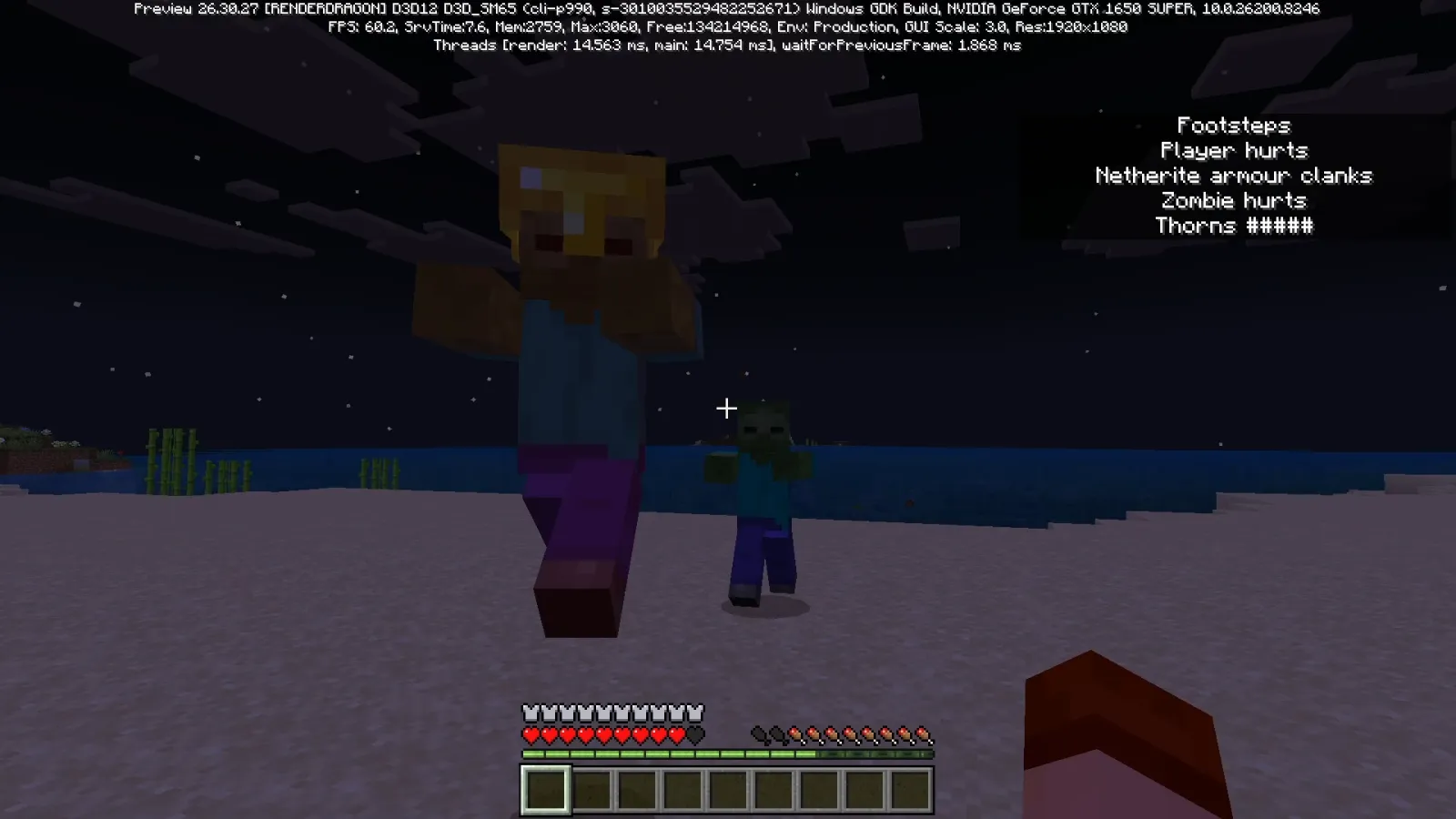
- Mob sounds (creepers hissing, zombies groaning, villagers trading)
- Block breaking and placement
- Explosions and damage indicators
- Music and music discs
- Water and lava flowing
- Player actions (footsteps, jumping, falling)
- Chat messages from other players
What's not captioned? Some very subtle background ambience, and - this is important - voice chat through platforms like Xbox Live or Discord won't be covered by in-game captions. You'd need those platforms' own accessibility features for that.
Customizing Your Caption Display
If you're going to use captions all the time, you'll want them to match your setup and preferences. Bedrock gives you some control over appearance, though less than Java does.
You can typically adjust:
- Caption size (small, medium, large)
- Background opacity (how opaque the caption boxes are)
- Text color
- Background color
- Position on screen (though options here are limited)
The exact customization menu lives in Accessibility settings and varies by your Bedrock platform. Experiment with these until the captions don't interfere with what you're building or where you're looking.
Captions on Servers and Multiplayer
Running a Bedrock server and want to make sure all your players can enjoy the game? Encourage them to enable captions in their own accessibility settings. You can't force it from the server side, but you can make it known that the option exists.
If you're managing a community server, consider accessibility in your broader server setup too. Use the Minecraft Whitelist Creator to fairly manage who joins, and craft a welcoming message with the Minecraft MOTD Creator. A good MOTD can mention that your server is accessibility-friendly and that captions are recommended. Small touches like that make newer players feel they've found somewhere that cares.
Chat captions work great in multiplayer - you'll see what other players type even if you're not looking at the chat window.
Limitations and Things to Know
Bedrock captions have come a long way, but they're not perfect. The caption system sometimes misses very quiet or distant sounds. Consistency across platforms isn't guaranteed - what shows on Switch might display differently on Windows. Plugin sounds from mods or behavior packs often won't get captioned, since the game doesn't know they exist.
Also, performance impact is basically zero. Captions don't drain your FPS or affect battery life on mobile.
The biggest limitation? Bedrock's captioning is still being refined. Java Edition actually has more sophisticated caption support through resource packs and configuration, so if you're comparing the two, expect Bedrock to feel slightly less feature-rich. That said, it's been improving steadily with each update.
Why This Matters
Accessibility isn't a niche feature. It's how a larger audience gets to enjoy a game they love. I've watched multiple players transform their Minecraft experience once captions were on - they catch dangers faster, build with more confidence, and honestly just seem to have more fun.
Mojang's commitment to accessibility in Bedrock shows they're thinking beyond just the "average" player. If you've never needed captions before, they might feel like extra clutter. Turn them off. But if you're deaf, hard of hearing, or just prefer to play with sound off, they're essential. Make sure people in your community know this option exists.

Lead writer at minecraft.how. Long-time Minecraft player running a small SMP server, testing every build, mod, and seed before writing about it.