Swift-Craft-Launcher - Mac 게이머가 꼭 알아야 할 이유
Swift-Craft-Launcher (suhang12332/Swift-Craft-Launcher)
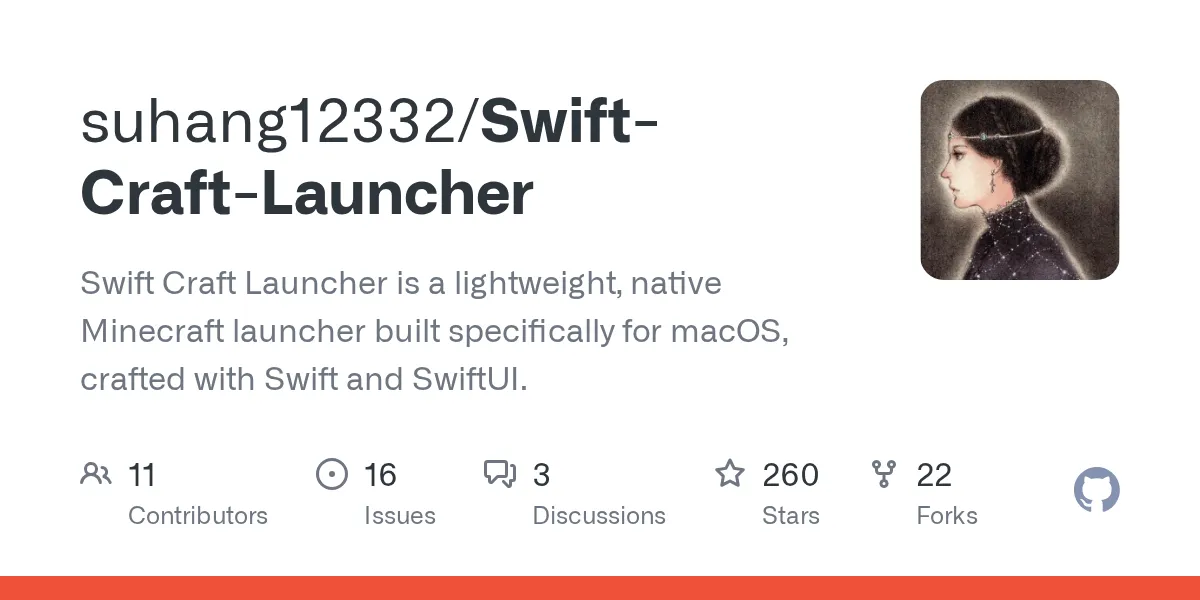
Swift Craft Launcher is a lightweight, native Minecraft launcher built specifically for macOS, crafted with Swift and SwiftUI.
If you play Minecraft on a Mac and you're tired of wrestling with third-party launchers that feel like they were built for Java in 2010, Swift-Craft-Launcher exists specifically to fix that. It's a native macOS launcher written in Swift and SwiftUI, which means it actually feels like Mac software instead of a cross-platform afterthought pretending to belong on your machine.
What Swift-Craft-Launcher Is
This is a launcher in the straightforward sense: it manages your Minecraft versions, handles profile creation, lets you run multiple game instances, and sits between you and the actual Minecraft executable. What makes it different is that it's purpose-built for macOS using Apple's native frameworks rather than Electron or Java Swing.
The project has 260 stars on GitHub and runs under an AGPL-3.0 license. That means the source is open for inspection and modification. The latest version (1.2.4) landed with fixes for download stability issues and UI refinements, which tells you the maintainer is actively addressing real user pain points.
Why Pick This Over Other Launchers
The honest answer: speed, and that native Mac feeling. Most Minecraft launchers are either bloated (loading an entire Chromium browser engine just to show you a login screen) or they date back to when macOS was an afterthought in launcher development.
Swift-Craft-Launcher cuts through that. It starts instantly, uses minimal memory, and the interface doesn't fight your system. You get version management without the cruft. Switch between Minecraft 1.21 and older snapshots without downloading the entire launcher engine each time.
If you're running an older Mac - or just don't want to burn battery on unnecessary overhead - this matters.
Installing and Running It
Installation is dead simple because it's a native Mac app, not a JAR or command-line tool. Download the DMG file from the GitHub releases page (grab either the arm64 version for Apple Silicon Macs or x86_64 for Intel machines).
https://github.com/suhang12332/Swift-Craft-Launcher/releasesMount the DMG, drag the app to your Applications folder, and you're done. No terminal commands, no environment variables to set up, no hoping your Java installation is correct. It's the way a Mac app should install.
Launch it, sign in with your Microsoft account (the same way you'd log into the official launcher), and you're ready to select a version and play.
Key Features That Matter
Version Management works the way you'd hope: the launcher keeps multiple Minecraft versions on your machine and lets you switch between them without friction. This is essential if you're bouncing between a modded 1.20 server and vanilla 1.21 gameplay.
Profile Creation doesn't require getting into JSON files or configuration wizards. Set a name, pick your version, tweak RAM allocation if you need to, and hit play. For most players, the defaults work fine; for others, JVM arguments are exposed if you want them.
Quick Launch means you're actually playing within seconds of clicking. No splash screen animations, no "Checking assets," no mystery loading bars. The app respects that you just want to play Minecraft.
Clean UI doesn't sound like a feature, but it is. You're not wading through advertising, sponsored content, or news feed content. It shows your versions, your profiles, and a big play button.
Performance and Compatibility
This runs on macOS 14.0 and later, which covers most active Mac gamers. Look, if you're on an older Mac running Ventura or earlier, check the release notes before downloading.

Performance-wise, it plays nice with your hardware. Native Swift code means less CPU churn than Java-based launchers, and actual macOS memory management instead of the JVM doing its thing. Real difference? Depends on your Mac, but on older hardware it's noticeable.
Minecraft 26.2 (the current release version) launches and runs exactly as it would with any other launcher. This isn't a custom client; it's just a better way to start the real thing.
Tips and Things That Trip People Up
First thing: this launcher doesn't modify your game files or inject any custom code. It downloads and runs vanilla Minecraft. That means servers with anti-cheat systems won't flag you just for using it - but check your server's rules anyway, because some communities have policies about which launchers they approve.
Memory allocation sounds complicated but usually isn't. If you're running heavy modpacks or building massive worlds, allocating more RAM helps. The default is often fine for vanilla and light modding. Don't panic if the launcher shows options for Java arguments; you can ignore them unless you hit performance problems.
One gotcha: if you're managing a whitelist for your own server and using this launcher with friends, make sure you're using the Minecraft Whitelist Creator to generate the correct format. The launcher itself doesn't directly manage server whitelists, but knowing your actual UUID (which the launcher shows in your profile) makes setup cleaner.
Updates happen automatically through the app, similar to how the official launcher works. Just keep it on your system and it'll handle version updates without you doing anything.
Before You Uninstall
This launcher doesn't embed itself deep in your system or write scattered config files all over macOS. To go back to vanilla (or switch to another launcher), just move Swift-Craft-Launcher to the trash. Your actual Minecraft files stay in ~/Library/Application Support/minecraft/, so uninstalling the launcher doesn't touch your worlds, profiles, or installations.
If you want a fresh start or switch to a different launcher entirely, that's a clean operation with no residue left behind. That's actually how native Mac apps should behave, but not all of them do.
Other Launcher Options Worth Knowing About
The official Minecraft Launcher (now maintained by Mojang directly) is always a solid choice if you don't need anything fancy. It's slower and heavier than Swift-Craft-Launcher, but it's the baseline that everything else is measured against.
MultiMC and its community fork Prism Launcher are excellent if you're deep into modding and need more granular version control. They're cross-platform and handle complex mod instances beautifully, but they're also more complex if you just want to play vanilla.
If you're running a macOS Minecraft server and need DNS setup, the Free Minecraft DNS tool helps manage connectivity without an ISP-level setup.
My take: use Swift-Craft-Launcher if you value simplicity and Mac-native polish. Use Prism Launcher if you're building heavily modded instances and need fine control. Use the official launcher if you want to stay closest to what Mojang officially supports.
suhang12332/Swift-Craft-Launcher - AGPL-3.0, ★260

Lead writer at minecraft.how. Long-time Minecraft player running a small SMP server, testing every build, mod, and seed before writing about it.
자주 묻는 질문
스위프트 크래프트 런처 설치 방법
주요 특징은 무엇인가?
삭제 시 마인크래프트 파일에 영향?
서버의 안티 치트 시스템과 호환?
업데이트 방법은?
Have a Question or Tip about this Guide?Community Q&A
Ask a question or help other players below. Join the discussion and share your Minecraft tips!