Wurst Client Mod: Features, Installation, and Safety Guide

Wurst Client is one of the most well-known utility mods for Minecraft Java Edition. It packs hundreds of features into a single package, giving players tools for everything from automated mining to advanced PvP. This guide covers what Wurst is, how to install it, and what you need to know about using it safely.
What Is Wurst Client?
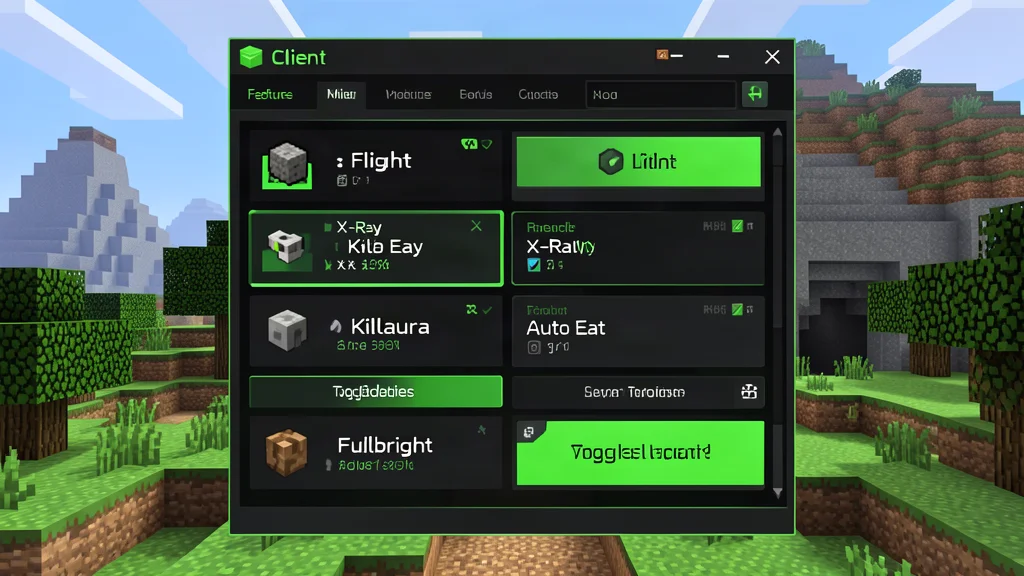
Wurst Client is an open-source Minecraft mod that works with both Forge and Fabric loaders. It is available for Linux, Windows, and macOS, making it accessible to virtually every Minecraft player regardless of their operating system. The mod provides three different in-game interfaces: TabGUI, a window-based ClickGUI, and a searchable Navigator. These interfaces give you access to a massive library of features and commands, including auto eat, auto fish, auto mine, and many more.
The project has been around for years and has built a large, dedicated community. It is frequently updated to support new Minecraft versions, and the source code is publicly available for anyone to audit. This transparency is one of the reasons Wurst Client has maintained its reputation as a trustworthy project in the Minecraft modding scene.
Unlike many other client mods that focus on a single aspect of gameplay, Wurst Client takes a broad approach. It includes modules for automation, movement, combat, visual enhancements, and quality-of-life improvements. Whether you want to automate tedious tasks, explore your world with new tools, or experiment with gameplay mechanics, Wurst Client has something to offer.
Key Features of Wurst Client
Wurst Client includes over 200 built-in features organized into categories. Here are some of the most popular ones that keep players coming back.
Automation Modules
AutoMine automatically breaks blocks for you, saving hours of manual labor during large mining projects. AutoFish casts and reels in fishing rods automatically, making it easy to gather treasure and food while you focus on other tasks. AutoEat consumes food when your hunger bar gets low, ensuring you never starve during intense gameplay sessions. These modules are perfect for AFK sessions or large building projects where repetitive tasks would otherwise slow you down.
Additional automation features include AutoFarm, which automatically harvests and replants crops, AutoTool, which selects the best tool for the block you are breaking, and AutoWalk, which moves your player forward without requiring you to hold the movement key. Together, these modules can dramatically reduce the time spent on routine tasks.
Movement and Navigation
Flight lets you fly freely in survival mode, bypassing the normal movement restrictions. Speed increases your movement speed significantly, making it easier to traverse large distances quickly. Teleport allows instant travel to specific coordinates, which is especially useful when exploring far-away biomes or returning to a base.
Other notable movement modules include NoFall, which prevents fall damage, Spider, which lets you climb walls like a spider, and Jesus, which allows you to walk on water. These features open up new possibilities for exploration and building in survival worlds.
Combat Modules
Killaura automatically attacks nearby entities within a configurable range. AutoTotem places totems of undying in your offhand automatically, giving you a second chance when you take fatal damage. BowAimbot aims your bow at nearby targets with precision. These modules are primarily used on PvP servers where quick reactions matter.
Combat-focused players also have access to Criticals, which forces every hit to be a critical hit, AutoArmor, which equips the best armor from your inventory automatically, and AutoShield, which raises your shield when an enemy attacks. These features can give you a significant edge in player-versus-player encounters.
Visual and Render Modules
Fullbright removes darkness so you can see everywhere, even in unlit caves and during the night. X-Ray makes certain blocks transparent to reveal ores, dungeons, and other structures hidden underground. Freecam detaches your camera from your body, allowing you to explore the world without moving your player.
Other visual modules include ESP, which draws boxes around entities and players through walls, Tracers, which draws lines pointing toward nearby entities, and Nametags, which displays player names and health bars at any distance. These features are particularly useful for locating other players or mobs in crowded areas.
How to Install Wurst Client
Installing Wurst Client requires a mod loader. The mod supports both Forge and Fabric, so you can choose whichever you prefer. Before starting, make sure you have a legitimate copy of Minecraft Java Edition installed on your computer.
Requirements
- Minecraft Java Edition (a legitimate copy is required)
- Fabric Loader or Minecraft Forge (depending on your choice)
- Fabric API (required for Fabric installations)
Installation Steps
- Download the appropriate mod loader for your Minecraft version from the official Fabric or Forge website. Make sure the loader version matches your Minecraft version exactly.
- Run the installer and select your Minecraft version. The installer will create a new profile in your Minecraft launcher.
- Download the Wurst Client mod file from the official website or the project's GitHub repository. Always verify that you are downloading from a trusted source.
- Place the downloaded JAR file into your Minecraft mods folder. On Windows, this is typically
%appdata%\.minecraft\mods. On macOS, it is~/Library/Application Support/minecraft/mods. On Linux, it is~/.minecraft/mods. If the mods folder does not exist, create it. - Launch Minecraft using the mod loader profile you created in step 2.
- Once in-game, press Right CTRL to open the ClickGUI or Right Shift to open the Navigator. From there, you can browse and toggle any of the available features.
If you are new to modding, check out our guide to installing Minecraft mods for a more detailed walkthrough with screenshots and troubleshooting tips.
Understanding the Wurst Client Interfaces
Wurst Client provides three distinct interfaces, each suited to different playstyles and preferences. Understanding how each one works will help you get the most out of the mod.
ClickGUI
The ClickGUI opens with the Right CTRL key. It displays a window for each category, and each window contains a list of every feature in that category. This is the most intuitive interface for new users, as it presents all available options in a clear, organized layout. You can drag windows around the screen, expand or collapse categories, and toggle features with a single click.
Navigator
The Navigator opens with the Right Shift key. It shows a searchable list of every feature in Wurst. If you know exactly what you are looking for, the Navigator is the fastest way to find it. Simply start typing the name of the feature, and the list will filter in real time. The Navigator also supports fuzzy search, so you do not need to remember the exact spelling of every module.
TabGUI
TabGUI does not have a default keybind. You enable it by opening the Navigator and searching for "TabGUI." Once enabled, you use the Arrow Keys to change the selection and Enter to toggle the selected feature. TabGUI is the most minimal interface and stays out of your way during gameplay. It displays a small overlay in the corner of the screen that shows the currently selected category and feature.
Default Keybinds
All keybinds can be changed in-game. Go to Wurst Options then Keybinds, or type .help binds in the chat. Here are the default keybinds for the most commonly used features:
| Key | Feature |
|---|---|
| B | FastPlace, FastBreak |
| C | Fullbright |
| G | Flight |
| H | /home |
| J | Jesus |
| K | MultiAura |
| N | Nuker |
| R | Killaura |
| Right CTRL | ClickGUI |
| Right Shift | Navigator |
| U | Freecam |
| X | X-Ray |
| Z | Sneak |
Keep in mind that these are just the defaults. You can customize every keybind to suit your preferences, and you can assign multiple features to the same key if you want to toggle them simultaneously.
Is Wurst Client Safe to Use?
Safety is an important topic when it comes to any mod that modifies Minecraft. Here is what you need to know about using Wurst Client responsibly.
Account Safety
Wurst Client itself is not a virus or malware. The project is open source, meaning the full source code is publicly available for anyone to inspect. This transparency makes it very difficult to hide malicious code. The project has a long public history and an active community that would surface any serious issues quickly.
However, using Wurst Client on multiplayer servers that prohibit modifications can result in a ban. Most public servers run anti-cheat systems that detect client mods. Your Mojang or Microsoft account is not at risk from a server ban, but you will lose access to that particular server. Repeated violations across multiple servers could attract additional attention from server administrators.
Download Safety
Always download Wurst Client from the official website or the project's GitHub repository. Unofficial builds may have been modified to include malware, adware, or other unwanted code. The official source ensures you get the genuine, unmodified version of the mod. Be wary of third-party download sites that bundle the mod with additional software or require you to complete surveys before downloading.
Recommended Usage
The safest way to use Wurst Client is in singleplayer worlds or on private servers where you have explicit permission from the server owner. If you want to play on multiplayer, check out our list of the best Minecraft survival servers and make sure to read their rules regarding client mods before joining. Some servers explicitly allow certain client mods, while others have a strict no-mods policy.
Frequently Asked Questions
Is Wurst Client free to download?
Yes, Wurst Client is completely free. It is released under the GPL-3.0 open-source license, which means you can download it, use it, and even inspect or modify the source code at no cost. The only requirement is that you own a legitimate copy of Minecraft Java Edition. Wurst Client is not a pirate client and will not help you play without a legitimate account.
Which Minecraft versions does Wurst Client support?
Wurst Client is actively updated with new Minecraft versions. The exact supported versions are listed on the official download page. Each release targets a specific Minecraft version and mod loader version, so you will need to match all three when installing. Older Minecraft versions have older Wurst Client builds available, though some newer features will not be present in those older builds.
Can Wurst Client improve Minecraft performance?
No. Wurst Client is focused entirely on gameplay features and automation, not performance optimization. It will not improve framerates or reduce chunk loading times. For performance improvements on Fabric, the standard recommendations are Sodium for rendering, Lithium for game logic, and Iris for shaders. These are separate projects that can run alongside Wurst Client without conflicts in most cases.
What is the difference between Wurst Client and Wurst7?
Wurst7 is the latest major version of the Wurst Client project, built specifically for the Fabric mod loader. Earlier versions of Wurst Client supported both Forge and Fabric. If you are starting fresh, Wurst7 is the recommended version as it receives the most active development and supports the latest Minecraft versions. The feature set is largely the same, but Wurst7 benefits from more frequent updates and better compatibility with modern Minecraft versions.
Can I use Wurst Client on Bedrock Edition?
No. Wurst Client is designed exclusively for Minecraft Java Edition. It does not work with Minecraft Bedrock Edition, which is the version available on consoles, mobile devices, and the Windows Store. The modding ecosystems for Java and Bedrock are completely different, and mods built for one edition are not compatible with the other.
Wurst Client remains one of the most feature-rich mods available for Minecraft Java Edition. Whether you want to automate tedious tasks, explore your world with new tools, or experiment with gameplay mechanics, Wurst Client has something to offer. Just remember to use it responsibly, respect server rules, and always download from official sources. With the right approach, Wurst Client can enhance your Minecraft experience in ways that vanilla gameplay simply cannot match.
Lead writer at minecraft.how. Long-time Minecraft player running a small SMP server, testing every build, mod, and seed before writing about it.
Have a Question or Tip about this Guide?Community Q&A
Ask a question or help other players below. Join the discussion and share your Minecraft tips!
Commenti
Ancora nessun commento. Sii il primo a condividere la tua opinione!