Minegrub-Theme: Bring Minecraft to Your Boot Screen in 2026
"A Grub Theme in the style of Minecraft!"
Lxtharia/minegrub-theme · github.com
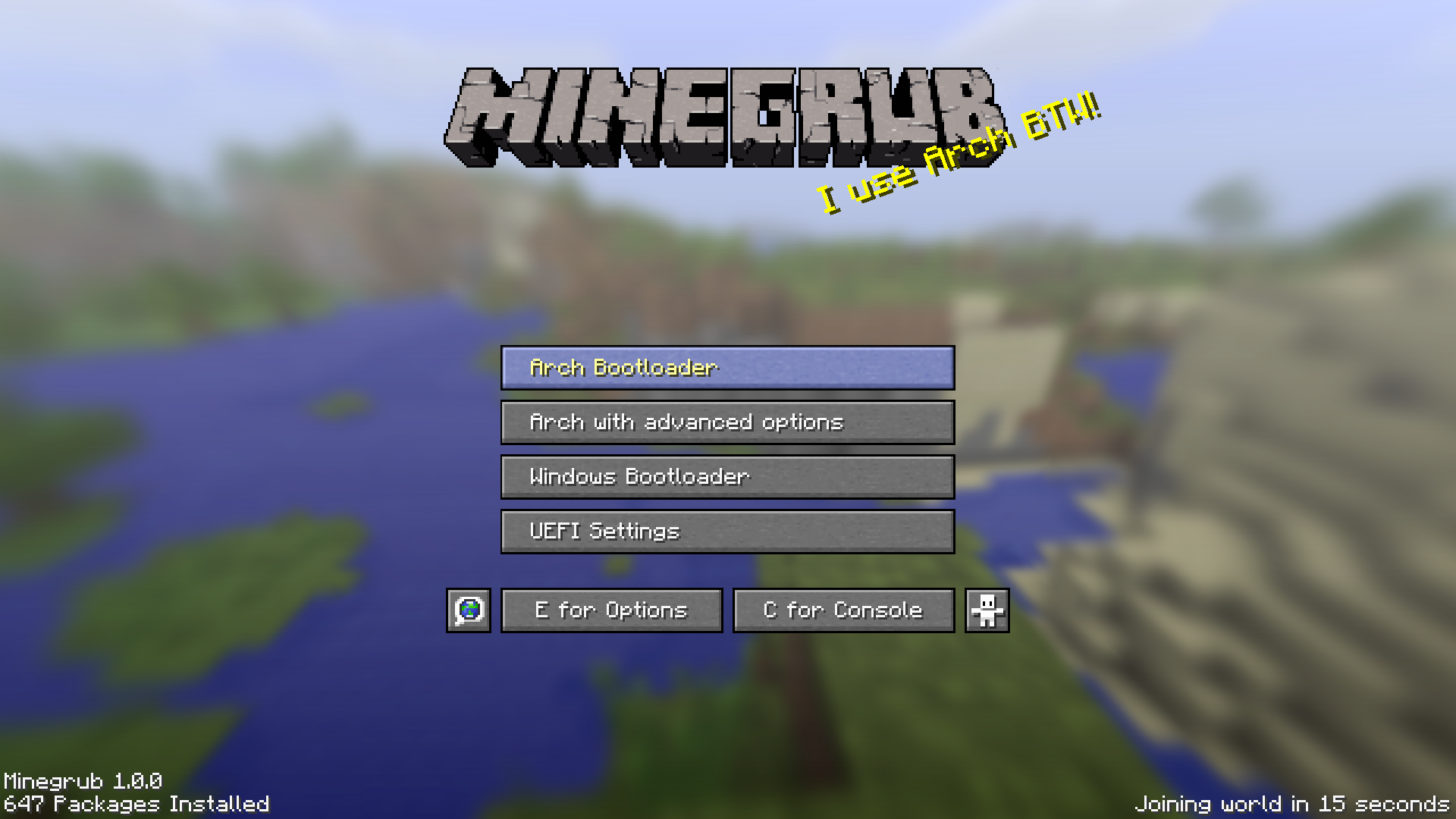
Ever boot your Linux machine and wish the GRUB menu looked half as cool as Minecraft? Minegrub-theme trades the standard black-and-white boot screen for a full Minecraft redesign with blocks, the iconic Minecraft font, and customizable backgrounds. It's purely cosmetic, but if you're a Minecraft fan running Linux, it's a fun way to add personality to your system.
What This Project Does
If you're used to staring at a plain GRUB bootloader menu for the 10 seconds it takes your system to start, minegrub-theme might make you smile. It's a complete visual reskin that transforms your boot screen into something that looks straight out of Minecraft. The menu shows up with the classic Minecraft colors - those blocky aesthetics, the familiar fonts - and even displays helpful status information with a Minecraft flavor.
The theme includes startup splash text (customizable, more on that later), a Minecraft-style background, and buttons that actually look decent instead of the default gray rectangles. And here's the thing - it works on any Linux system using GRUB2, which covers most major distributions.
One quick note: you'll need root access to install it, and your system needs to be using GRUB2 specifically, not the older GRUB. If you're not sure which you've, you can run grub-mkconfig -V to check.
The project has over 4,400 stars on GitHub, which tells you this isn't some abandoned side project. It's actively maintained and there's a real community around it.
Why You'd Use It
Look, this is purely cosmetic. It doesn't speed up your boot, doesn't add features to GRUB, and won't help you debug boot issues. But if you're someone who loves Minecraft - whether that's testing server tools with a Votifier tester, browsing quality community servers, or just passionate about the game - extending that love to your entire system makes sense.
Some people keep Minecraft running in the background while they tinker. Others have custom Minecraft desktop backgrounds. This just takes it further.
There's something nice about the few seconds before your login screen appears becoming a little less utilitarian. Plus, it's a conversation starter. Friends see your boot screen and immediately get what you're into.
How to Install
The project provides both a manual installation path and a script that does most of the work for you. Let's start with the script since it's simpler.
First, clone the repository:
git clone https://github.com/Lxtharia/minegrub-theme.git
cd minegrub-theme
Then run the installation script with sudo:
sudo./install_theme.shThe script will walk you through the setup, let you choose a background if you want, and handle the system configuration automatically. It's the path I'd recommend unless you like tinkering manually.
If you prefer doing things manually, here's what happens under the hood. Copy the minegrub folder to your GRUB themes directory:
sudo cp -ruv./minegrub /boot/grub/themes/Then edit your GRUB config file at /etc/default/grub and find or add this line:
GRUB_THEME=/boot/grub/themes/minegrub/theme.txtAfter saving, rebuild your GRUB configuration:
sudo grub-mkconfig -o /boot/grub/grub.cfgReboot, and you should see the Minecraft theme on your next startup. One important caveat: some systems use /boot/grub2 instead of /boot/grub. Check your boot directory structure with ls /boot/ before running commands.
Customization Options
The default theme looks great, but minegrub-theme gets more interesting once you customize it. Background images are the easiest change. The project includes a folder called background_options/ with several images you can choose from - classic Minecraft biomes, that sort of thing. You can either use the included choose_background.sh script to pick one, or drop your own PNG into the minegrub/ folder and name it background.png.
The splash text (that message at the bottom of the boot screen) is also configurable. You can set it to show random text every boot, or pick something static. Some people set it to their system name, others go for something funny.
There's also a service file that can auto-update things like your background or display package counts at boot time. Want a different background every time you boot? You can add multiple images to minegrub/backgrounds/ and use the update service to randomize which one appears. Pretty slick for keeping things fresh.
Tips, Pitfalls, and Gotchas
Boot option counts trip up a surprising number of people. GRUB lets you configure how many boot options show up (kernel versions, recovery mode, etc.). If you've way more boot options than the theme expects, the menu buttons can overlap or look weird. The configuration file has a setting called boot-options-count that you'll need to adjust to match your actual setup.
Another common surprise: the theme uses specific Minecraft fonts. If those fonts aren't installed on your system, it'll fall back to something else and won't look quite right. Most modern Linux distros handle this fine, but it's worth checking if something looks off.
The /boot/grub2 versus /boot/grub thing I mentioned earlier catches people too.
One more thing - if you apply updates or reinstall GRUB through a package manager, it might undo your theme. It's not permanent, you just need to re-run grub-mkconfig again. Not a huge deal, just something to keep in mind.
Other Minecraft Linux Themes
If you love the Minecraft aesthetic on Linux, minegrub-theme isn't your only option - though it's probably the most polished. There's a companion project called minegrub-world-sel-theme that styles your world selection screen the same way. If you dual-boot and need to choose which OS to load, both screens can match. There's also a project that combines both themes into what they call "double-minegrub-menu" so everything looks cohesive.
Beyond the GRUB ecosystem, the Minecraft Linux community has created themes for other parts of your system. There's a Minecraft SDDM theme (that's your login screen), a Plymouth theme (the splash screen during boot), and even a KDE Splash screen that shows while worlds load. Each one scratches a different itch depending on what parts of your system you want to Minecraftify.
The ecosystem's honestly pretty cool. You could theoretically theme your entire boot and login experience to feel like Minecraft if you really wanted to. Some people do.
Visit Lxtharia/minegrub-theme on GitHub ↗
Lead writer at minecraft.how. Long-time Minecraft player running a small SMP server, testing every build, mod, and seed before writing about it.