How to Use PackSquash to Optimize Minecraft Packs

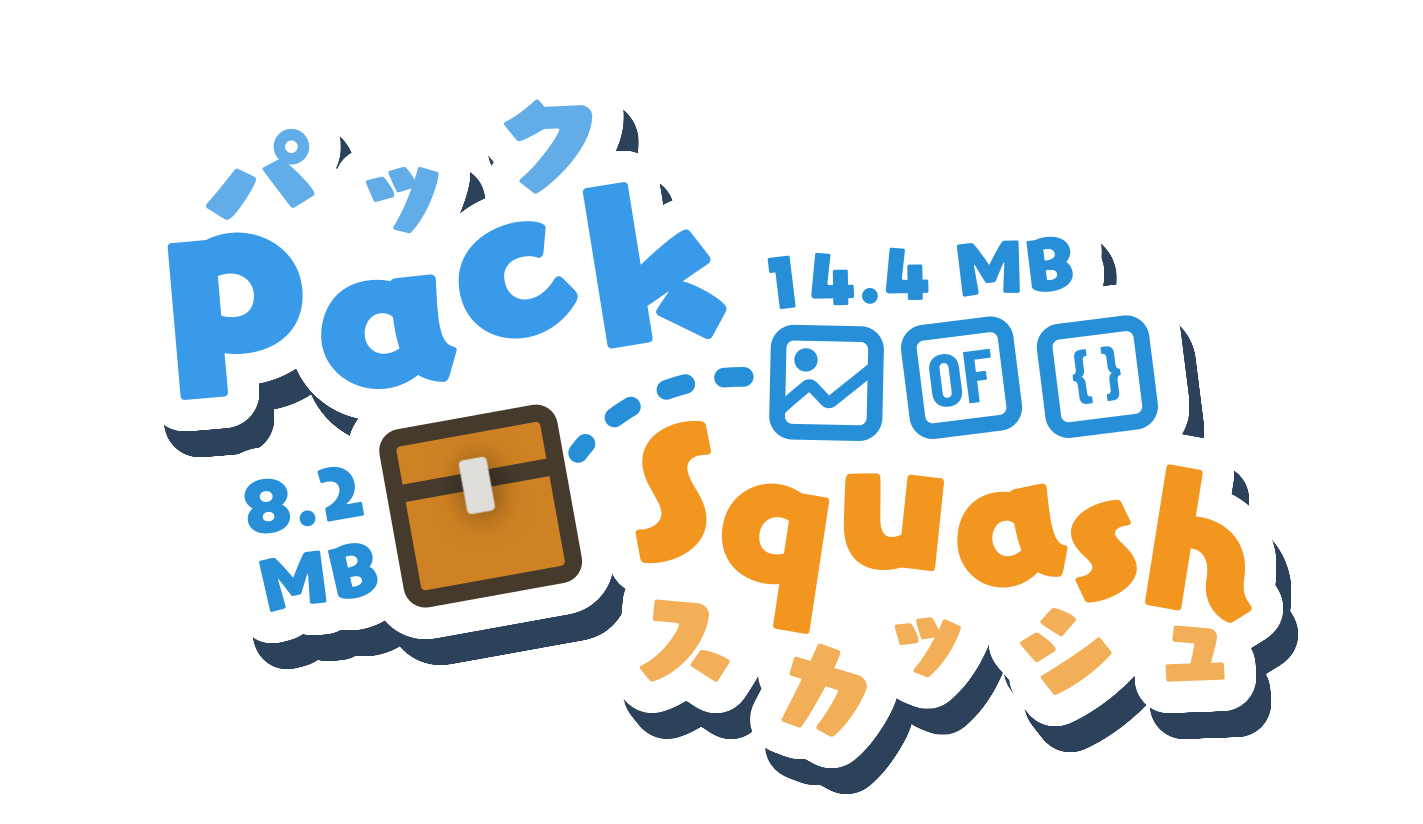
PackSquash (ComunidadAylas/PackSquash)
📦 Minecraft: Java Edition resource and data pack optimizer which aims to achieve the best possible compression, performance and protection, improving pack distribution, storage and in-game load times.
If you've ever downloaded a resource or data pack that's 100+ megabytes, then waited for it to extract in-game, you've felt the pain PackSquash solves. This Rust-built optimizer shrinks your packs dramatically - sometimes by 50% or more - without destroying quality. Smaller downloads, faster loading, better performance. That's the whole pitch, and it actually works.
What PackSquash Does
PackSquash walks through your resource or data pack directory and intelligently compresses every file type it recognizes. PNG textures get quantized and optimized. Audio files get resampled and transcoded. JSON files get minified. Shader code gets stripped of unnecessary whitespace. Even NBT datapack files get a dedicated compression pass.
The project's README notes a real-world example: reducing the Witchcraft & Wizardry resource pack from 118 MiB to 57 MiB - a 51.69% size reduction. That's not uncommon.
What makes PackSquash different from just using a ZIP program is that it doesn't blindly compress everything. It understands Minecraft file formats. The result knows which metadata can be safely removed from PNGs, which audio channels you don't need, which JSON whitespace doesn't matter to the game. The tool does the thinking so you don't have to.
Why Pack Size Matters
Smaller packs feel like a luxury until you actually need to install one on a server.
Imagine you're distributing a custom resource pack to 50 players. Every 10 MiB of unnecessary file size multiplies across downloads, wastes bandwidth, and creates friction. Some players will give up halfway through. For datapacks on servers, large file sizes directly slow down world load times and chunk processing. Your server has to read more data from disk and RAM.
Then there's the in-game experience. Modern texture packs and shader packs pile up in file size fast. Your game takes longer to load. Every asset lookup is slightly slower when the pack isn't optimized. You probably won't notice 50 milliseconds, but you'll notice 500.
And if you're hosting packs on your own infrastructure (not a major CDN), smaller files mean lower bandwidth costs. Actually having money in your budget for other projects? Nice.
Getting PackSquash Running
Installation is straightforward. Head to the GitHub releases page and grab the binary for your OS (Linux, macOS, Windows all covered). Unzip it somewhere convenient.
Basic usage:
./packsquash path/to/your/packThat's it. PackSquash will scan the directory, apply default compression settings, and spit out an optimized ZIP file in the same location. The defaults are sensible - they balance quality and file size without being too aggressive.
If you want to customize how PackSquash handles your pack, you create an options file. Create a file called `packsquash.toml` in your pack directory:
[pack]
zip_compression_method = "Stored"
zip_compression_level = 9
png_color_quantization_target = 256
The project's options documentation walks you through every setting. Start with defaults, then tweak if you've specific quality requirements or unusual file types.
Compression Techniques Worth Understanding
PNG optimization is where PackSquash shines. It uses color quantization (reducing your 24-bit colors down to a smart palette), bit-depth reduction, and metadata stripping. New in v0.4.1: PNG obfuscation scrambles texture data to protect it from casual viewing outside the game. If you've ever worried about people extracting your custom textures, this is the answer.
Audio files support channel mixing, downsampling, and Vorbis transcoding. The default settings aim for quality that sounds good in-game without the bloat of studio-grade audio. You can also auto-detect and remove silence from the beginning and end of sound files. Useful if your sound files have long padding.
JSON and shader minification strips whitespace and validates syntax while it's at it. As a bonus, if your JSON files have errors, PackSquash will catch them before you release your pack. Actually finding typos in 50 JSON files? This tool does it faster than you can open them.
The latest release added better compatibility with modern packs. Packs generated with strict ZIP conformance now work on Java 22+. Several shader mis-optimization bugs were fixed without requiring user workarounds.
Configuration Tips and What Trips People Up
Here's the biggest gotcha: PackSquash is aggressive by default. If you're paranoid about quality, test the optimized pack in-game before distributing it to others. Load a world, check your textures, play some audio, run around.
PNG quantization is subtle on realistic texture packs but noticeable on flat-color artistic packs. If you need zero quality loss, you can disable quantization and rely on lossless compression alone. The file won't shrink as much, but it'll be pixel-perfect.
Don't forget: PackSquash respects your pack's structure. If you've custom files that aren't standard Minecraft formats (maybe documentation or metadata), PackSquash won't touch them. They'll pass through unchanged into the output ZIP.
One more thing - actually, that only works for v0.4.1 and later - the new ZIP comment option lets you embed metadata or credits directly in the ZIP file itself. Instead of including a separate text file, you can store your pack attribution in the archive comment. It's a small touch that keeps your pack directory cleaner.
Other Tools in the Pack Optimization Space
PackSquash isn't the only option. OptiPNG is older and focuses purely on PNG optimization, which is useful if that's your only concern. PNGQuant handles color quantization specifically. Neither is as complete as PackSquash.
Some pack creators use manual compression with 7-Zip or RAR, which can help but doesn't optimize the files themselves - just the archive. You'll get modest size reductions without the per-file smarts PackSquash brings.
If you're running a server, tools like server status checkers help you monitor whether your pack is loading correctly. Smaller packs paired with a healthy server mean faster player joins. Similarly, if you're working with terrain or navigation, a nether portal calculator helps you plan pack distribution across dimensions.
But for pure compression, PackSquash stands ahead because it understands Minecraft formats in depth.
The project is open-source (AGPL-3.0) and actively maintained. And that community Discord is responsive, and the GitHub wiki covers setup thoroughly. If you hit a wall, help is usually just a question away.